Guide sections

THE SLOS EXPERIENCE™ GUIDE

Welcome, Architect

A visual guide to Serene Life OS™—from the first assessment to Blueprint, Execution, Strategy Support, Strategy Context, and Daily Serene Calibration™.

Section 01

How to Use This Guide

Intro

Serene Life OS™ helps you understand where you are, what needs your attention, and what to do next as you work toward the life, business, and future you want.

This guide explains the main parts of SLOS, including your assessment, Strategic Blueprint™, Execution Roadmap, Strategy Support, Strategy Context, and Daily Serene Calibration™. You’ll learn what each part does, when to use it, and how it helps you move closer to your goals.

You don’t need to understand everything before you begin. Start with the section that matches where you are, then come back whenever you need help, clarity, or a quick refresher.

Built with SLOS

SLOS is also being used to build SLOS.

Throughout this guide, you’ll see examples from the development and growth of the platform itself. These examples are included so you can see how SLOS supports real decisions, priorities, execution, and evolution over time.

To protect privacy, personal or sensitive details are sanitized, replaced, or created for demonstration purposes.

How to use this guide

You can read the guide from beginning to end or jump directly to the feature you are using now.

Each section helps you understand:

01

What you are seeing

A simple explanation of the screen, feature, or experience.

02

Why it matters

How this part of SLOS helps you make decisions, stay clear, or keep moving.

03

What to do next

The next step you can take when you are ready.

Privacy and demonstration note

Some images in this guide use generated or sanitized sample content to demonstrate The SLOS Experience™. They do not show any specific Architect’s private information, including Blueprint, assessment, Strategy Support, Daily Serene Calibration™, Execution, Strategy Context, or account details.


Section 02

Homepage / Entering SLOS

What is this page?

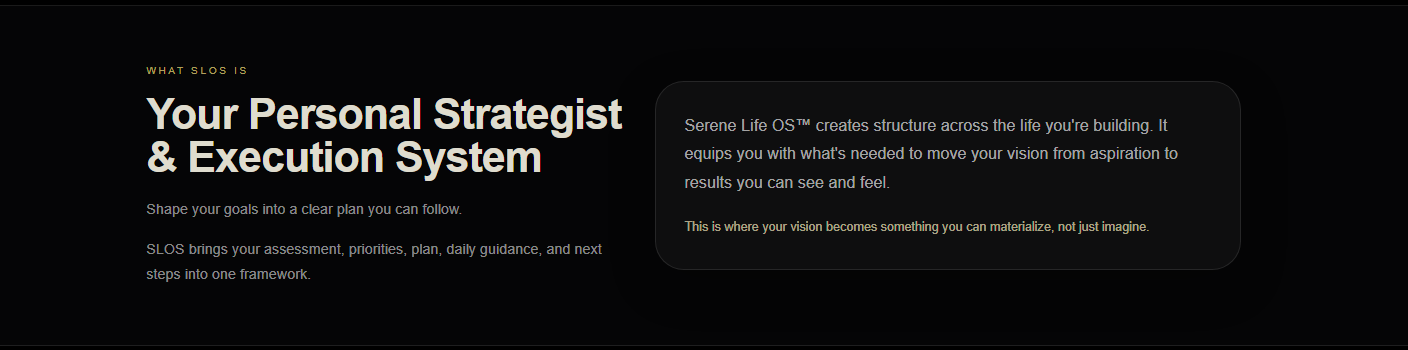
The main entry point into SLOS.

What can I do here?

Learn what SLOS does, explore the experience, and begin the assessment.

What should I do first?

Select Start Your Assessment to begin your Life Architecture Assessment™.

Section introduction

The SLOS homepage gives you a simple place to begin.

From here, you can learn what SLOS is designed to help you do, explore the main parts of the experience, and start your assessment when you are ready.

The assessment is the best starting point because it gives SLOS the information needed to create your first Strategic Blueprint™.

Use the homepage as your starting point

The homepage introduces SLOS and gives you a clear path into the experience.

Use this page to understand what SLOS helps with and where to begin.

What to do next:
Select the main button to start your assessment.

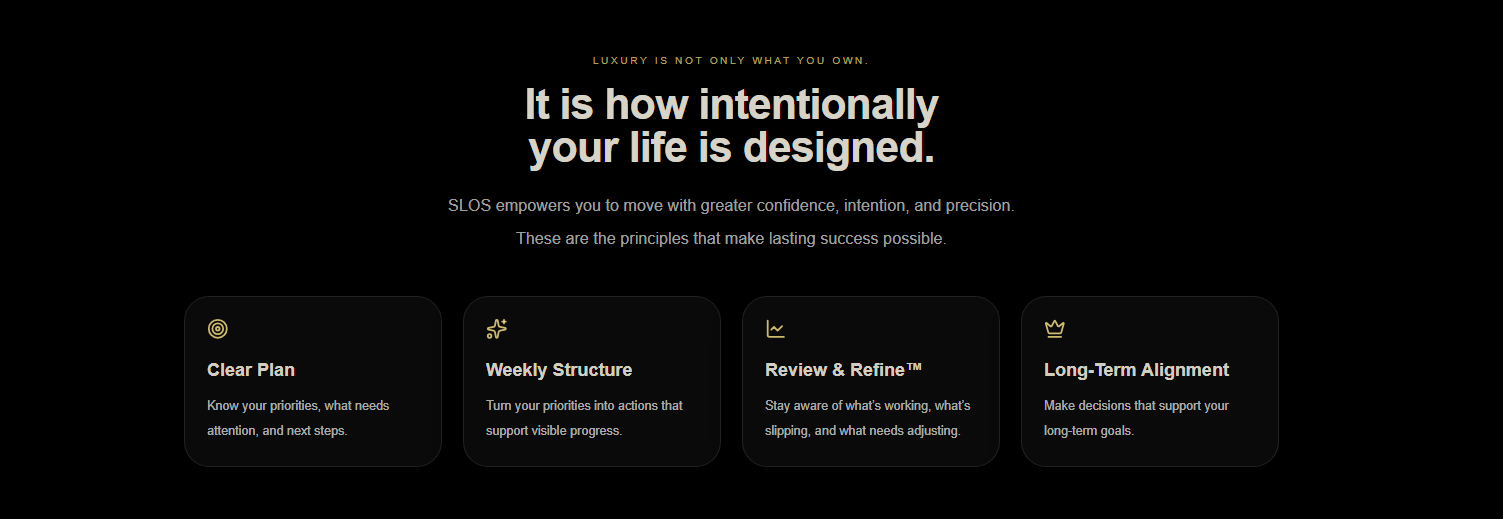
Homepage Hero Clarity Structure Freedom
Homepage What SLOS is
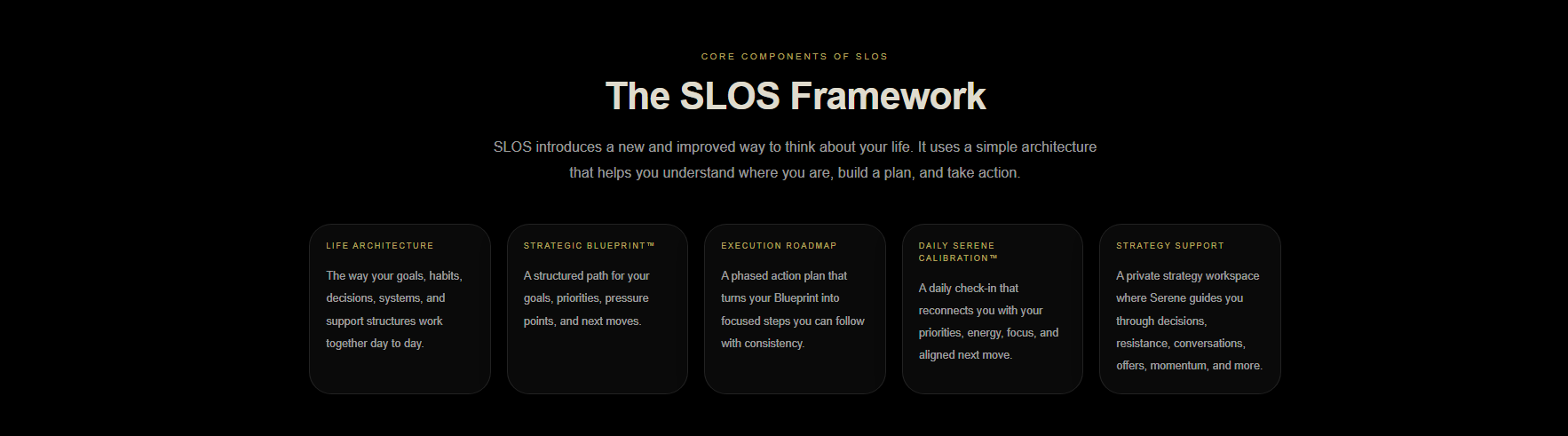
Homepage SLOS Framework

See how everything connects

This section gives you a simple overview of the SLOS journey.

You begin by sharing what is happening in your life or business. SLOS then uses that information to create direction, a plan, and ongoing support.

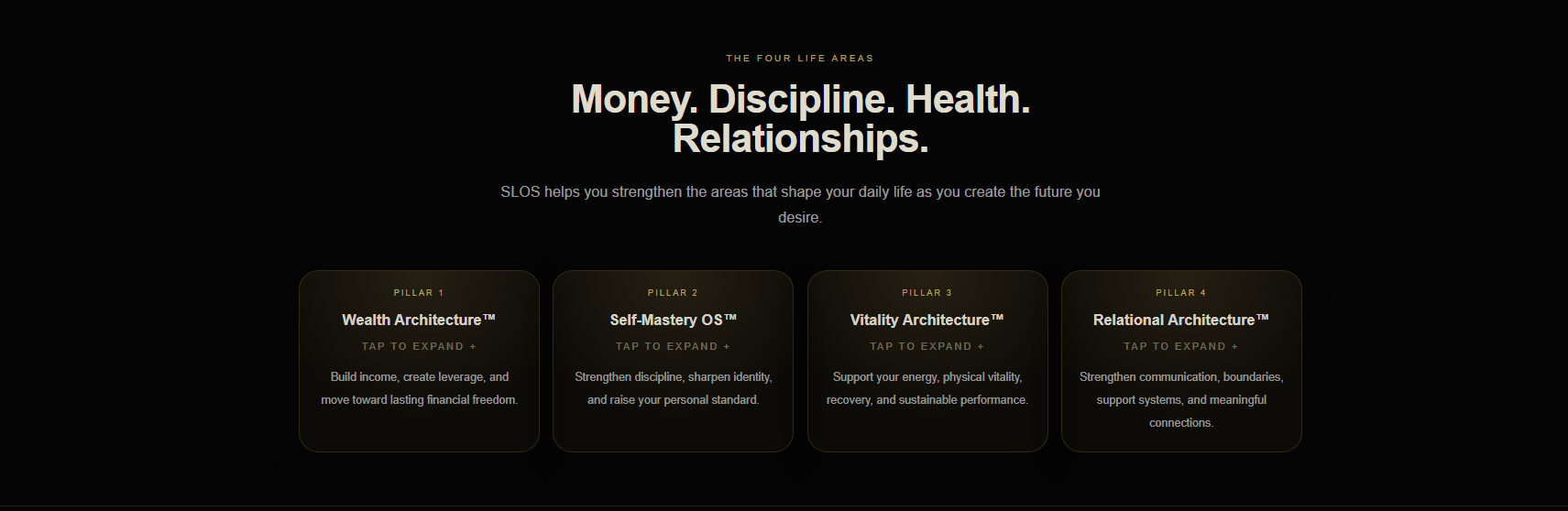
Homepage Four Life Areas
Homepage Who It is for
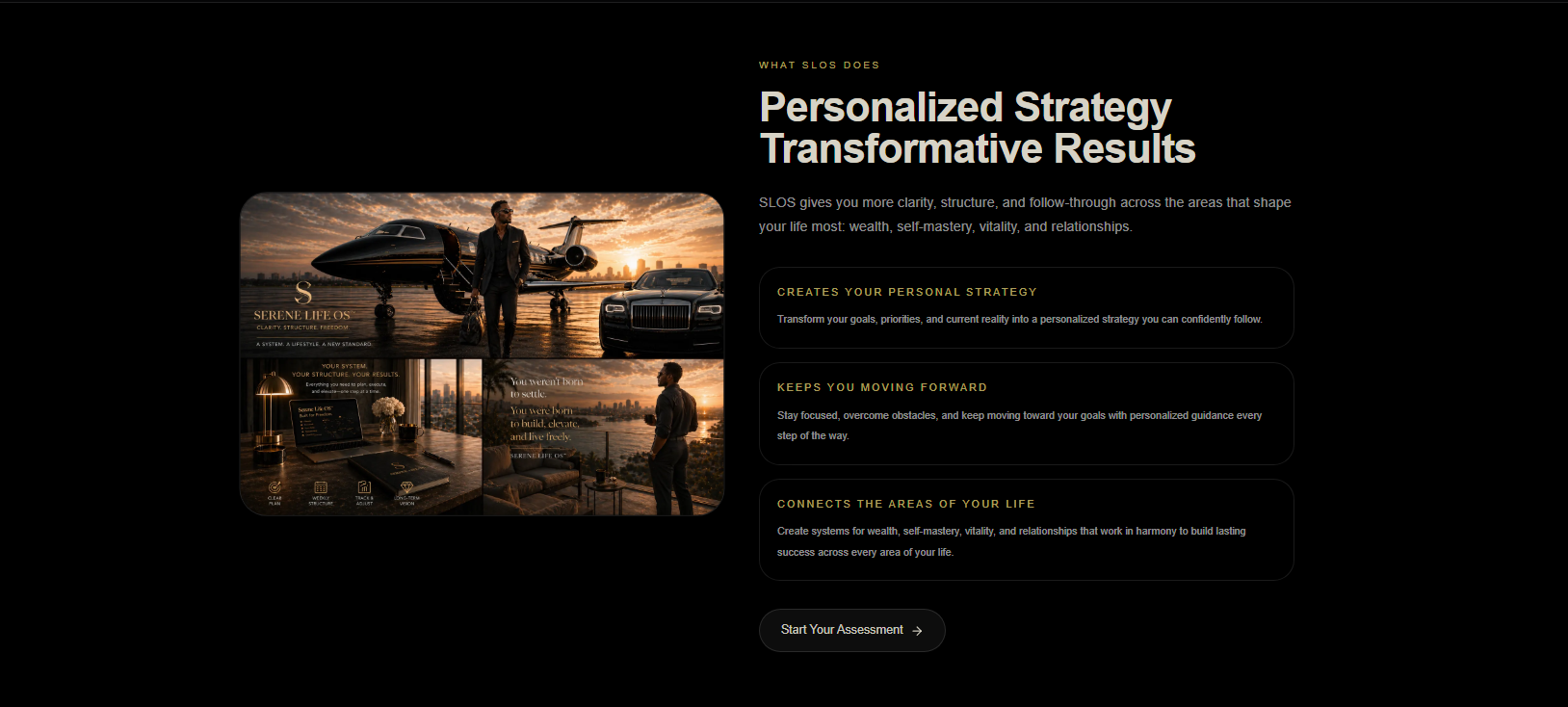
Homepage What SLOS Does
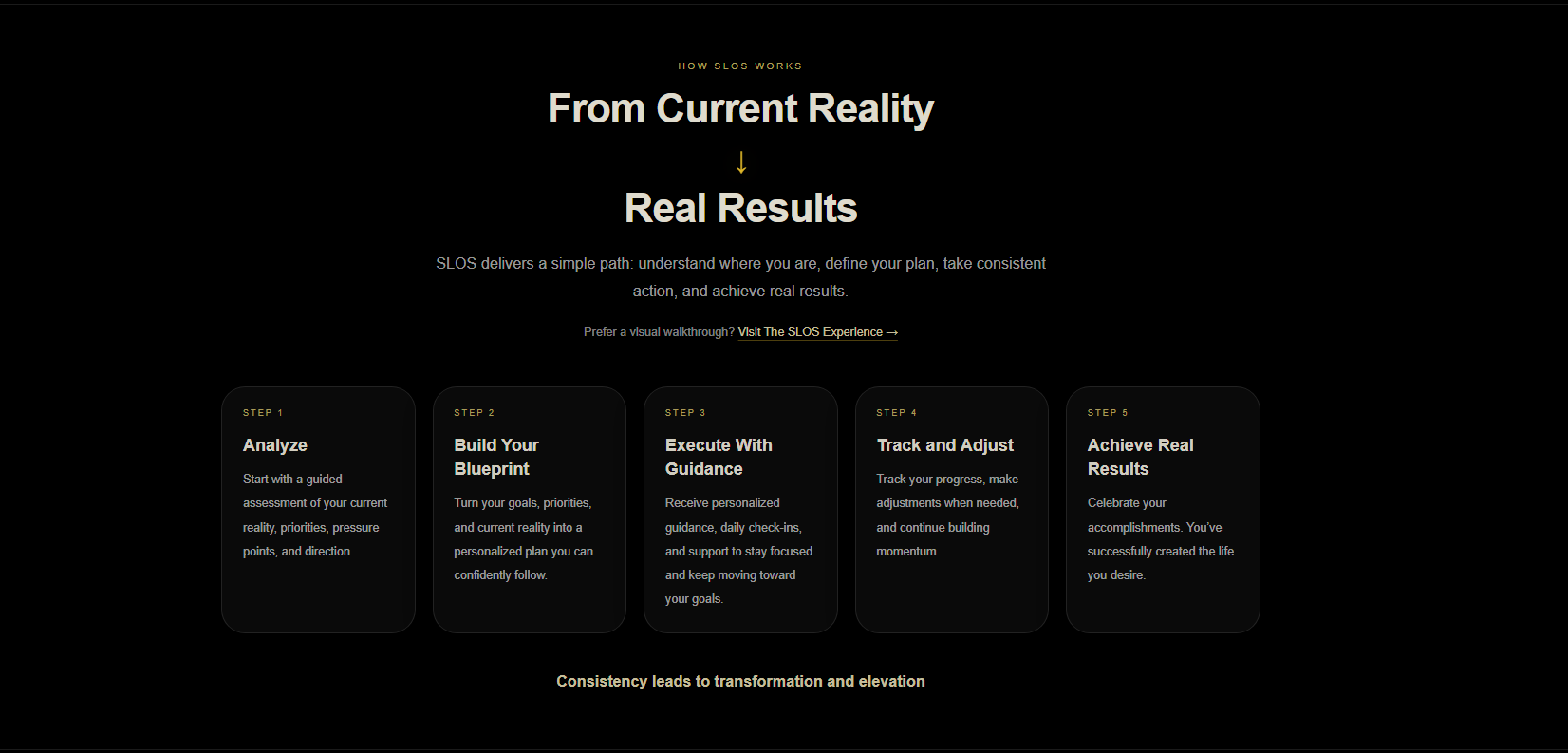
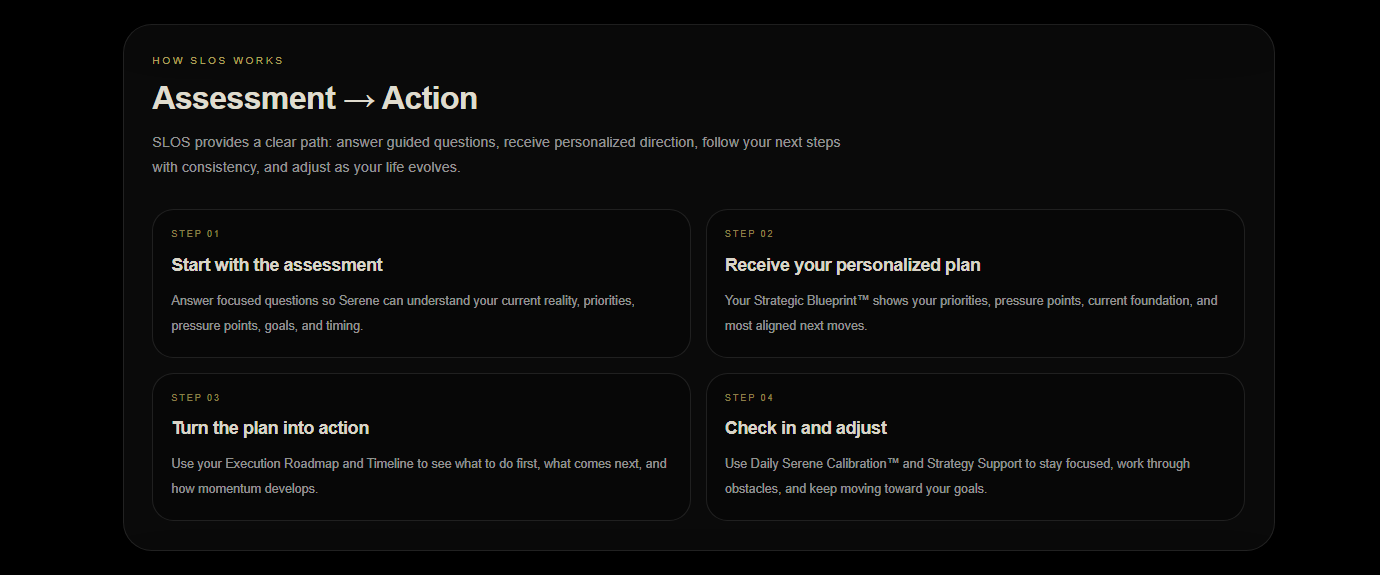
Homepage How SLOS Works

Explore before you begin

You can look through The SLOS Experience™ before starting your assessment.

This gives you a preview of features such as Blueprint, Execution, Strategy Support, Strategy Context, and Daily Serene Calibration™.

Homepage Intentional Life Design
Homepage SLOS Preview Trailer

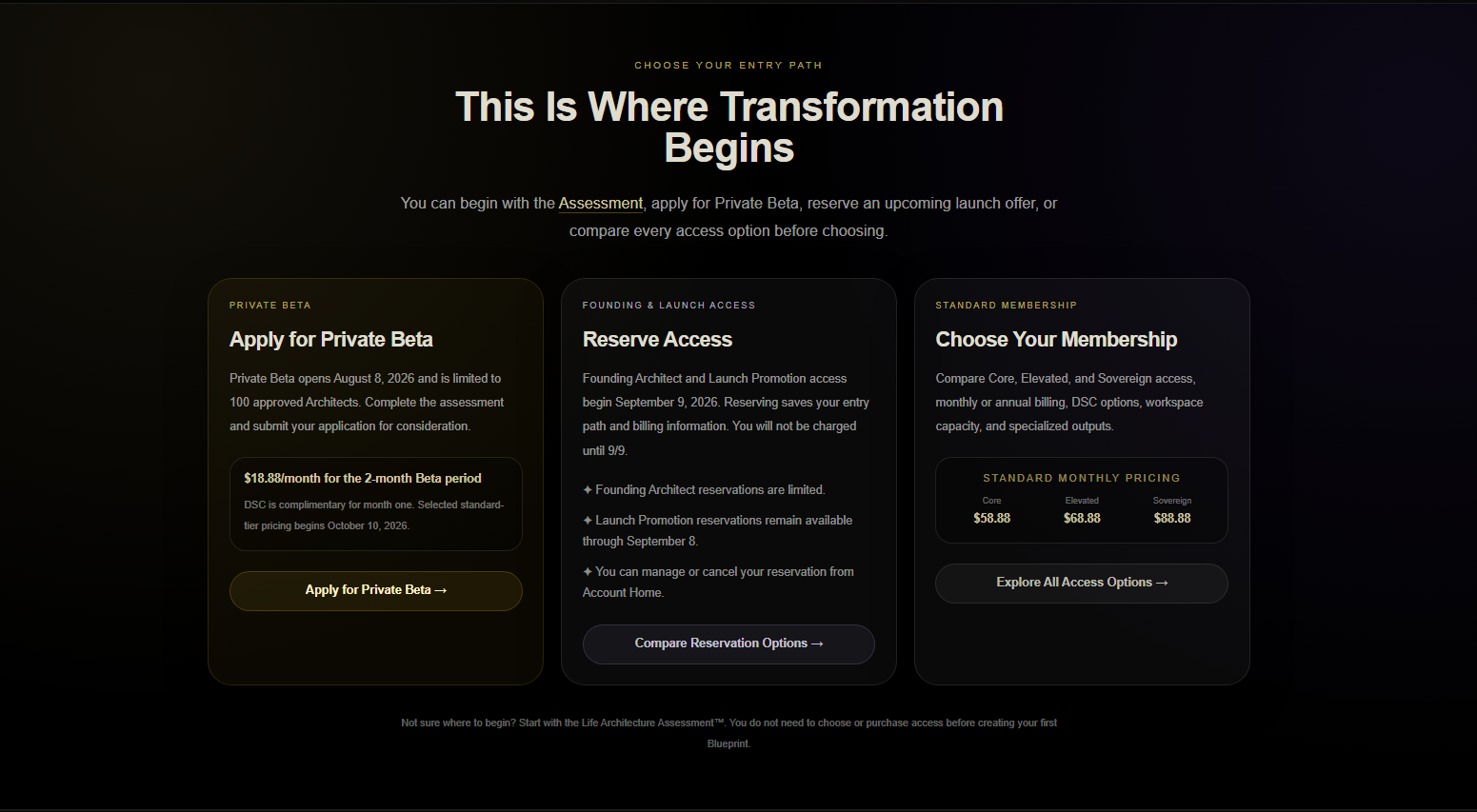
Choose the path that fits

Some visitors may enter through different sections of the homepage.

No matter which entry point you choose, the goal is the same: begin with enough context for SLOS to understand where you are and what needs your attention.

Homepage Entry Paths
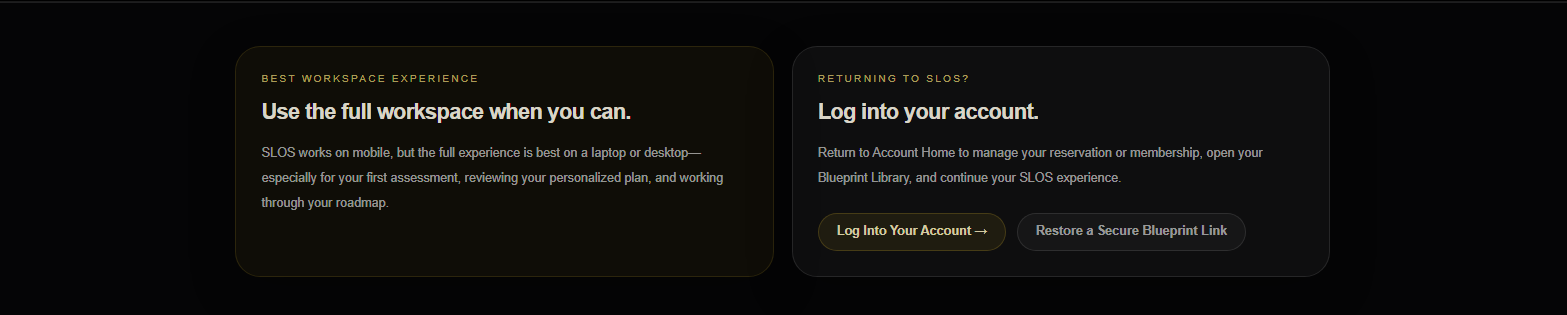
Homepage Workspace Returning User
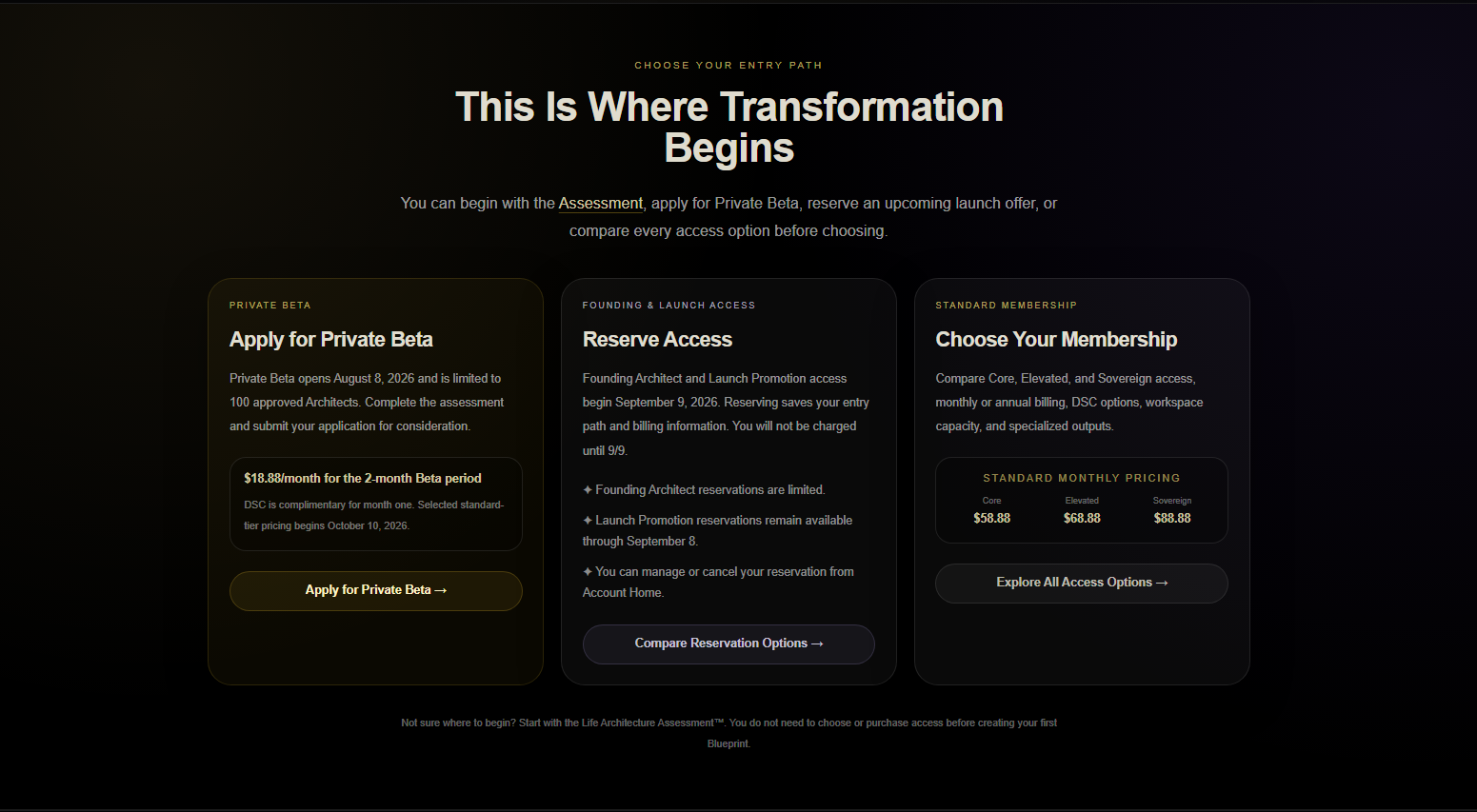
Homepage Entry Paths Alternate

When you are ready

Begin with LAA™. This is where SLOS starts learning about your current reality, goals, priorities, and what should happen next.


Section 03

Life Architecture Assessment™ (LAA™)

What is LAA™?

The assessment that helps SLOS understand your current reality, goals, priorities, and needs.

Why does it matter?

Your answers give SLOS the context needed to create a more useful Strategic Blueprint™.

What should I do here?

Answer honestly, choose the options that fit best, and add detail where it will help SLOS understand you more clearly.

Section introduction

LAA™ is where The SLOS Experience™ begins.

The assessment asks about your current situation, goals, priorities, communication preferences, and the area of life or business you want to work on first.

There are no perfect answers. Choose what feels most accurate right now. You can always create another Blueprint later as your goals, season, or priorities change.

The more useful context you share, the more specific your Blueprint will be.

Start with your current reality

The opening screen introduces the assessment and explains what will happen next.

You’ll move through a series of questions designed to help SLOS understand what you are working toward and what needs attention first.

What to do next:
Select the button to begin.

LAA™ Entry Current Reality

Choose how you want Serene to communicate

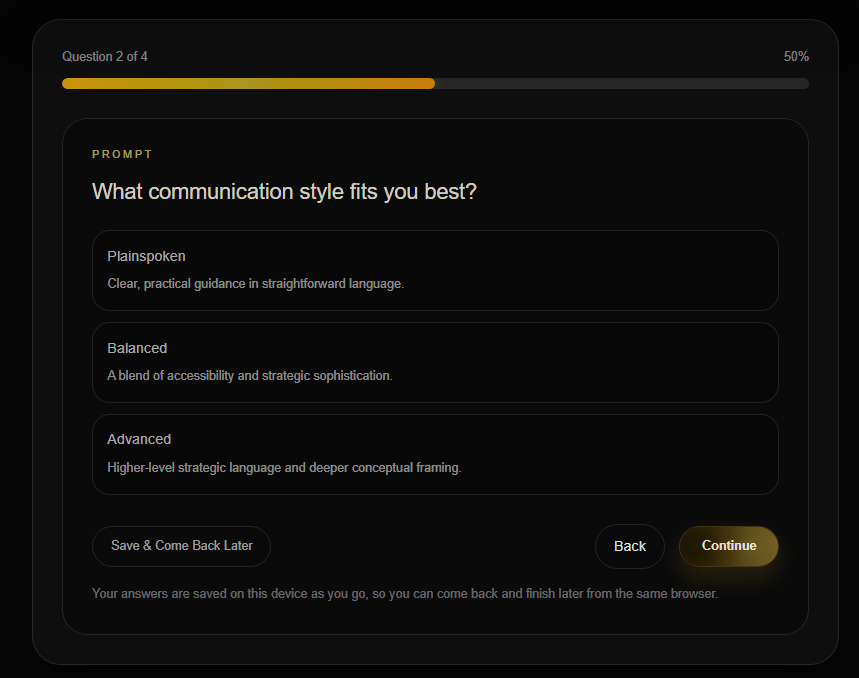
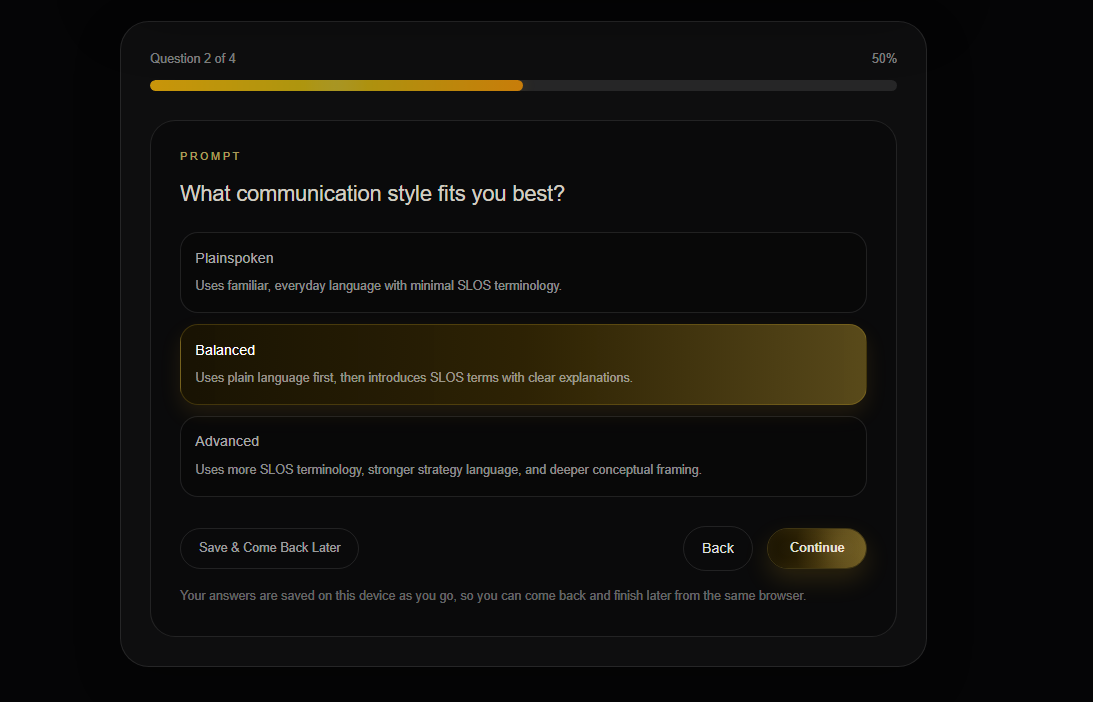
Communication Style controls how Serene explains ideas and presents guidance.

For example, Balanced keeps the response clear, supportive, and direct without leaning too far in one direction.

Choose the style that will make the guidance easiest for you to understand and use.

LAA™ Communication Style Options
LAA™ Communication Style Balanced
LAA™ SLOS Language Reference

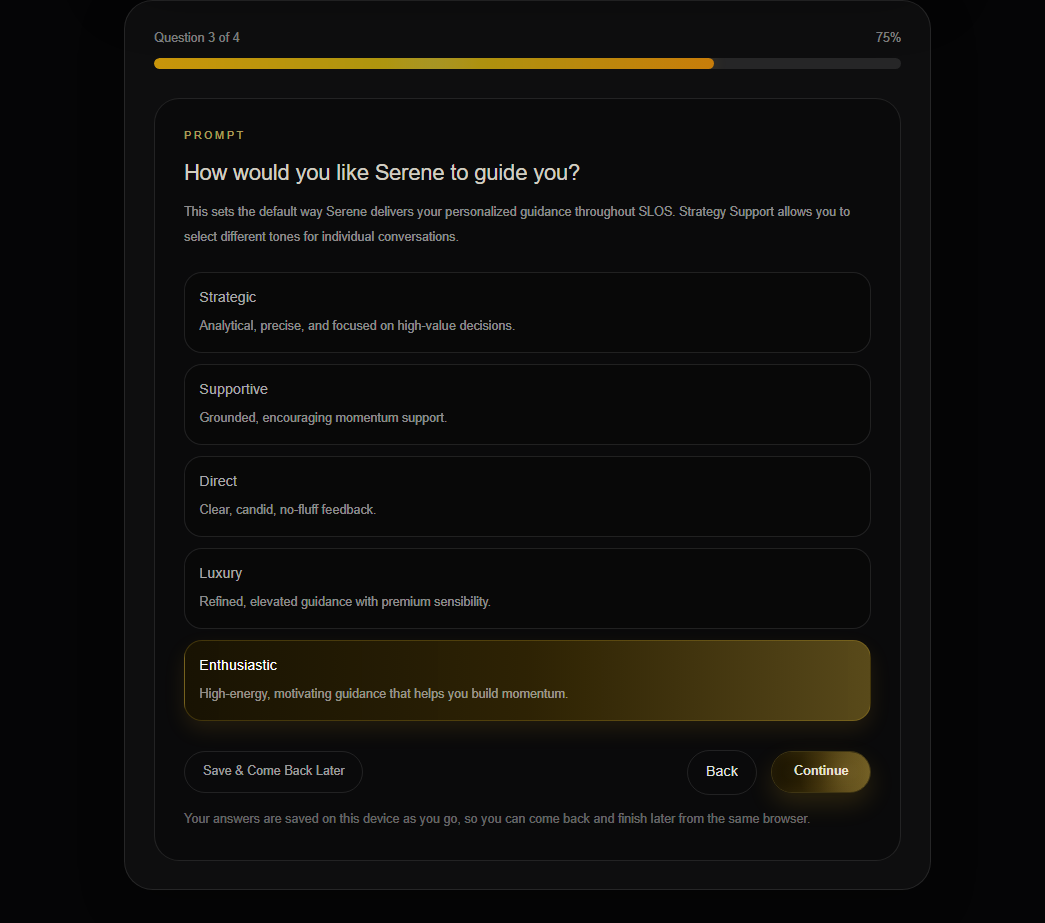
Choose the tone that fits you

Guidance Mode helps Serene understand how you want the response to feel.

For example, Enthusiastic adds more encouragement and energy while keeping the guidance clear and useful.

Choose the mode that feels most helpful to you right now.

LAA™ Guidance Mode Enthusiastic

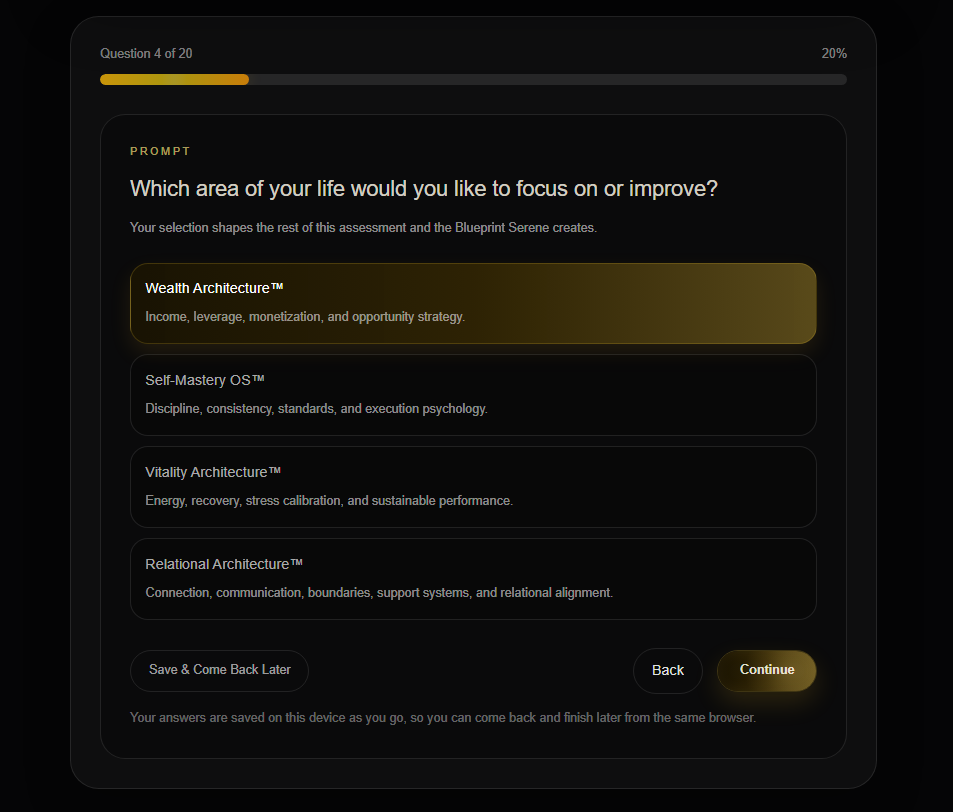
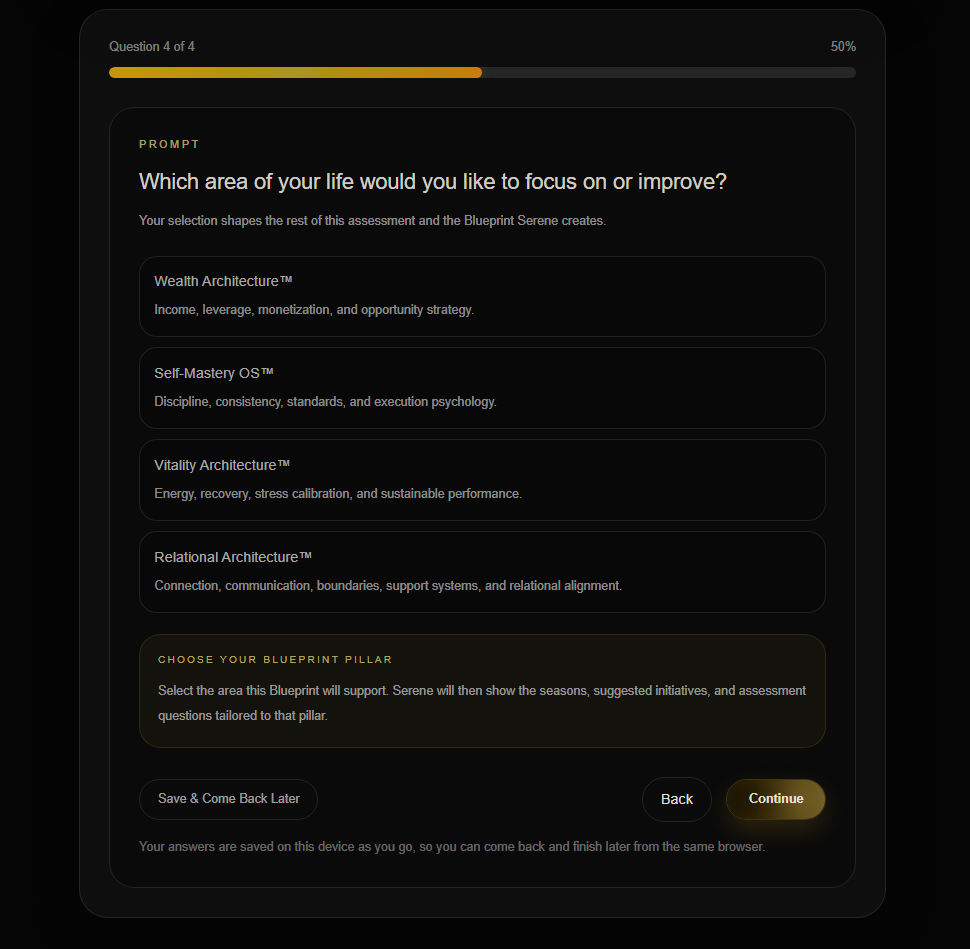
Choose your main focus area

Your Blueprint Pillar is the part of your life or business you want SLOS to support first.

The assessment begins with the SLOS pillars, then expands to show more specific choices. This helps you choose the area that best suits your needs and desires.

For example, Wealth Architecture™ includes goals related to income, business growth, financial stability, offers, and long-term wealth.

What to do next:
Choose the pillar that feels the most aligned with this Blueprint.

LAA™ Blueprint Pillar Options
LAA™ Wealth Pillar Selected Expanded

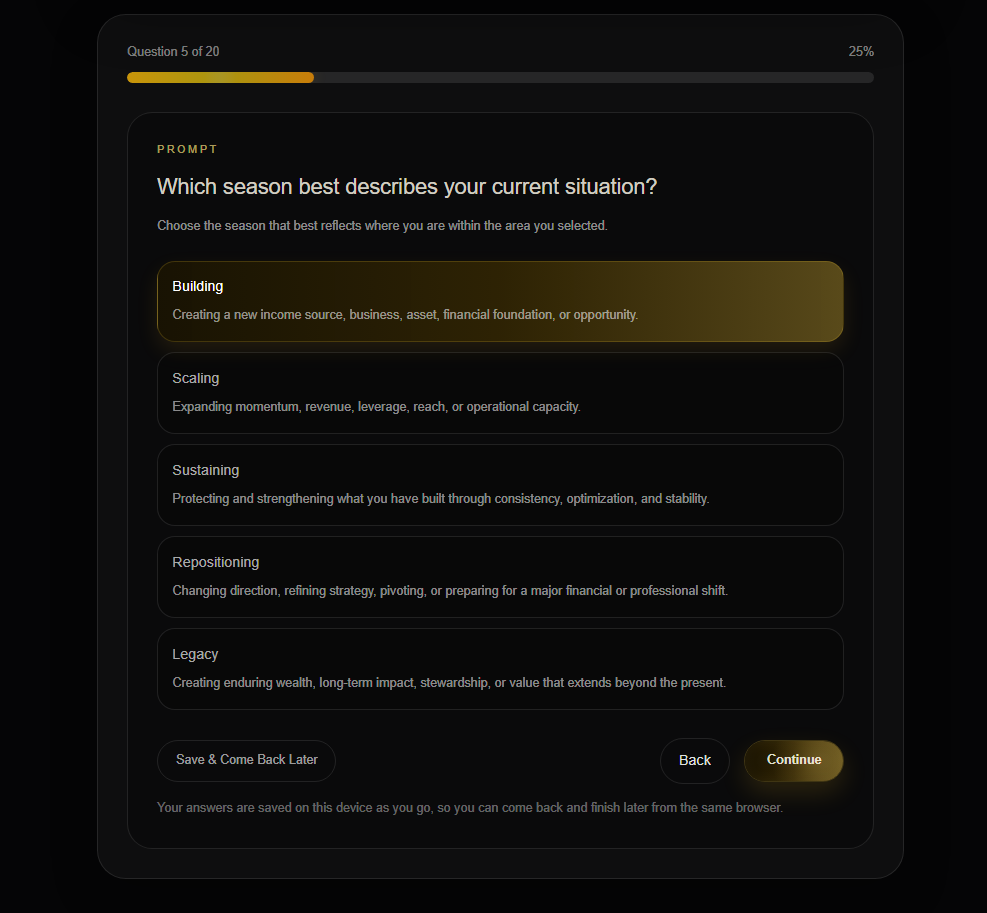
Tell SLOS what season you are in

Your season gives SLOS more context about your current stage.

For example, Building may mean you are creating, launching, improving, or strengthening something that is still taking shape.

Choose the option that best describes what is happening now.

LAA™ Current Season Building

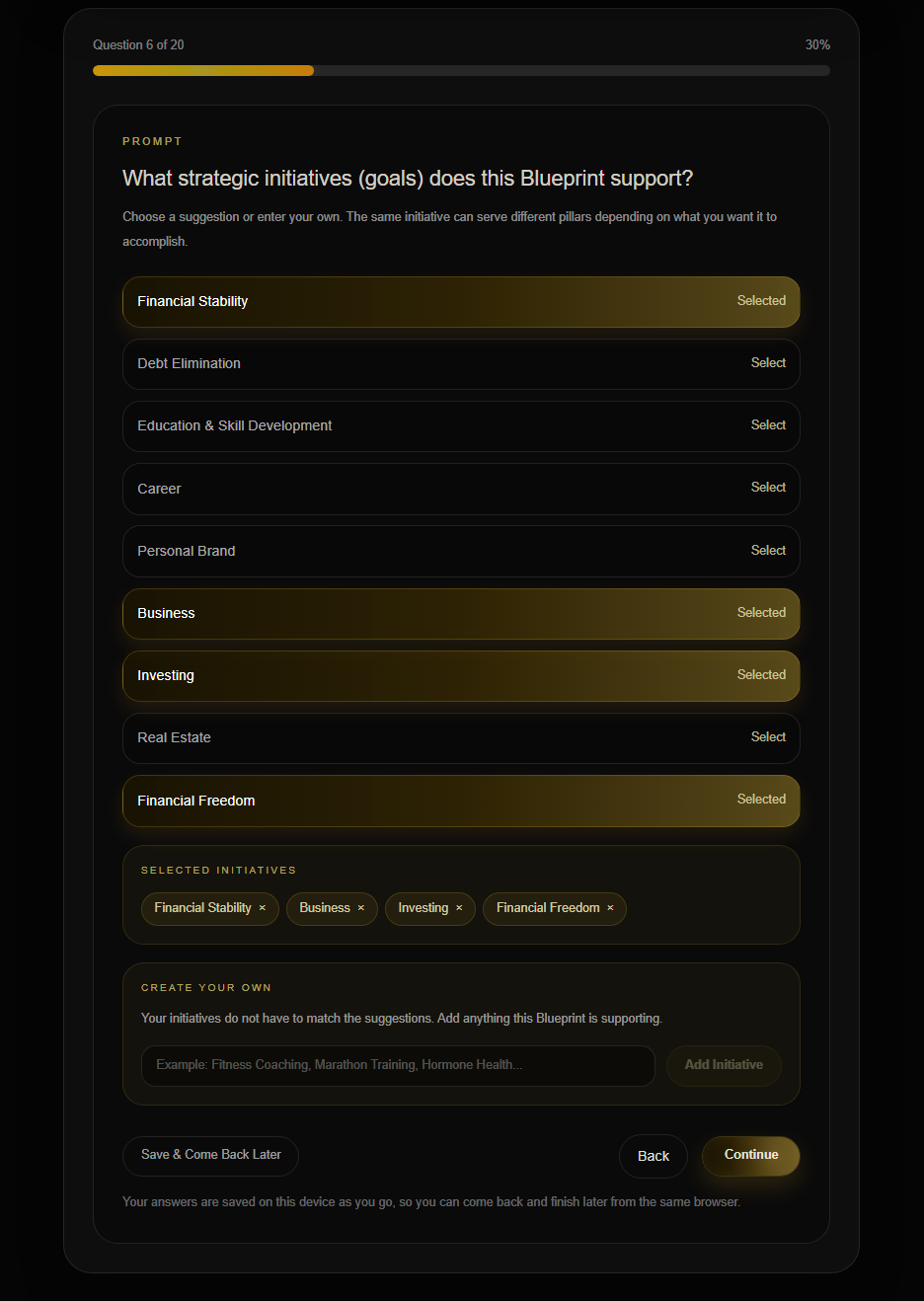
Select what you are actively working on

This step helps SLOS understand the projects, goals, or changes already competing for your time and attention.

You may be able to select more than one.

Choose the items most connected to what matters right now. This helps SLOS give guidance that fits what is already in motion.

LAA™ Strategic Initiatives Selected

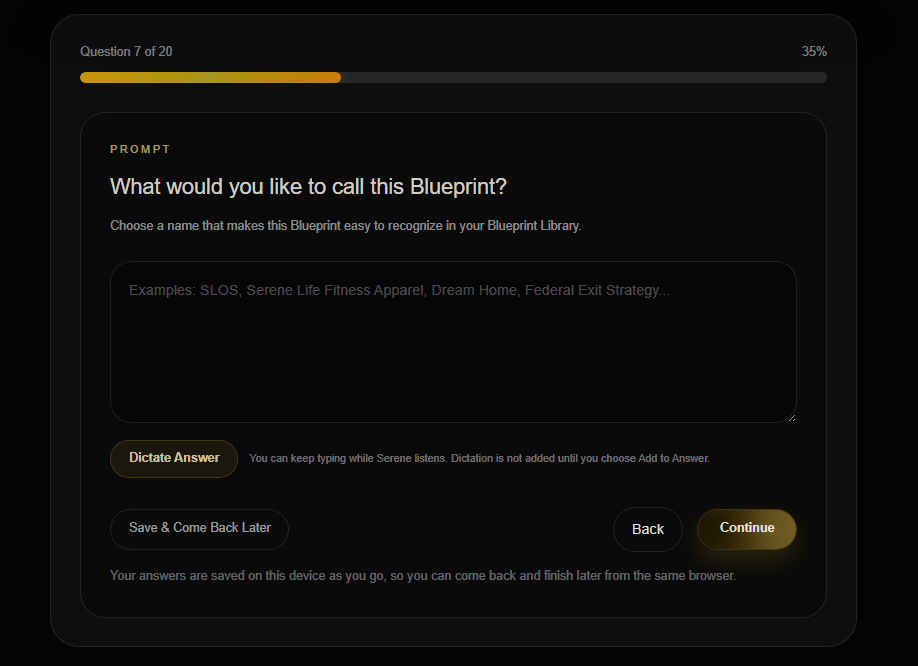
Give your Blueprint a clear name

Your Blueprint name helps you recognize it later in your Blueprint Library.

Choose a name that describes the goal, season, project, or area of focus.

Examples could include:

  • Wealth Expansion
  • Business Launch
  • Career Transition
  • Vitality Reset
  • Leadership Growth

Keep it simple and easy to recognize.

LAA™ Blueprint Name

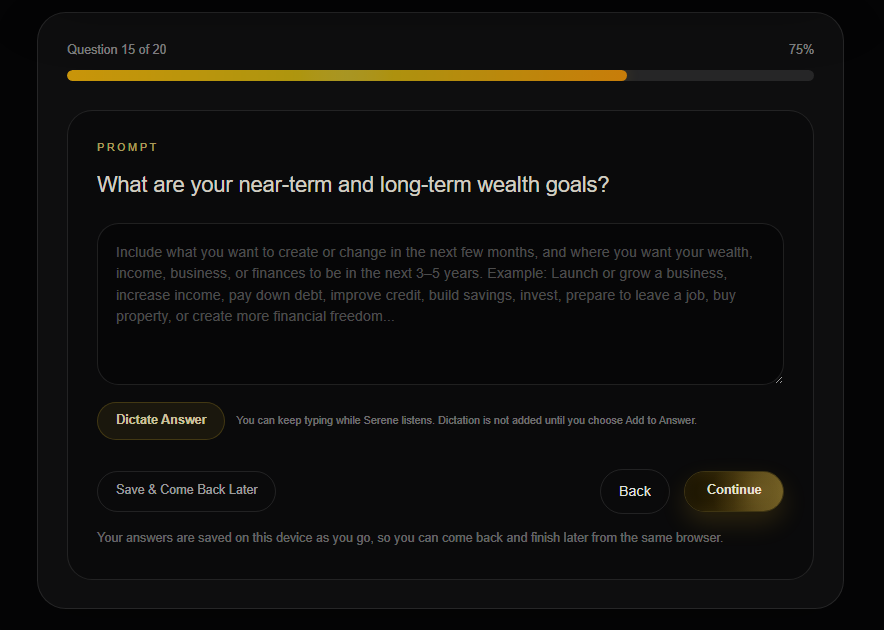
Share what you want to change now and the future you’re working toward

Your near-term goals help SLOS understand what you want to improve, complete, begin, or decide in the coming weeks or months.

Your long-term goals give SLOS a clear view of the life, business, financial position, well-being, or level of freedom you want to create over time.

Share both in one response so your immediate priorities stay connected to the bigger picture. The more specific you are, the more useful your Blueprint will be.

Life Architecture Assessment near-term and long-term wealth goals

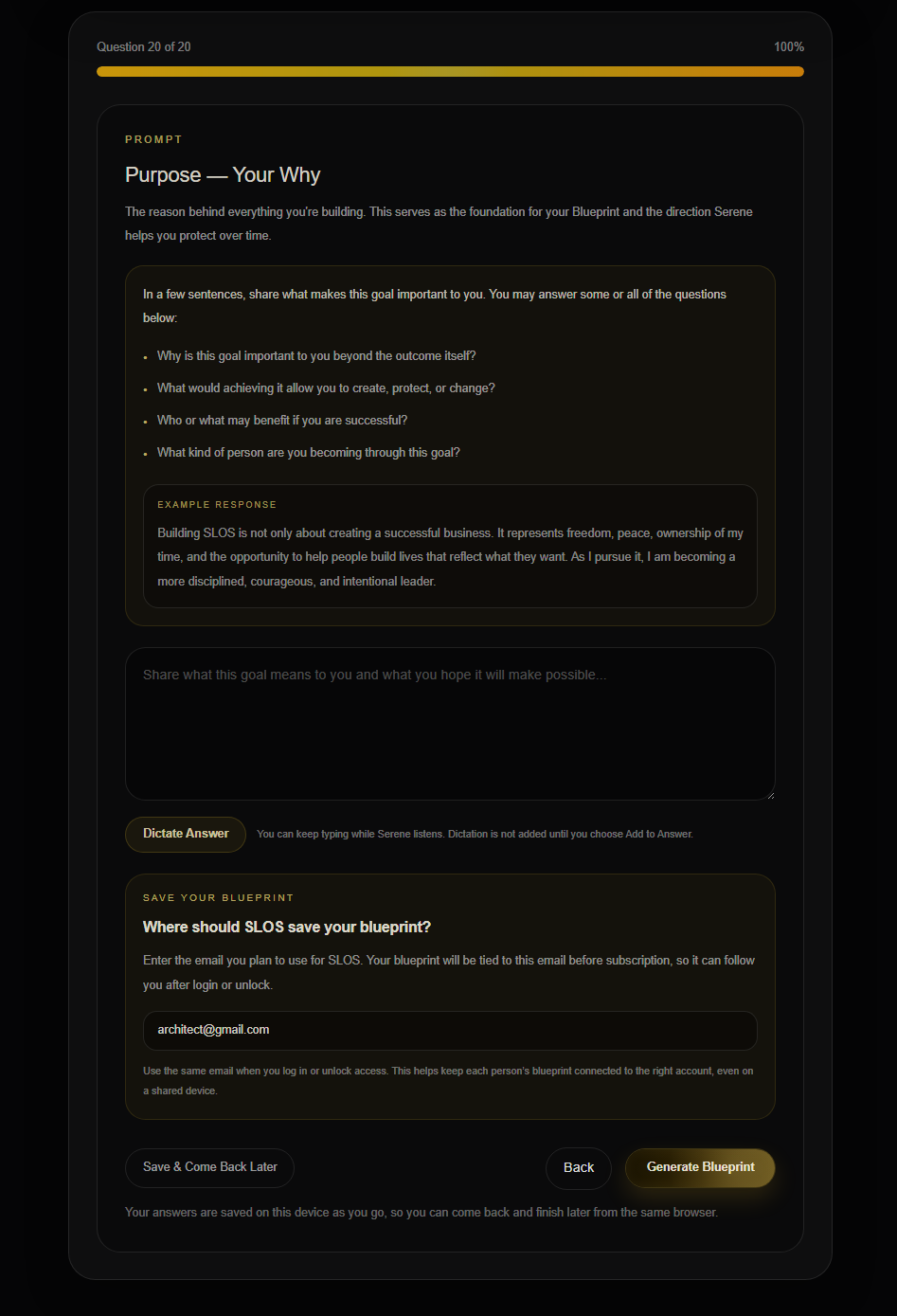
Explain why this matters to you

Your Why gives meaning to the goal.

Share what would change if you reached it, why the timing matters, or who and what the outcome would support.

This helps SLOS create guidance that reflects more than the task itself.

LAA™ Purpose Your Why Save Blueprint

Review what you shared

Before moving forward, review your answers and make sure they reflect what you want SLOS to know.

You don’t need to include every detail about your life or business. Include enough context for the Blueprint to be useful.

What to do next:
Save your information and continue.

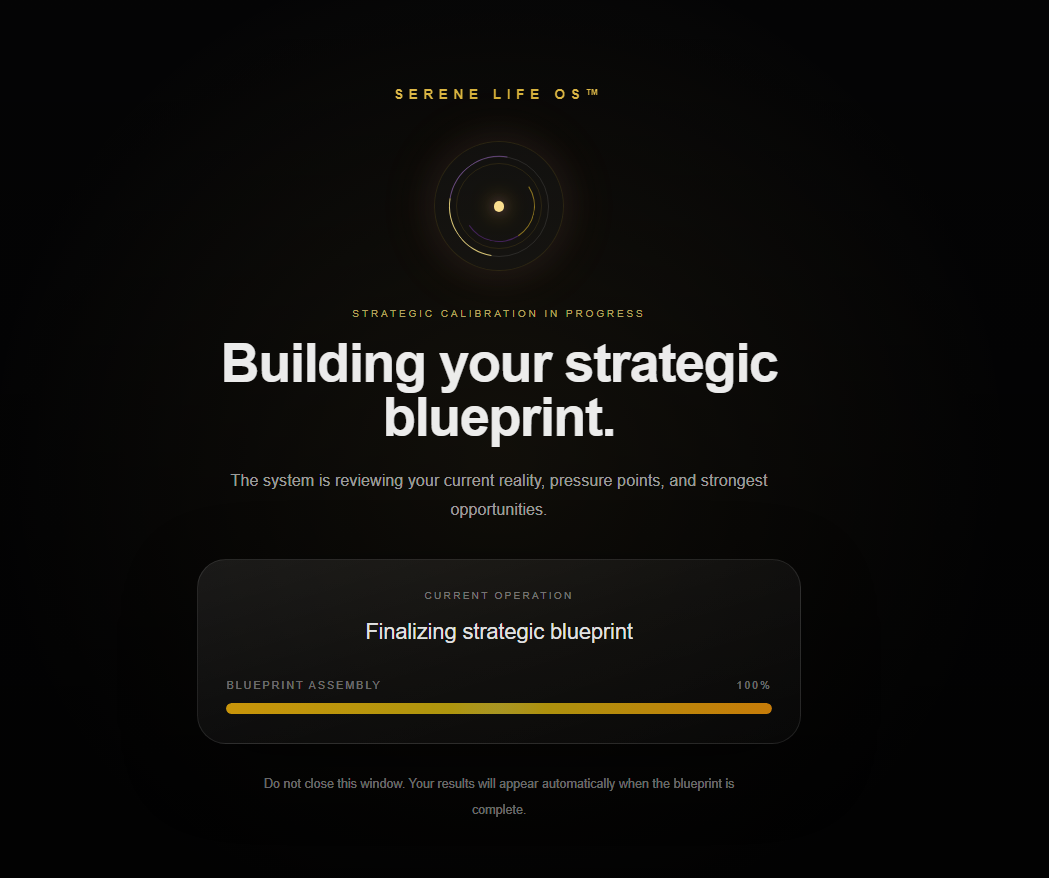
Give SLOS a moment to bring it together

After you complete the assessment, SLOS reviews your answers and begins creating your Strategic Blueprint™.

The generation screen shows progress while your goals, priorities, current reality, and selected pillar are brought together.

Once it is complete, you’ll be taken to your Blueprint results.

LAA™ Blueprint Generation Loading
LAA™ Assessment to Action

Your assessment gives SLOS the starting point

Your Strategic Blueprint™ brings that information together into clear direction, priorities, and a plan you can begin using.


Section 04

Strategic Blueprint™ / Results

What is my Strategic Blueprint™?

A personalized view of your current reality, main priorities, direction, and next steps.

Why does it matter?

It brings your assessment answers together so you can see what needs attention, what is working in your favor, and where to begin.

What should I do here?

Read through the Blueprint from top to bottom, notice what stands out, and use the Execution Roadmap to begin moving forward.

Section introduction

After you complete the assessment, SLOS creates a personalized Strategic Blueprint™ based on your goals, current reality, priorities, pressure points, strengths, timing, and selected pillar.

Your Blueprint brings these pieces together into clear direction, including your Life Architecture Score™, primary move, key advantages and constraints, strategic breakdown, and phased Execution Roadmap.

The more context you share, the more specific Serene’s guidance can become. When details are limited, SLOS still gives grounded direction through strong foundational moves.

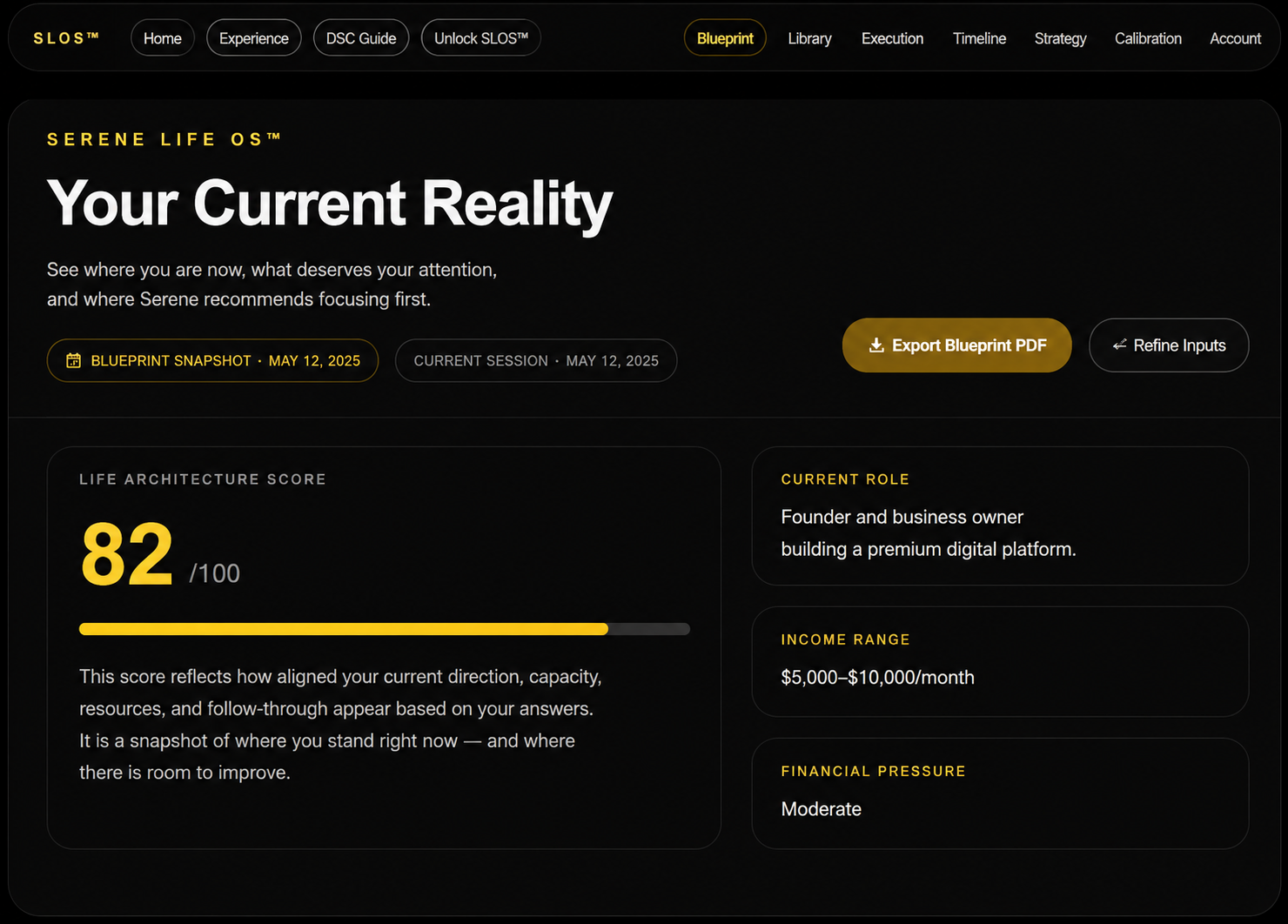
See where things stand now

This part of your Blueprint gives you a clear view of your current situation.

It includes your Life Architecture Score™, current season, main area, level of pressure, and other details connected to what you shared in the assessment.

The goal is to give you a useful starting point.

Blueprint Current Reality
Generated or sanitized sample shown for demonstration. No personal Blueprint or account information is displayed.

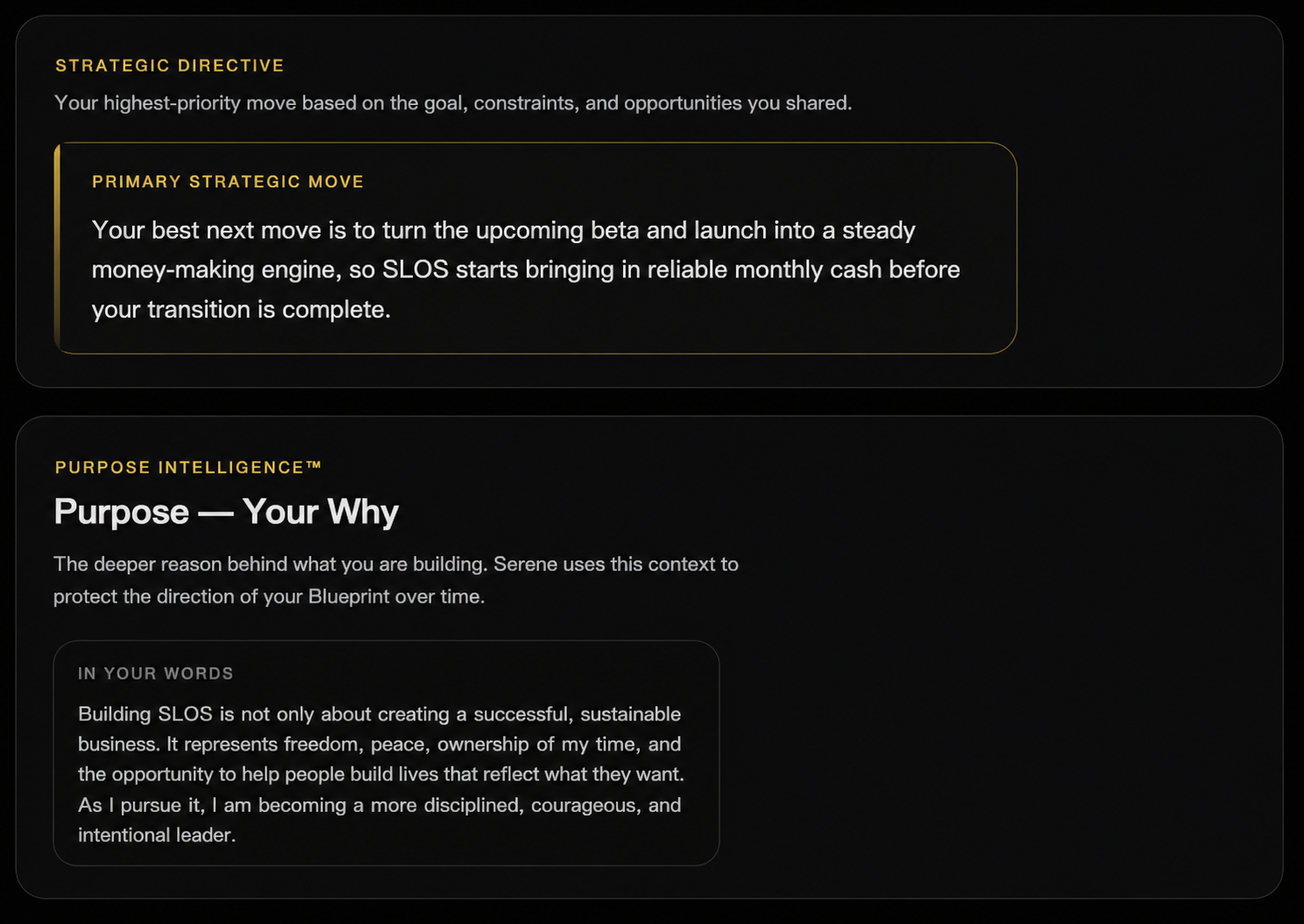
Understand what should happen first

Your Strategic Direction highlights the move that needs the most attention right now.

It brings your goals, current reality, timing, and selected pillar together into one clear direction.

This helps you avoid trying to act on everything at once.

What to do next:
Read the direction carefully and ask yourself whether it matches what feels most important now.

Blueprint Strategic Directive Purpose
Generated or sanitized sample shown for demonstration. No personal Blueprint or account information is displayed.

Stay connected to why this matters

The Purpose section reflects the reason behind the goal or goals you are working toward.

This keeps the Blueprint connected to the life, business, freedom, stability, or future you want to create.

When the work feels demanding, this section reminds you of what the effort is supporting.

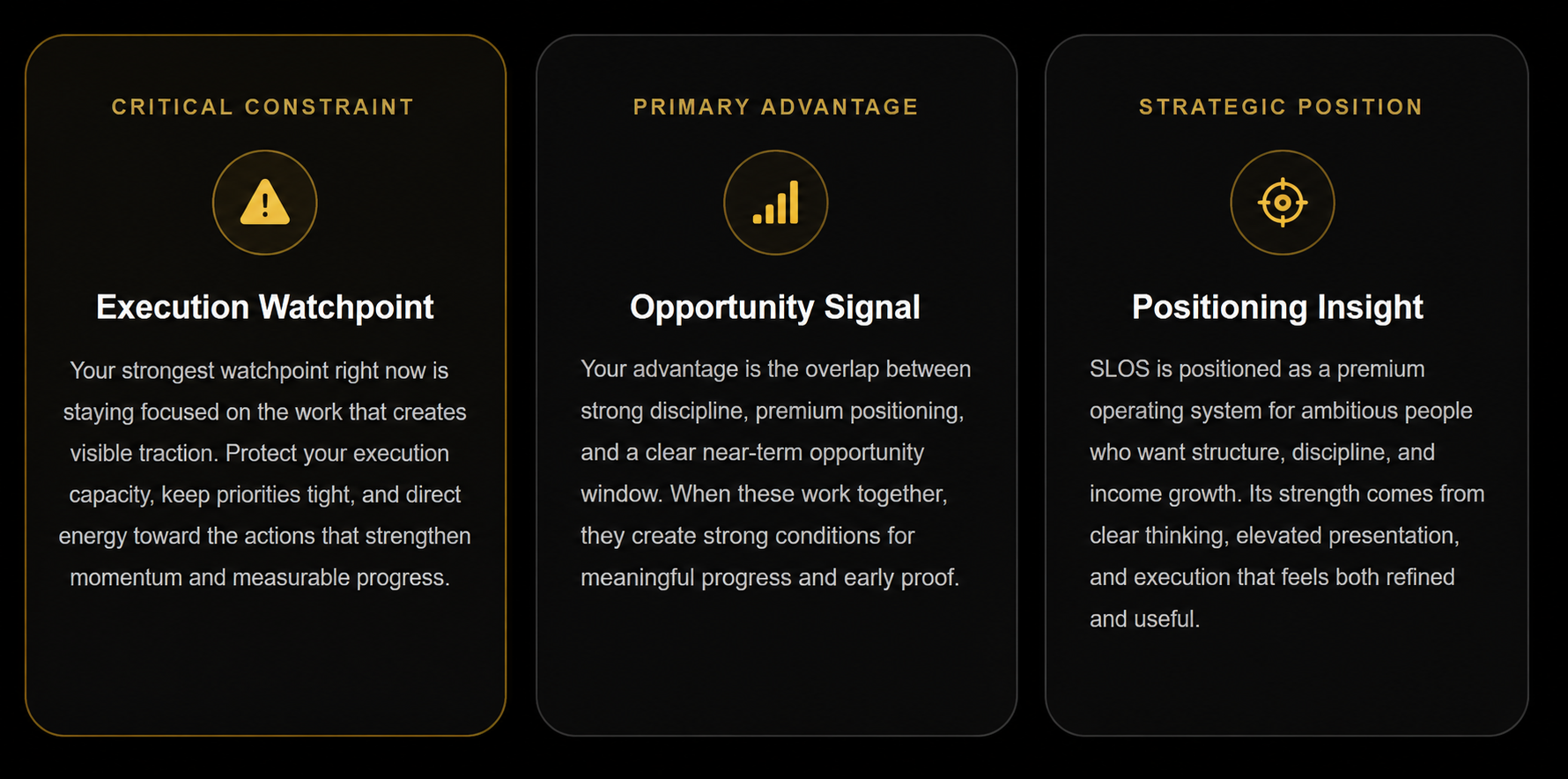
Notice the signals that matter

Blueprint Insights highlight patterns, risks, and opportunities that may affect your progress.

These may include:

  • Execution Watchpoint™ — something that could slow progress or pull attention away
  • Opportunity Signal™ — an opening, advantage, or next step worth noticing
  • Positioning Insight™ — guidance about how to present, structure, or strengthen what you are building

Use these insights as prompts for better decisions, not as extra tasks.

Blueprint Key Signals
Generated or sanitized sample shown for demonstration. No personal Blueprint or account information is displayed.

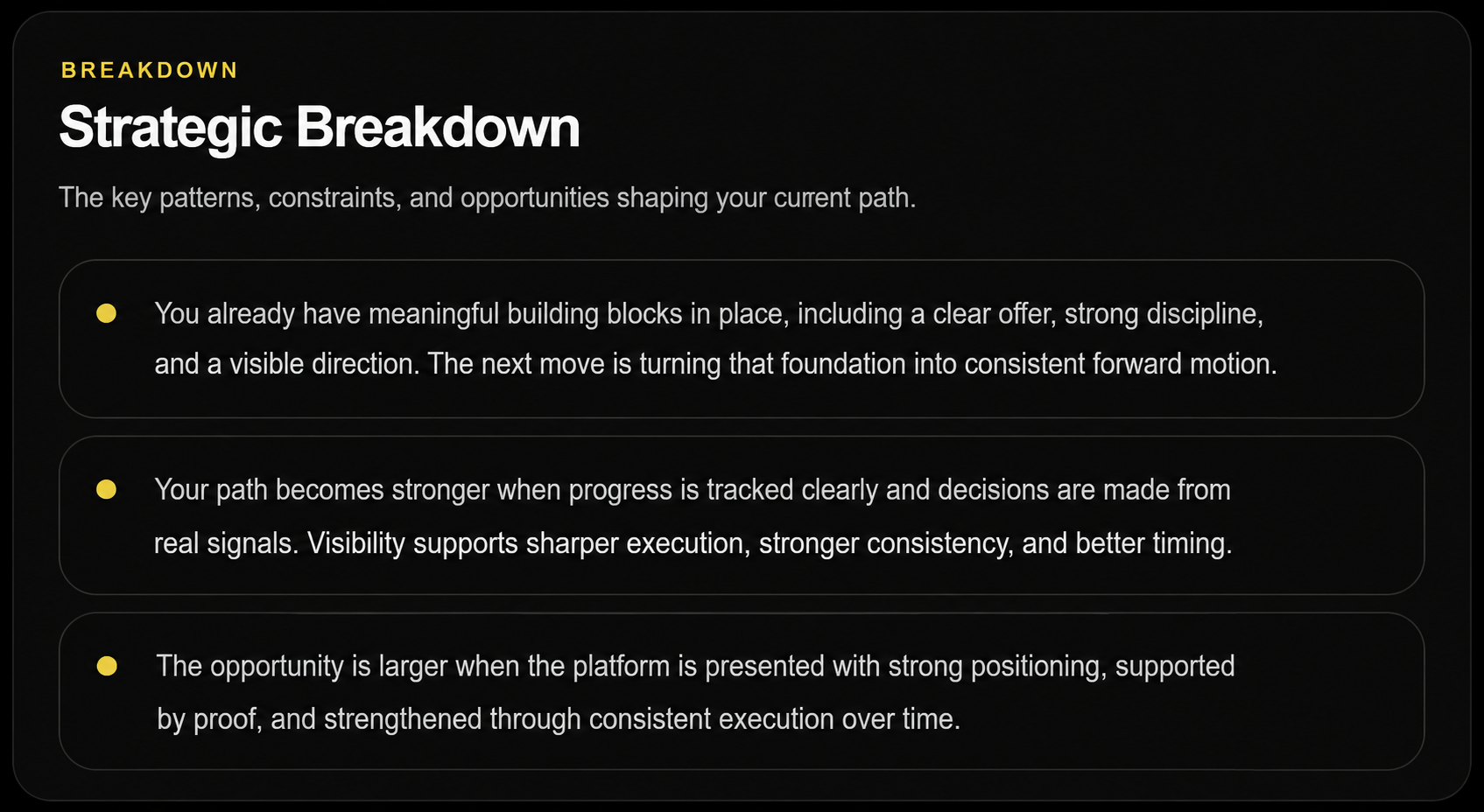
See the direction piece by piece

The Strategic Breakdown explains the main pieces that support your overall direction.

Each part helps you understand what needs to be strengthened, simplified, decided, or put into motion.

Use this section when the larger goal feels too broad. It gives you clearer pieces to work with.

Blueprint Strategic Breakdown
Generated or sanitized sample shown for demonstration. No personal Blueprint or account information is displayed.

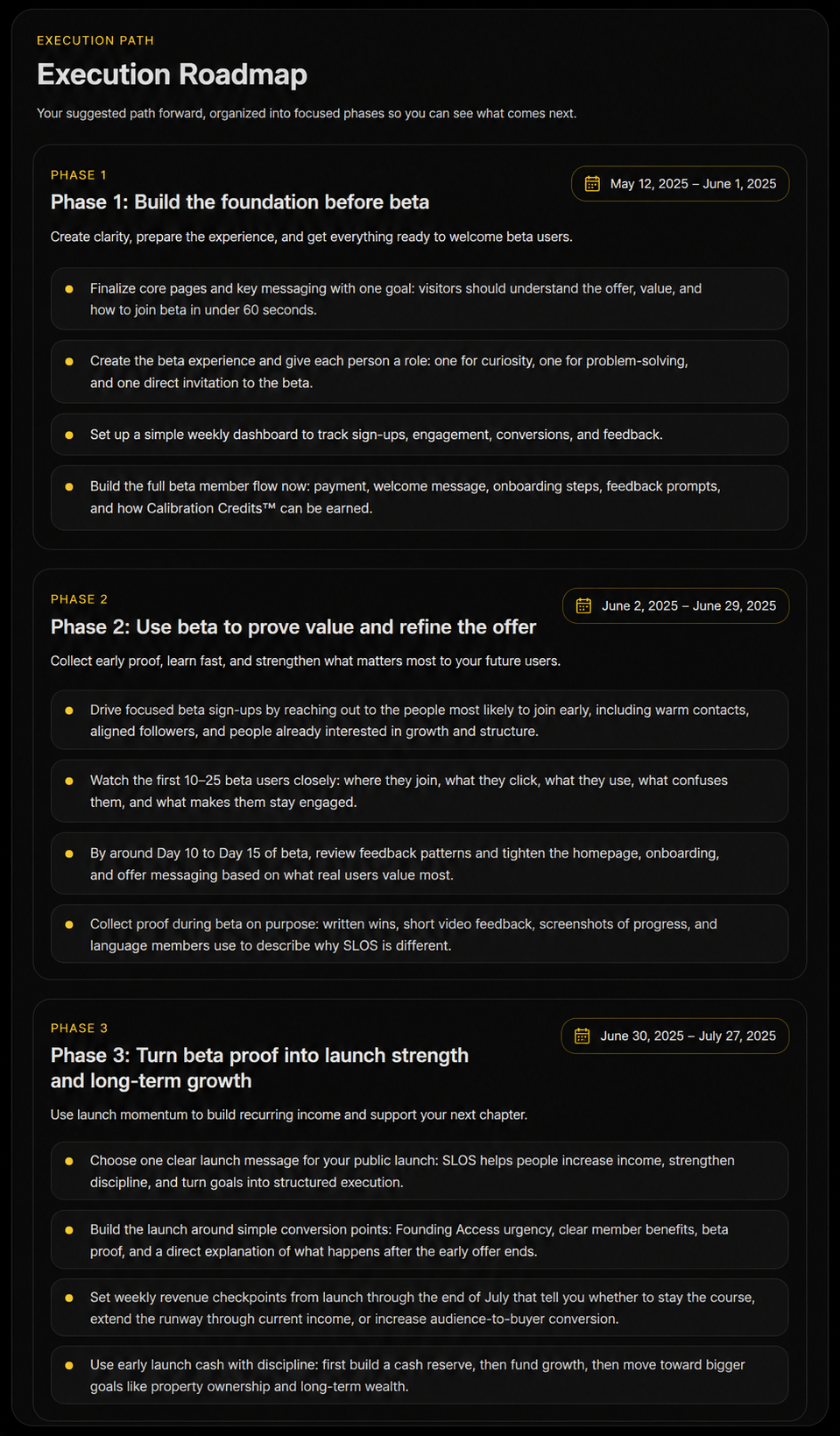
See how the plan unfolds

Your Execution Roadmap moves the Blueprint into a phased plan.

Each phase focuses on a different part of the plan, so you can build progress in the right order.

The roadmap includes phase goals, time windows, priorities, and key actions.

What to do next:
Begin with the current phase. Focus on the actions connected to that phase before moving ahead.

Blueprint Execution Roadmap
Generated or sanitized sample shown for demonstration. No personal Blueprint or account information is displayed.
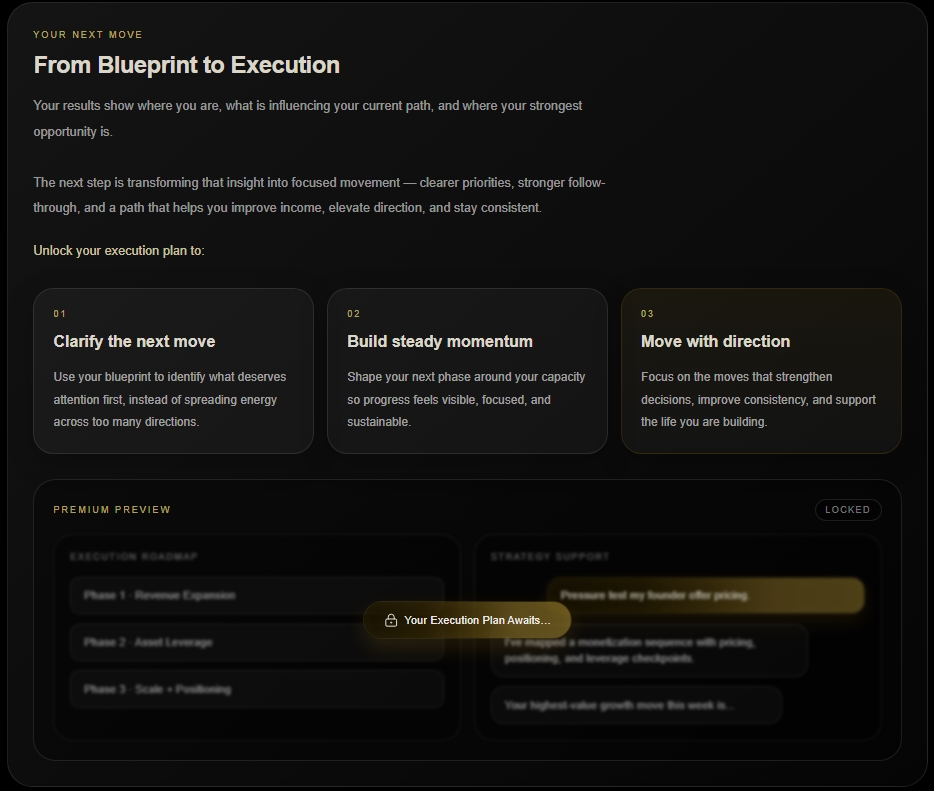
Blueprint to Execution Preview

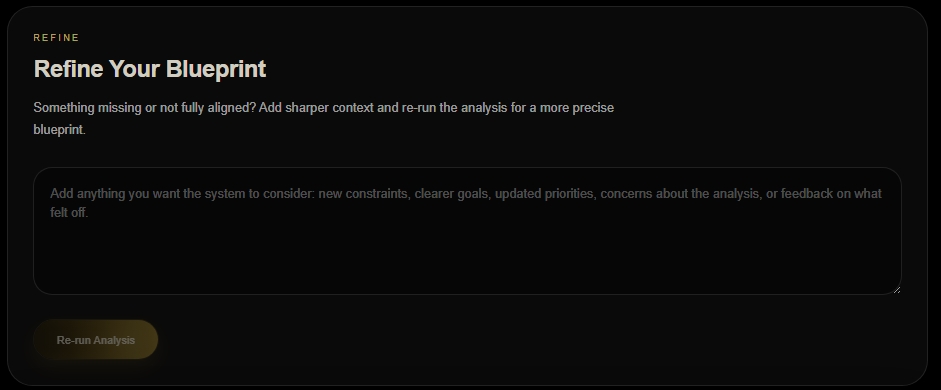
Add more context when needed

Your Blueprint will become more useful as your situation changes or as you add more detail.

You can use Strategy Support to think through a decision, expand an idea, or clarify how to apply part of the Blueprint.

You can also create another Blueprint when you want to focus on a different goal, pillar, or season.

Blueprint Refine Inputs

Your Blueprint gives you the direction

The next sections of SLOS help you organize it, act on it, and keep working with it over time.


Section 05

Blueprint Library

What is the Blueprint Library?

The place where your saved Strategic Blueprints™ are stored.

Why does it matter?

It helps you return to past work, compare different goals or seasons, and keep your Blueprints organized.

What should I do here?

Open the Blueprint you want to use, review its details, or create a new one when your direction changes.

Section introduction

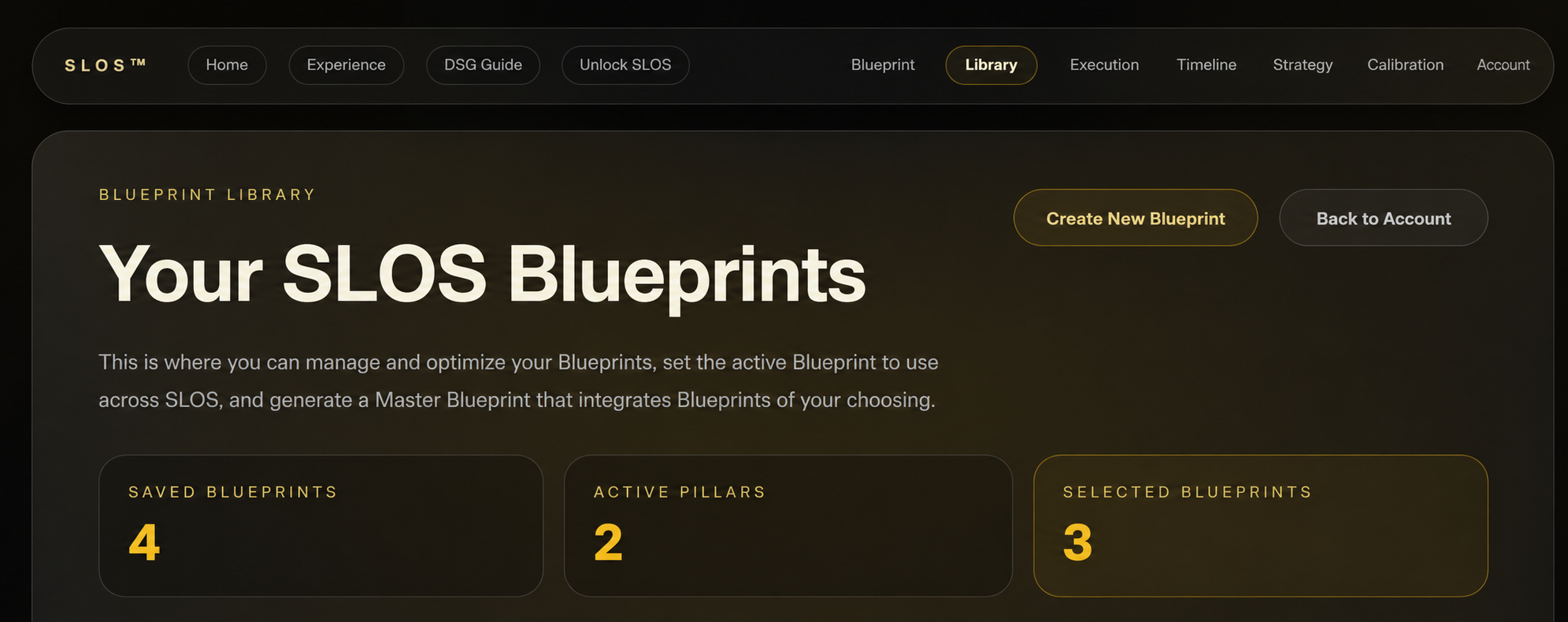
Your Blueprint Library keeps your saved Strategic Blueprints™ in one place.

Each Blueprint reflects a specific goal, season, pillar, or area of your life or business. Over time, your Library can help you see how your priorities have changed and what you have already worked through.

Use it whenever you want to return to a Blueprint, review your direction, or begin a new assessment.

Find your saved Blueprints

The Blueprint Library shows the Blueprints connected to your account.

Each card includes the Blueprint name, selected pillar, current season, creation date, or other details that help you tell one Blueprint from another.

What to do next:
Choose the Blueprint you want to open.

Library Overview
Generated or sanitized sample shown for demonstration. No personal Blueprint or account information is displayed.

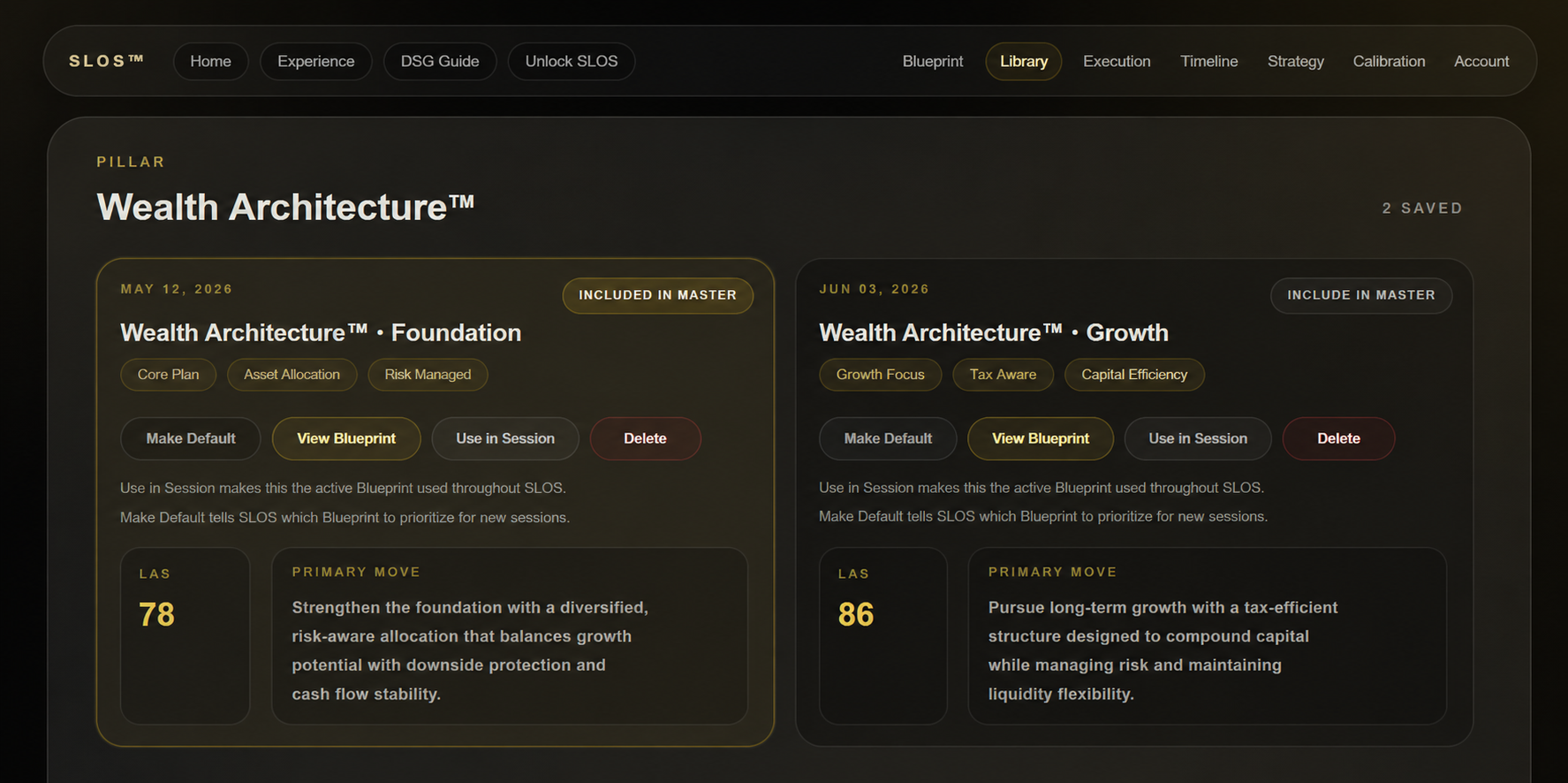
Choose the Blueprint that matches your current needs

Blueprint cards give you a quick way to identify what each Blueprint is about.

Look at the name, pillar, and other details before opening one. This is especially useful when you have created Blueprints for different goals or parts of your life and business.

Library Saved Blueprints
Generated or sanitized sample shown for demonstration. No personal Blueprint or account information is displayed.

Return to your plan

When you open a saved Blueprint, you can review the direction, insights, Strategic Breakdown, and Execution Roadmap created from that assessment.

You can return to it whenever you need a reminder of what should happen next or want to continue with the plan.

Create a new Blueprint when your needs change

Create a new Blueprint when you are working on a different goal, entering a new season, or need support in another pillar.

You don’t have to replace an older Blueprint. Each one can remain in your Library so you can return to it later.

What to do next:
Select the option to create a new Blueprint and complete a new assessment.

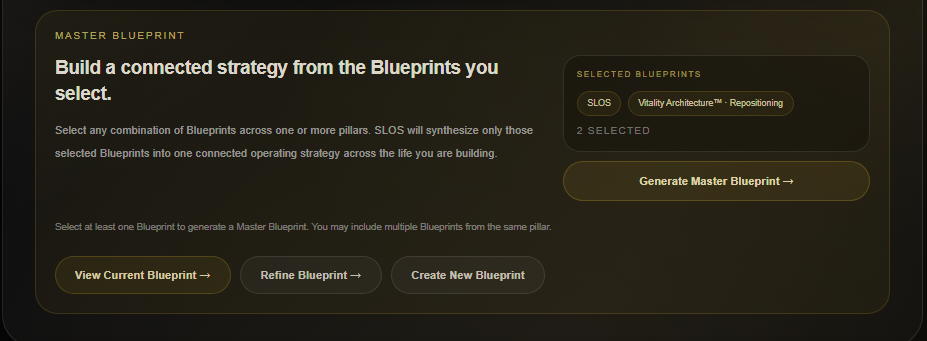
Bring multiple Blueprints together

The Master Blueprint builder helps you view more than one Blueprint in a broader way.

Use it when you want to look across different goals, pillars, or parts of your life and understand how they connect.

Choose the Blueprints that are most relevant to what you are working on now.

Library Master Blueprint Builder

Your Blueprint Library keeps your plans easy to return to

Use it when you need to review a Blueprint, continue your work, or create something new.


Section 06

Execution

What is Execution?

The place where your Blueprint becomes actionable.

Why does it matter?

It helps you see your current phase, understand what needs action now, and track how your progress is moving over time.

What should I do here?

Start with the current phase, review the signals and priorities, and use the weekly tools to decide what comes next.

Section introduction

Execution helps you move from planning into action.

This part of SLOS brings together your current phase, roadmap progress, priorities, signals, and weekly plan so you can understand what is happening without rebuilding the plan each time.

Use Execution when you want to check your progress, review what needs action, or reconnect with the next step in your Blueprint.

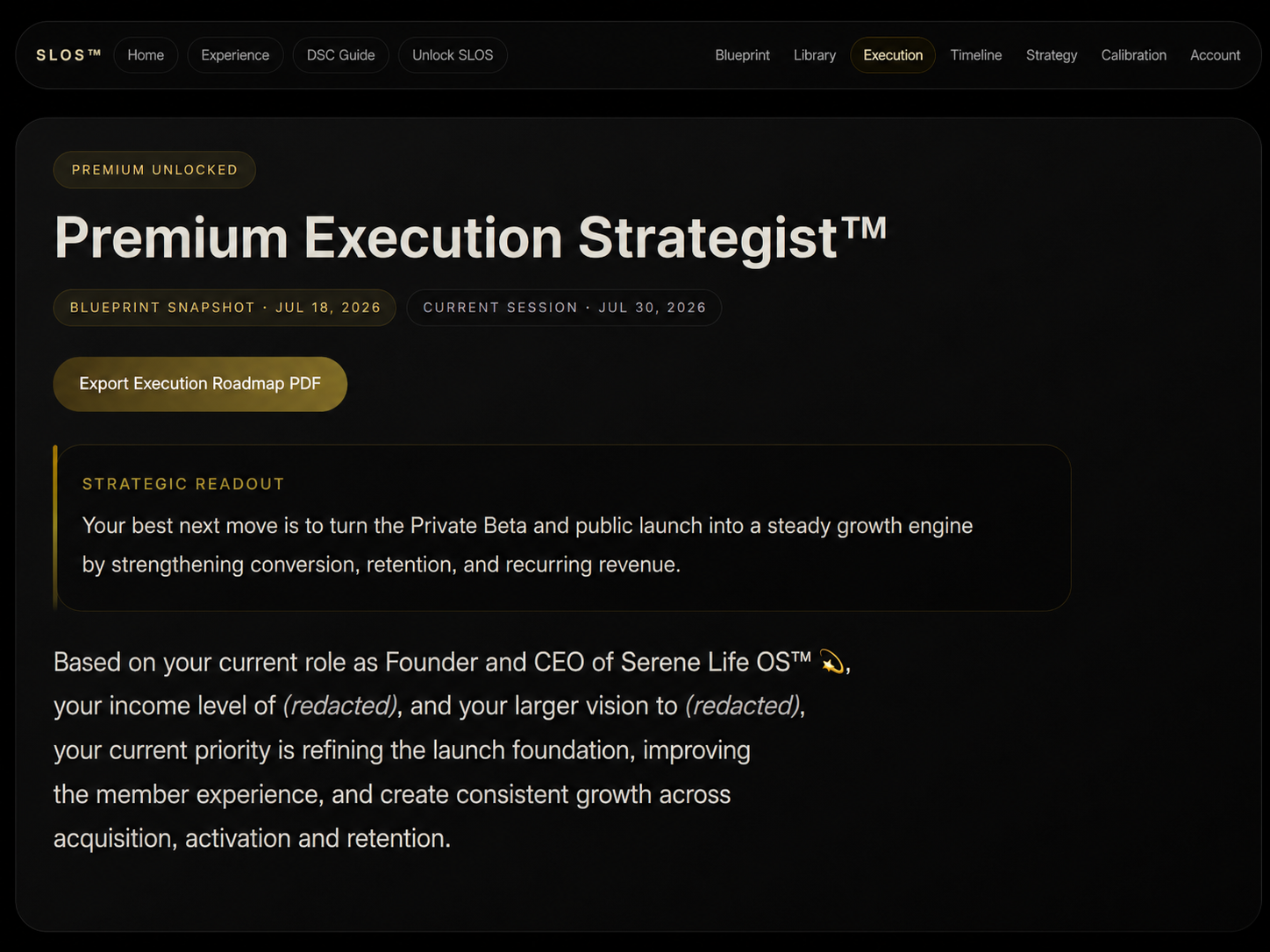
See where your plan stands

The Execution page gives you a quick view of your active Blueprint and current roadmap.

You may see your current phase, progress, important signals, and the work that needs action next.

Use this page as your main starting point when you are ready to act on your Blueprint.

What to do next:
Review the current phase first, then look at the priorities and signals connected to it.

Execution Hero
Generated or sanitized sample shown for demonstration. No personal Blueprint or account information is displayed.

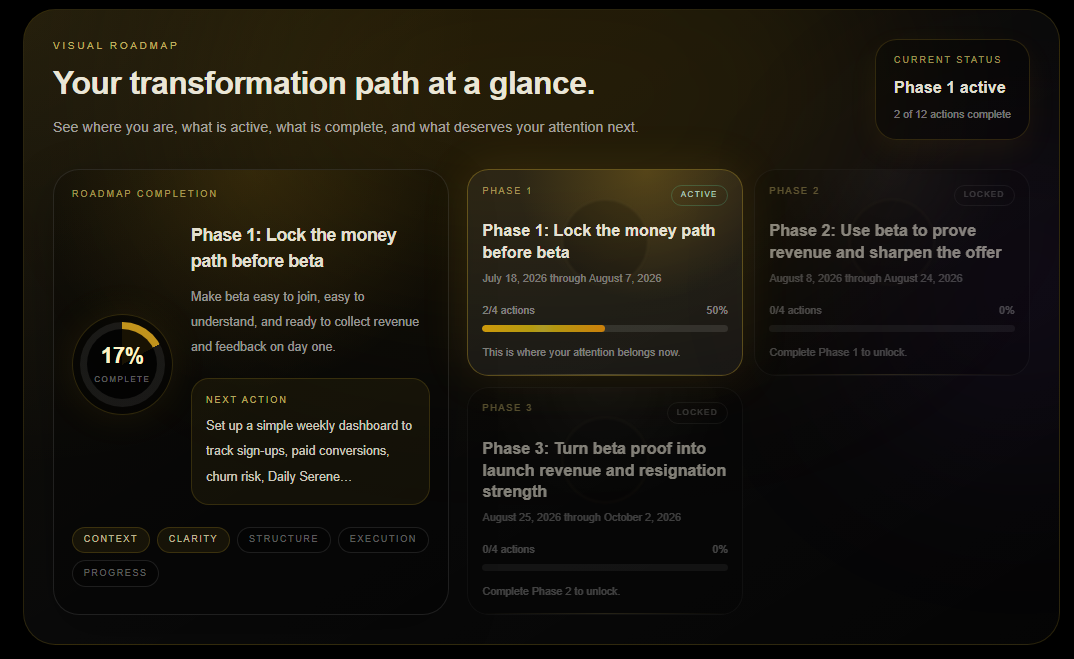
Stay with the phase you are in now

Your current phase shows the part of the roadmap you are actively working through.

Each phase has its own purpose and priorities. Staying with the current phase helps you build progress in the right order.

You don’t need to work on every phase at once.

Execution Visual Roadmap
Generated or sanitized sample shown for demonstration. No personal Blueprint or account information is displayed.

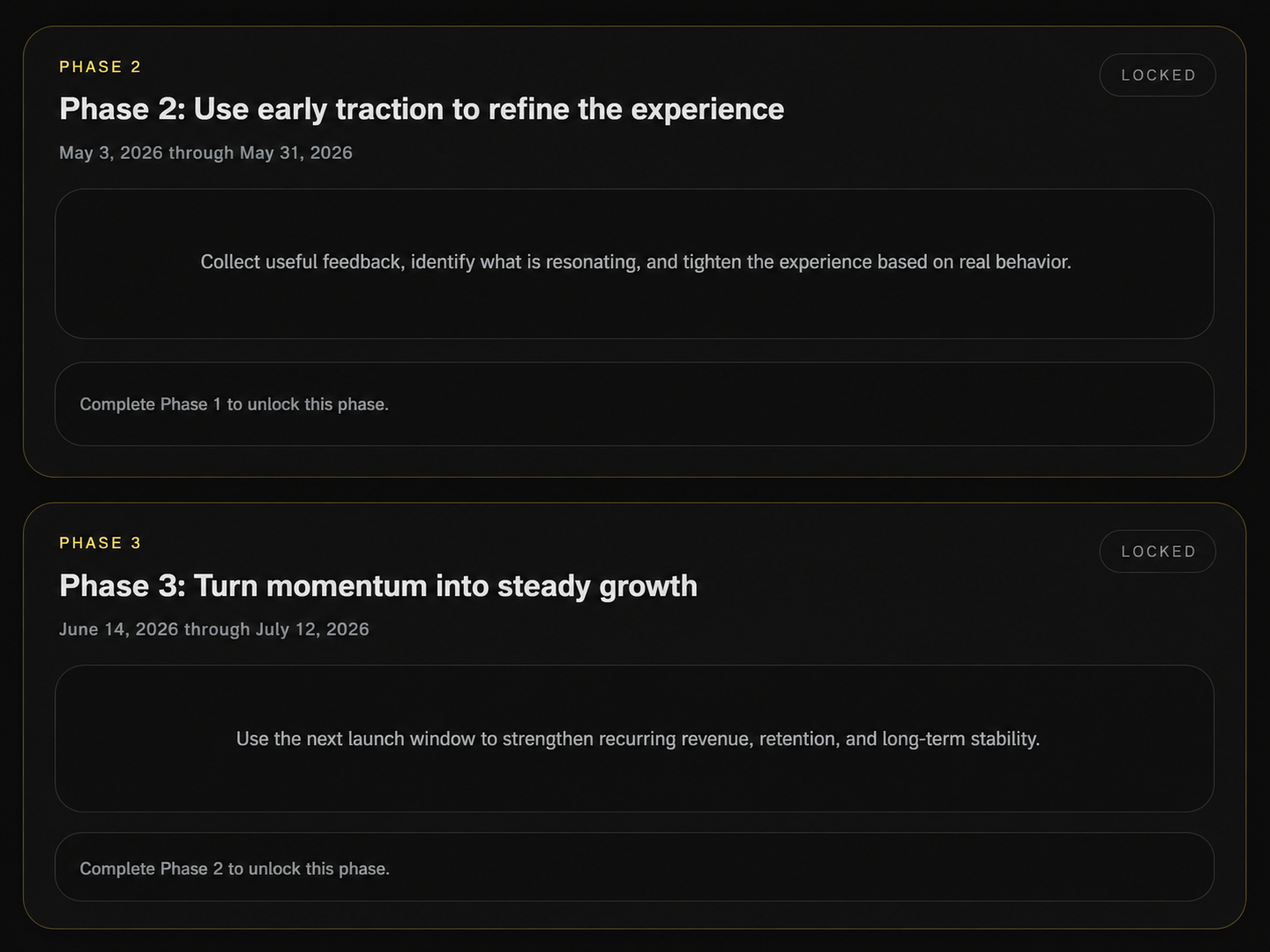
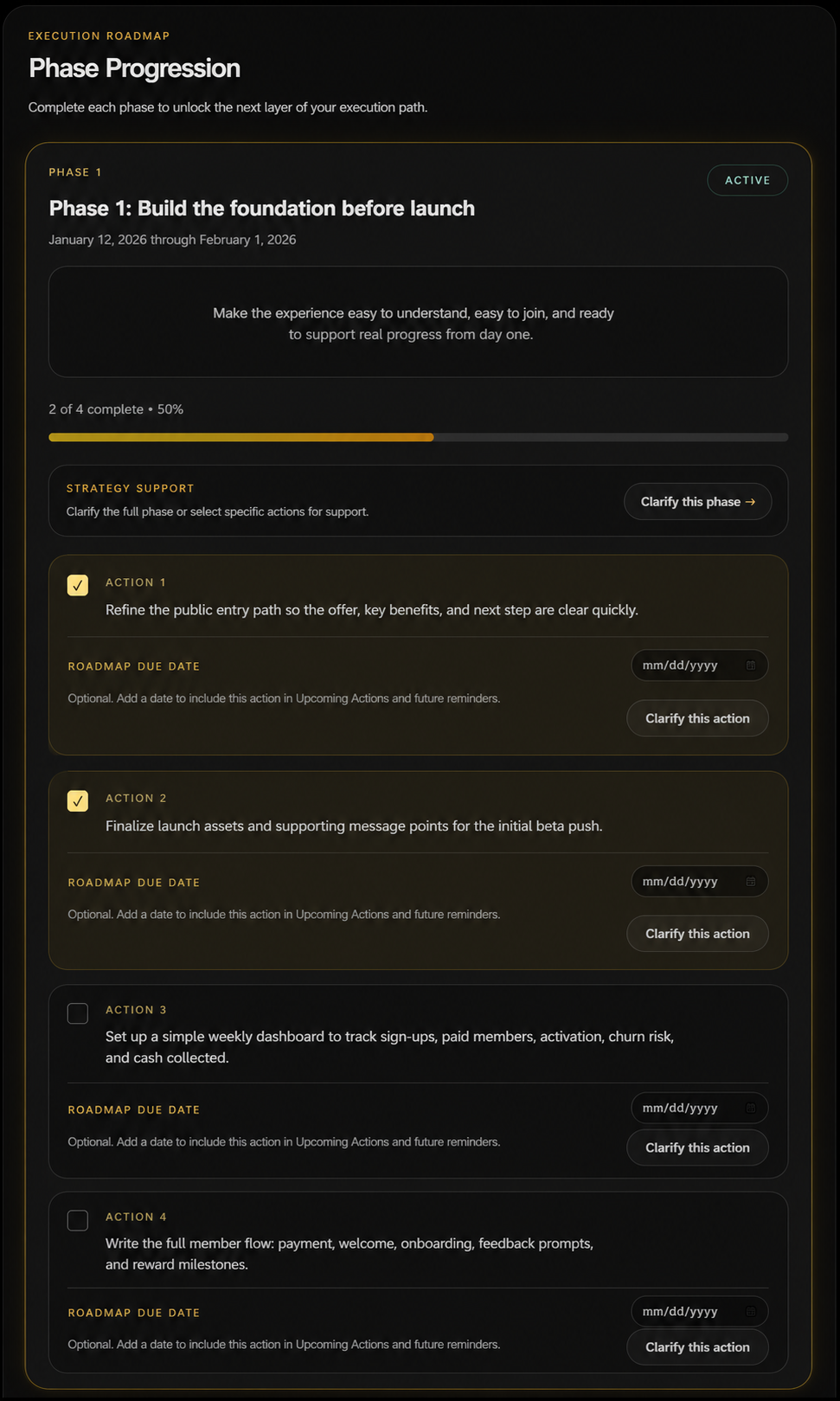
Track your phases

Phase progression shows how your work moves from one stage to the next.

It shows you what's completed, what's active now, and what's still ahead.

Use it to stay aware of the big picture while keeping your focus on the work in front of you.

Execution Phase Progression
Generated or sanitized sample shown for demonstration. No personal Blueprint or account information is displayed.
Execution Locked Future Phases
Generated or sanitized sample shown for demonstration. No personal Blueprint or account information is displayed.

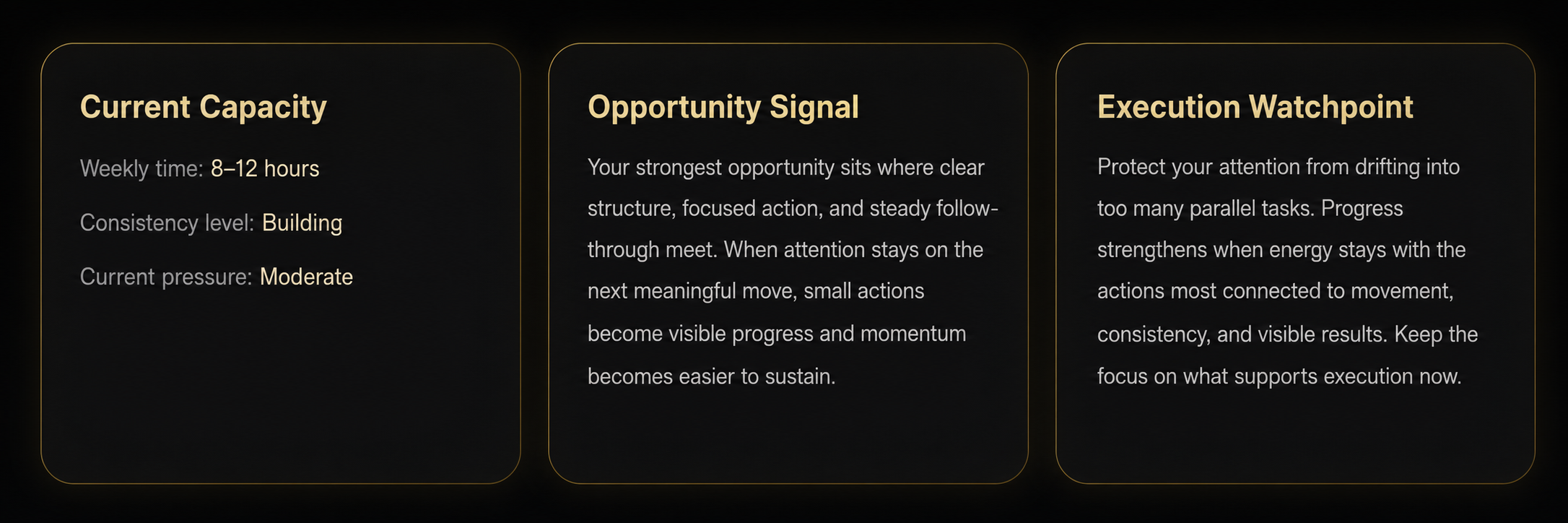
Notice what may affect progress

Execution signals highlight changes, risks, or opportunities connected to your current work.

These may include:

  • Execution Watchpoint™ — something that may slow progress or need support
  • Opportunity Signal™ — an opening or advantage worth noticing
  • Positioning Insight™ — guidance that may strengthen how you present, structure, or move forward

These signals help you make better decisions while the work is still in motion.

Execution Capacity Signals
Generated or sanitized sample shown for demonstration. No personal Blueprint or account information is displayed.

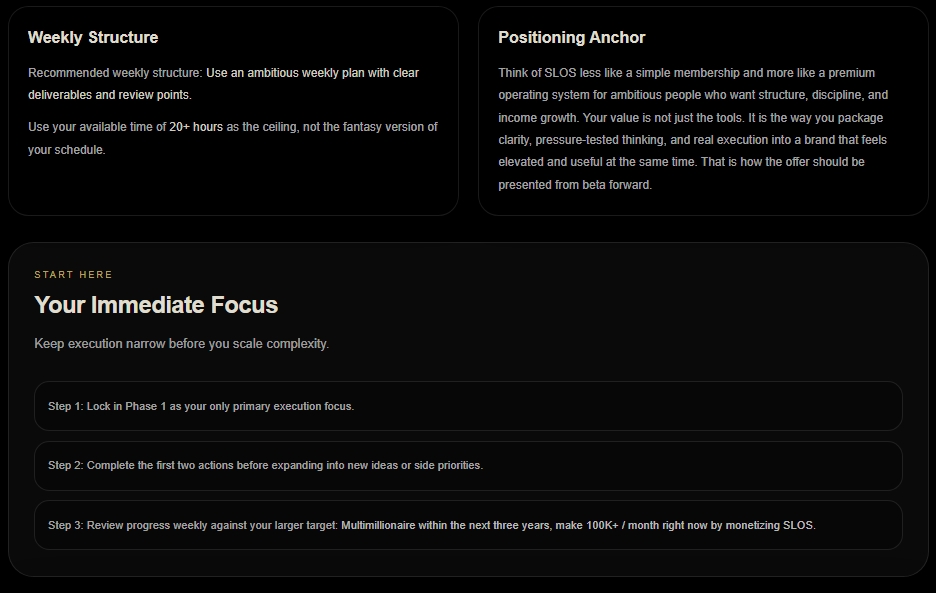
Organize the week around what matters

The weekly structure helps you move the current phase into a manageable plan.

It may show the main priority, supporting actions, or the order in which the work should happen.

Use it to reduce overload and keep the week connected to your Blueprint.

Execution Weekly Structure Focus
Generated or sanitized sample shown for demonstration. No personal Blueprint or account information is displayed.

Know what needs action first

Immediate Focus highlights the task, decision, or move that should come first.

This is useful when several things feel important at the same time.

What to do next:
Complete or move forward on the Immediate Focus before adding more work.

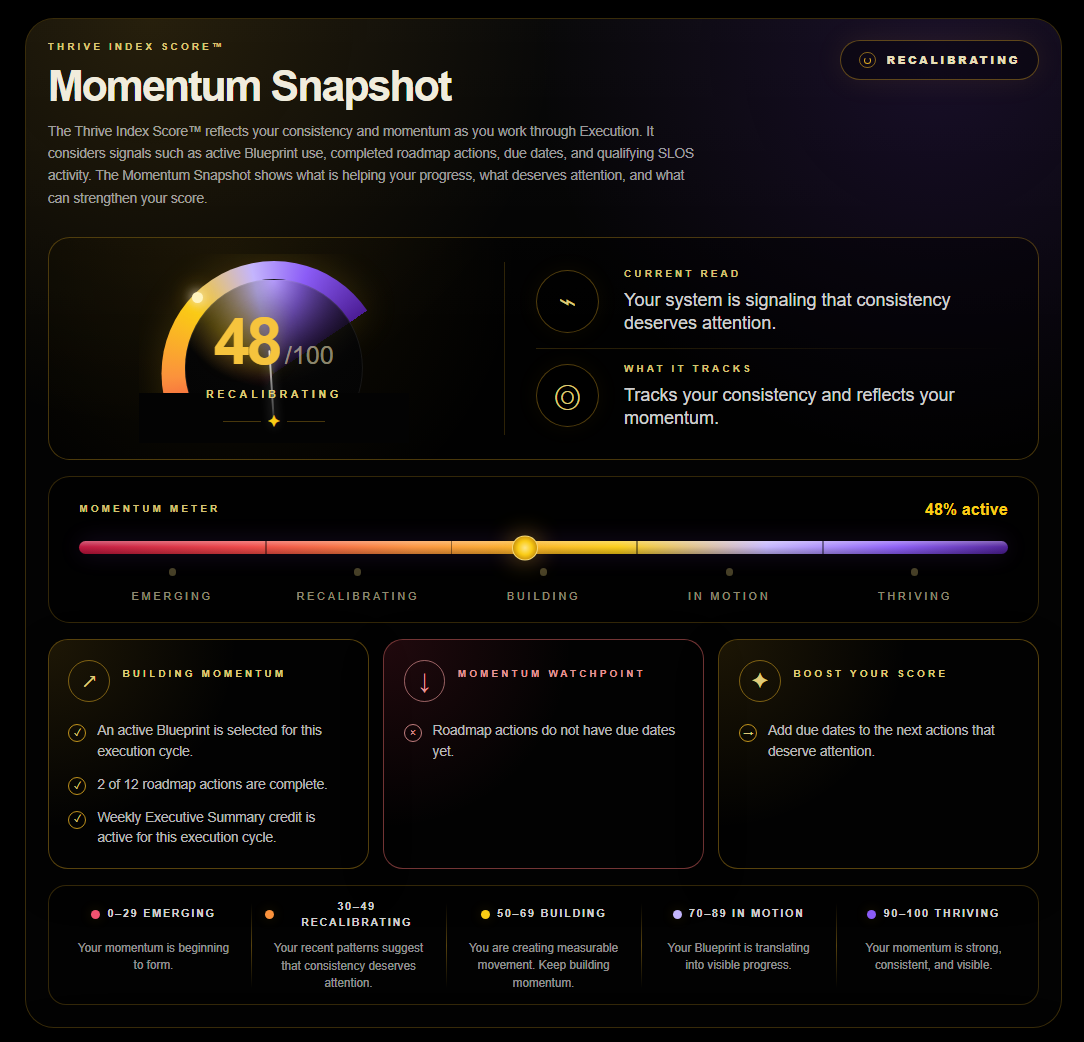
See what has already moved forward

Execution also helps you track work that has been completed or advanced.

Reviewing progress can show you what is working, where momentum is building, and what may still need follow-through.

This keeps the plan connected to what is actually happening.

Execution Thrive Index

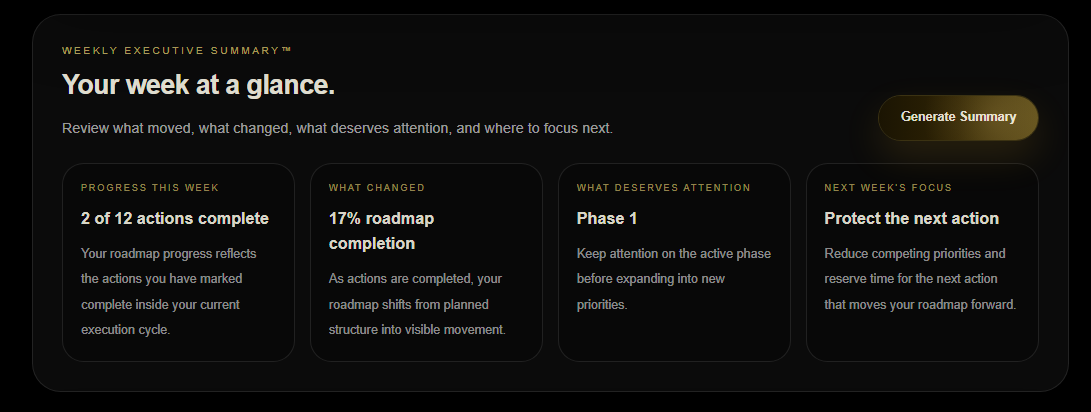
Preview your week before generating the full summary

Before you generate the Weekly Executive Summary™, SLOS shows a quick view of the current week.

This may include roadmap movement, recent progress, areas that need support, and the next weekly priority.

Use this preview to confirm that you are working from the right Blueprint and current phase.

What to do next:
Select Generate Summary when you are ready for the full weekly review.

Execution Weekly Summary 1
Generated or sanitized sample shown for demonstration. No personal Blueprint or account information is displayed.

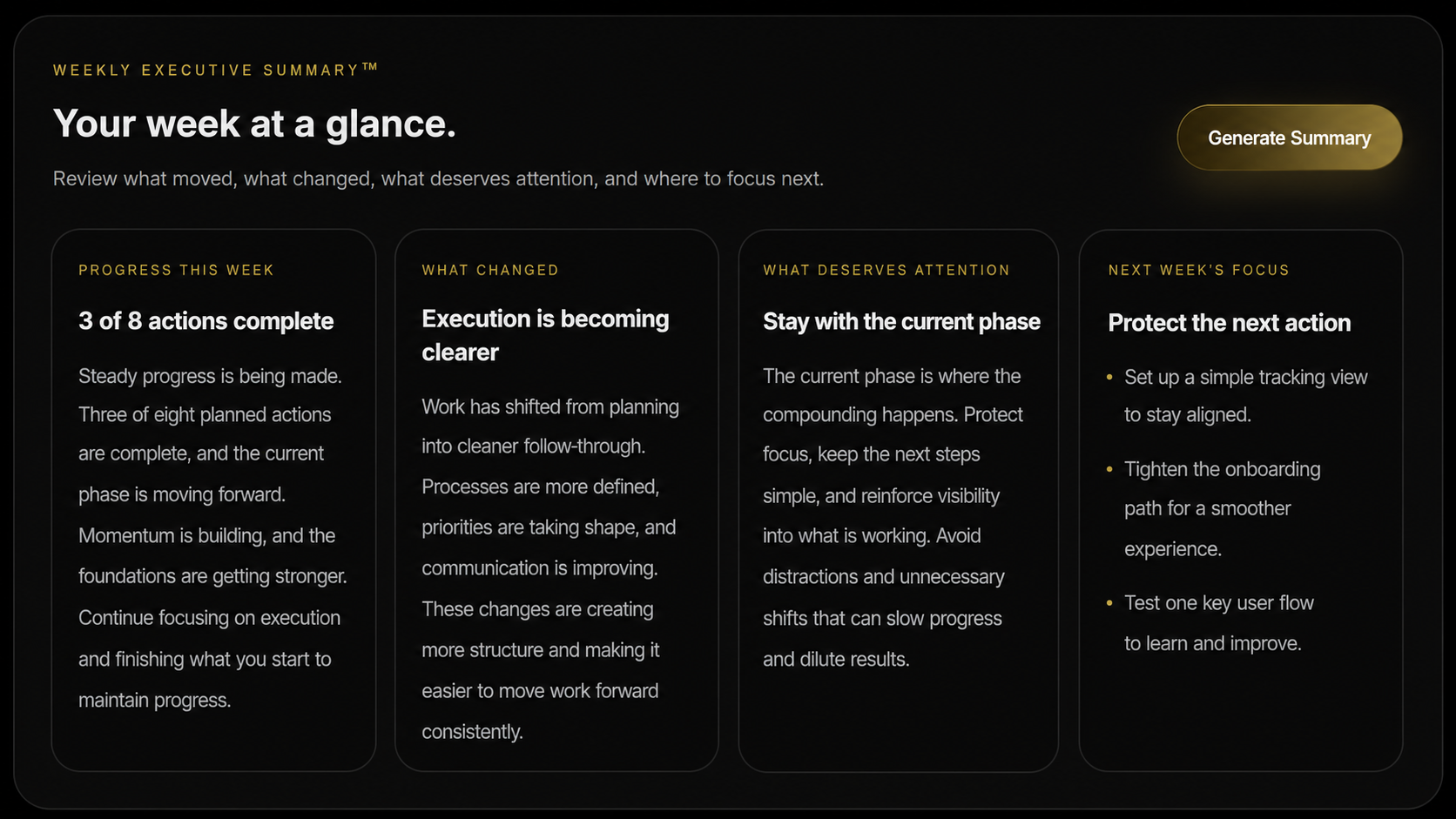
Review the full weekly picture

The generated Weekly Executive Summary™ brings together the most important information from your active Blueprint and Execution activity.

Generating and reviewing the summary strengthens the weekly progress picture used by TIS™—Thrive Index Score™—so your score can reflect current movement, consistency, and areas that need support.

It includes:

  • what moved forward
  • what needs support
  • where progress may be slowing
  • what should happen next
  • the main priority for the coming week

Use the summary to reset your attention, make adjustments, and begin the next week with a clear plan.

Execution Weekly Summary 2
Generated or sanitized sample shown for demonstration. No personal Blueprint or account information is displayed.

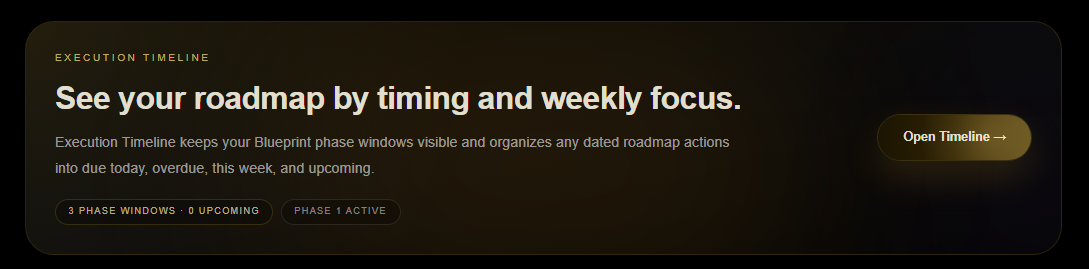
See your roadmap by timing and weekly focus

Timeline gives you the wider view of your Execution Roadmap.

Use it to see your phase windows, understand what is active now, and stay aware of what is coming next without losing focus on the current phase.

Execution helps you work with what needs action now. Timeline helps you see how that work fits into the larger plan across time.

What to do next:
Open Timeline when you want to review the sequence, timing, or weekly focus connected to your Blueprint.

Execution Timeline CTA

Work through a decision when you need more help

Some Execution items can be continued in Strategy Support.

Use this when you want to think through a signal, clarify a next step, create a more detailed plan, or get help with a decision.

Strategy Support can use your Blueprint and selected context to help you continue from where you are.

Execution Strategy Support CTA

Execution builds momentum

It keeps you connected to the plan while the work is happening. Return here to check progress, review your current phase, and decide what comes next.


Section 07

Timeline

What is Timeline?

A time-based view of your Execution Roadmap.

Why does it matter?

It helps you see when phases begin, what is coming next, and how your plan is moving over time.

What should I do here?

Review the current phase, check what is upcoming, and use the timeline to stay aware of the larger plan.

Section introduction

Timeline gives you a wider view of your roadmap.

Execution helps you work with what needs action now. Timeline helps you see how your phases connect across time.

Use it when you want to understand where you are in the plan, what is coming next, and what has already been completed.

See your roadmap in motion

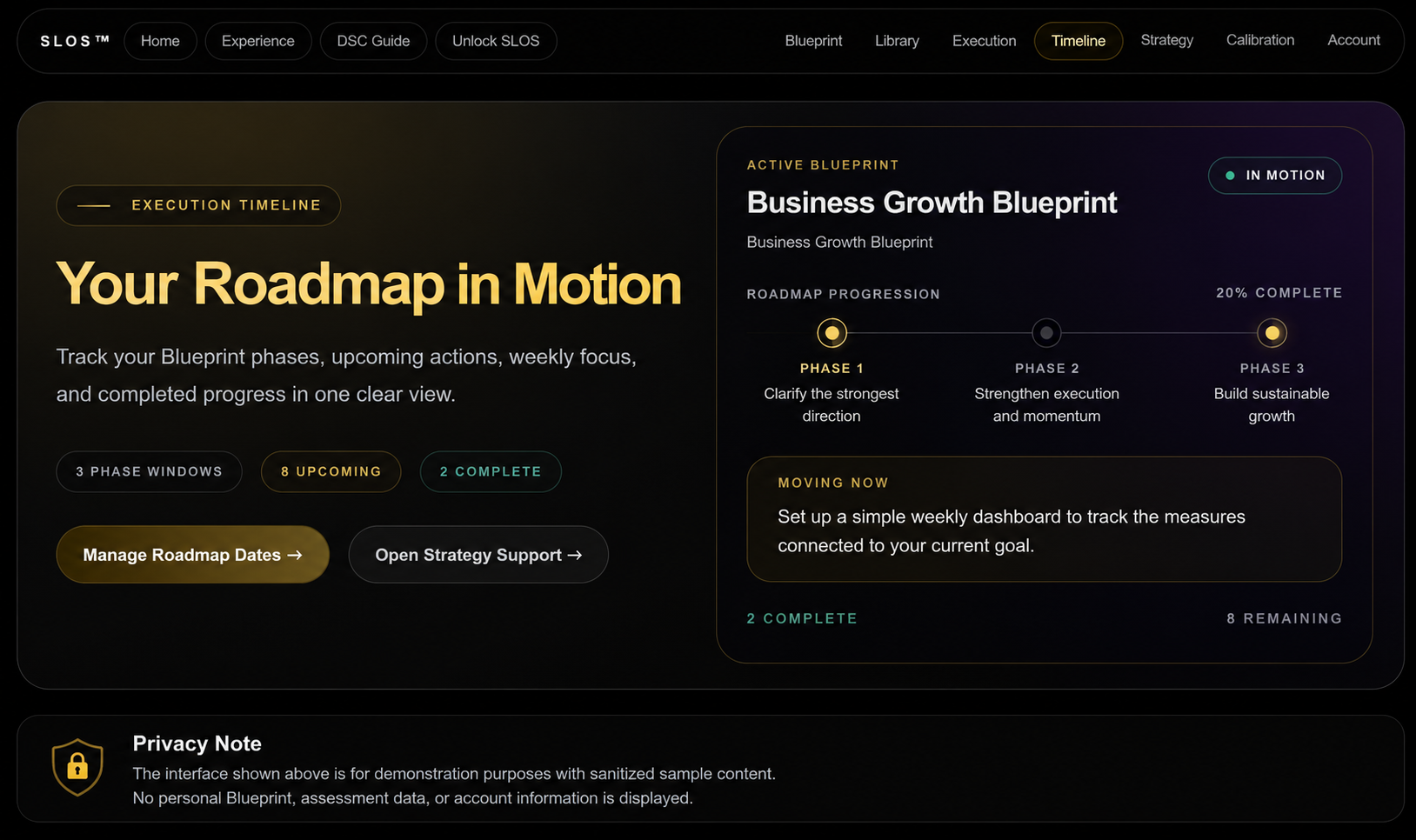
The Timeline page shows your roadmap in a time-based view.

You may see the current phase, future phases, important dates, and completed work in one place.

This makes it easier to understand how the plan is unfolding.

What to do next:
Start by finding the phase marked as current.

Timeline Hero
Generated or sanitized sample shown for demonstration. No personal Blueprint or account information is displayed.
Timeline Status Overview

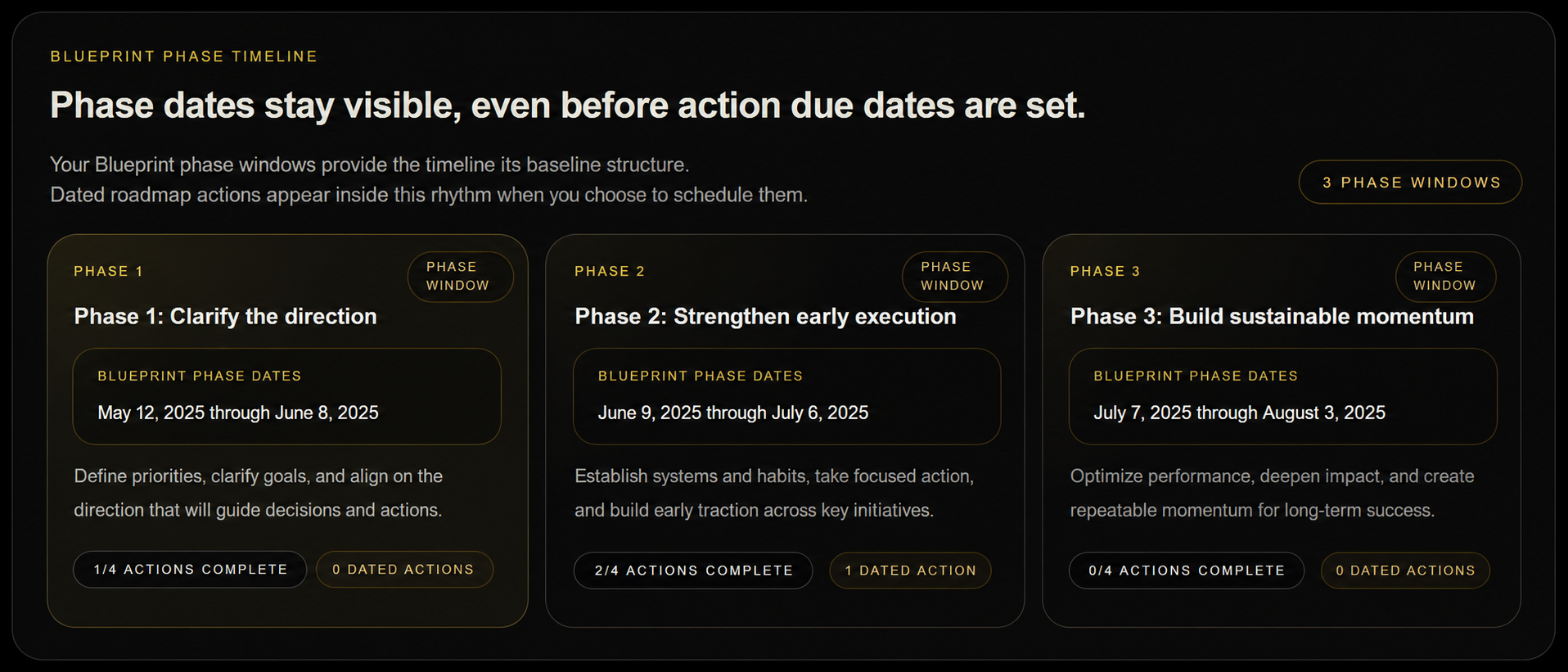
Understand the timing for each phase

Each phase includes a start date, end date, or time window.

These windows help you understand the expected pace of the roadmap and how long each stage may take.

They guide the work. If your timing changes, the plan will still help you decide what to do.

Timeline Phase Windows
Generated or sanitized sample shown for demonstration. No personal Blueprint or account information is displayed.

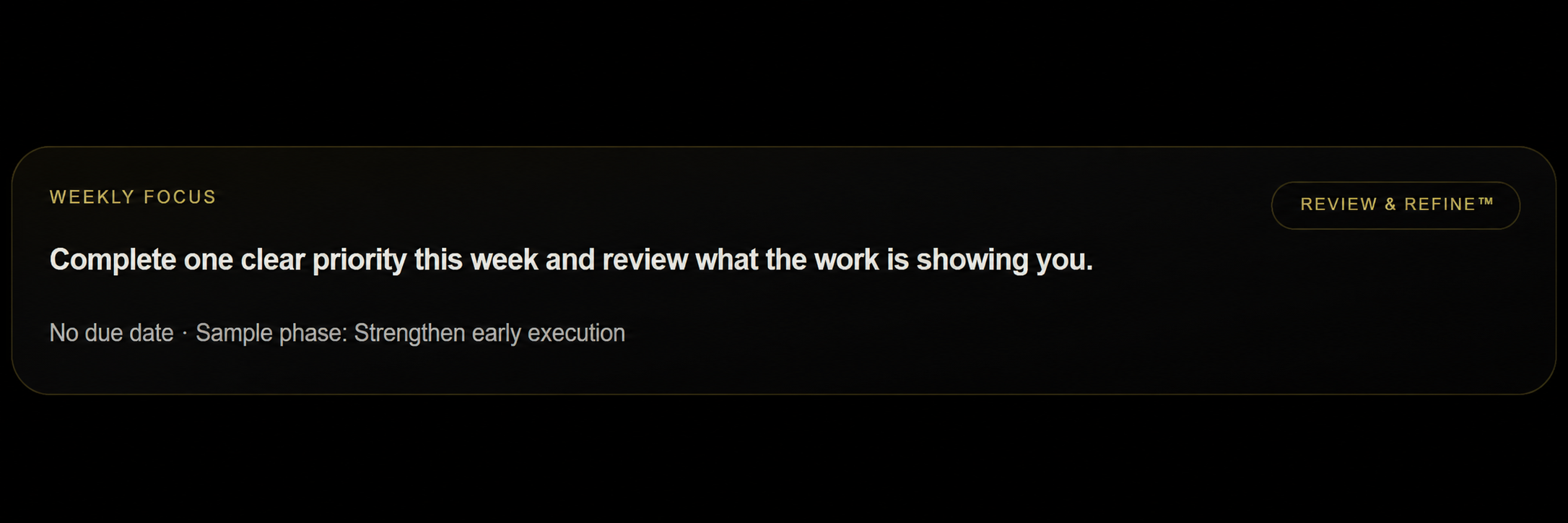
See what's active now

The current phase shows where you are in the roadmap.

This is the phase that should receive most of your attention.

Use Timeline to confirm where you are, then return to Execution for the priorities, signals, and actions connected to that phase.

Timeline Weekly Focus
Generated or sanitized sample shown for demonstration. No personal Blueprint or account information is displayed.

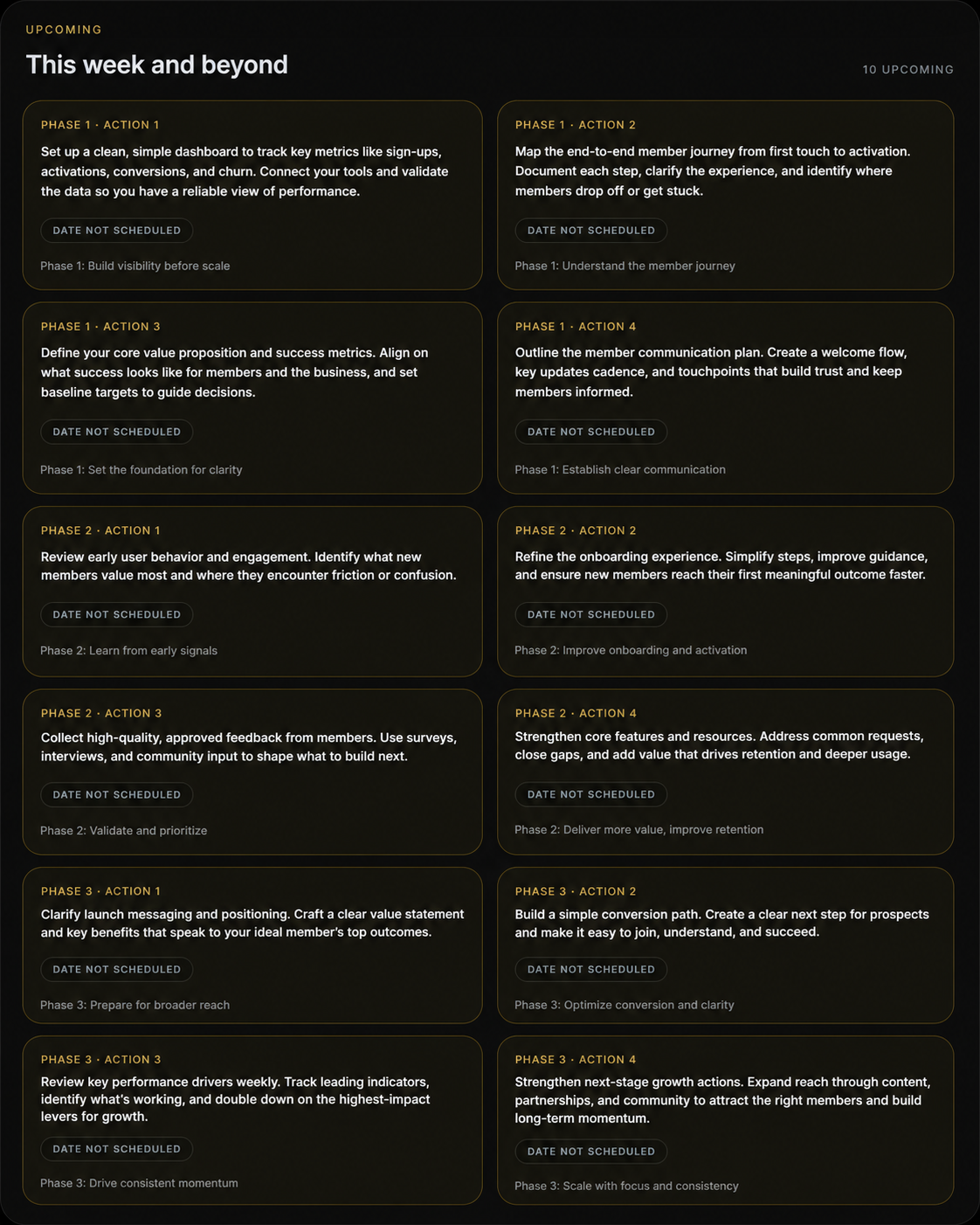
See what's ahead

The upcoming section shows the phases, priorities, or milestones that follow your current work.

This can help you prepare without pulling your attention too far ahead.

Use it to stay informed while continuing to work with the phase that is active now.

Timeline Upcoming Actions
Generated or sanitized sample shown for demonstration. No personal Blueprint or account information is displayed.

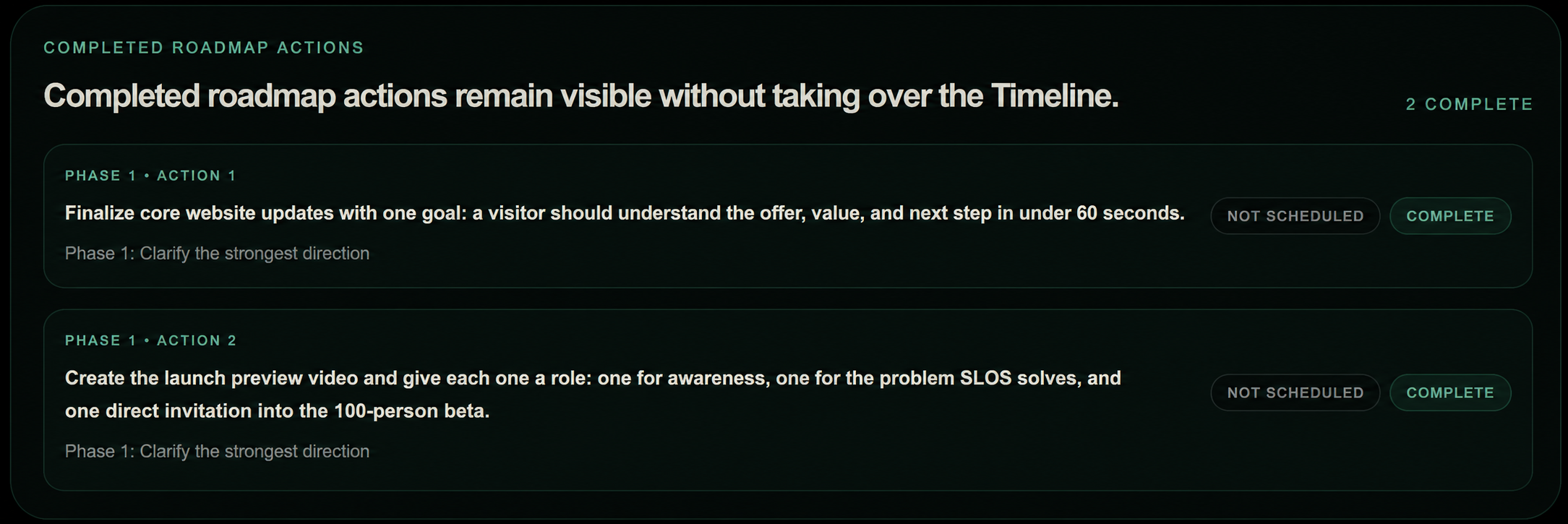
Review what's already done

The completed section shows phases, milestones, or work that has already moved through the roadmap.

This gives you a clear record of progress and helps you see how far the plan has moved.

Completed work can also show patterns in what is working and what may need a different approach in the next phase.

Timeline Completed Actions
Generated or sanitized sample shown for demonstration. No personal Blueprint or account information is displayed.

Understand changes in the plan

Your roadmap may shift as priorities, timing, or circumstances change.

Timeline helps you see those changes in context so you can understand how one adjustment affects the rest of the plan.

Return here when you want the wider view before making a decision about timing or sequence.

Timeline helps you see your plan across time

Use it to understand where you are, what has moved forward, and what is coming next.


Section 08

Strategy Support

What is Strategy Support?

A workspace where you can think through decisions, ask questions, build plans, and continue working with your Blueprint.

Why does it matter?

It helps you turn a question, idea, signal, or next step into something clearer and easier to use.

What should I do here?

Choose the Blueprint and context you want Serene to use, select the kind of response you need, and ask your question in plain language.

Section introduction

Strategy Support gives you a place to work through what is happening now.

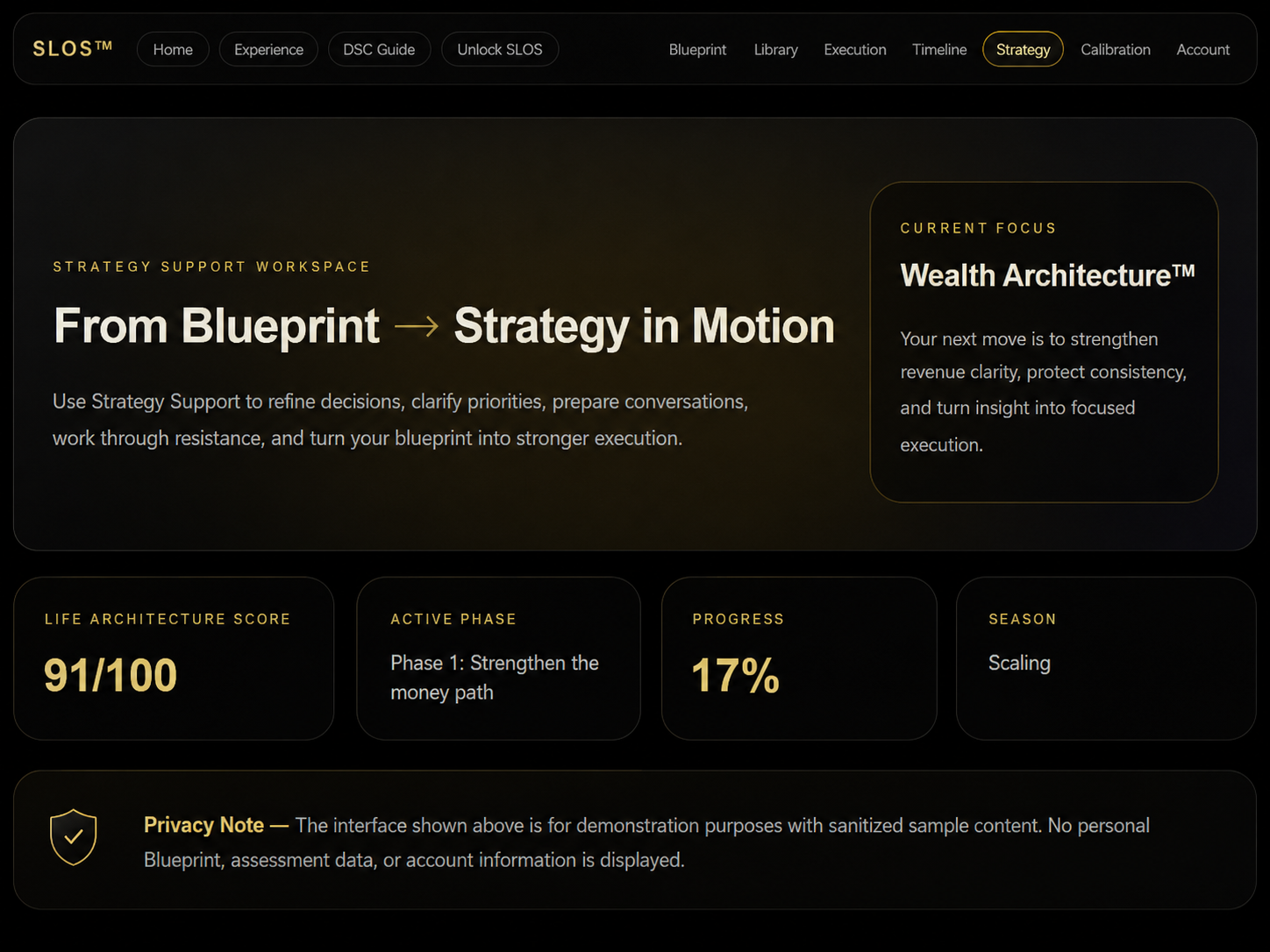
You can use it to make a decision, clarify a next step, build a plan, prepare for a conversation, review an idea, or continue from a Blueprint, Execution signal, Weekly Executive Summary™, or Daily Serene Calibration™.

You don’t need to write a perfect prompt. Tell Serene what you are trying to understand, decide, create, or move forward.

The workspace settings help shape how the response is written and what kind of support you receive.

Start with the question in front of you

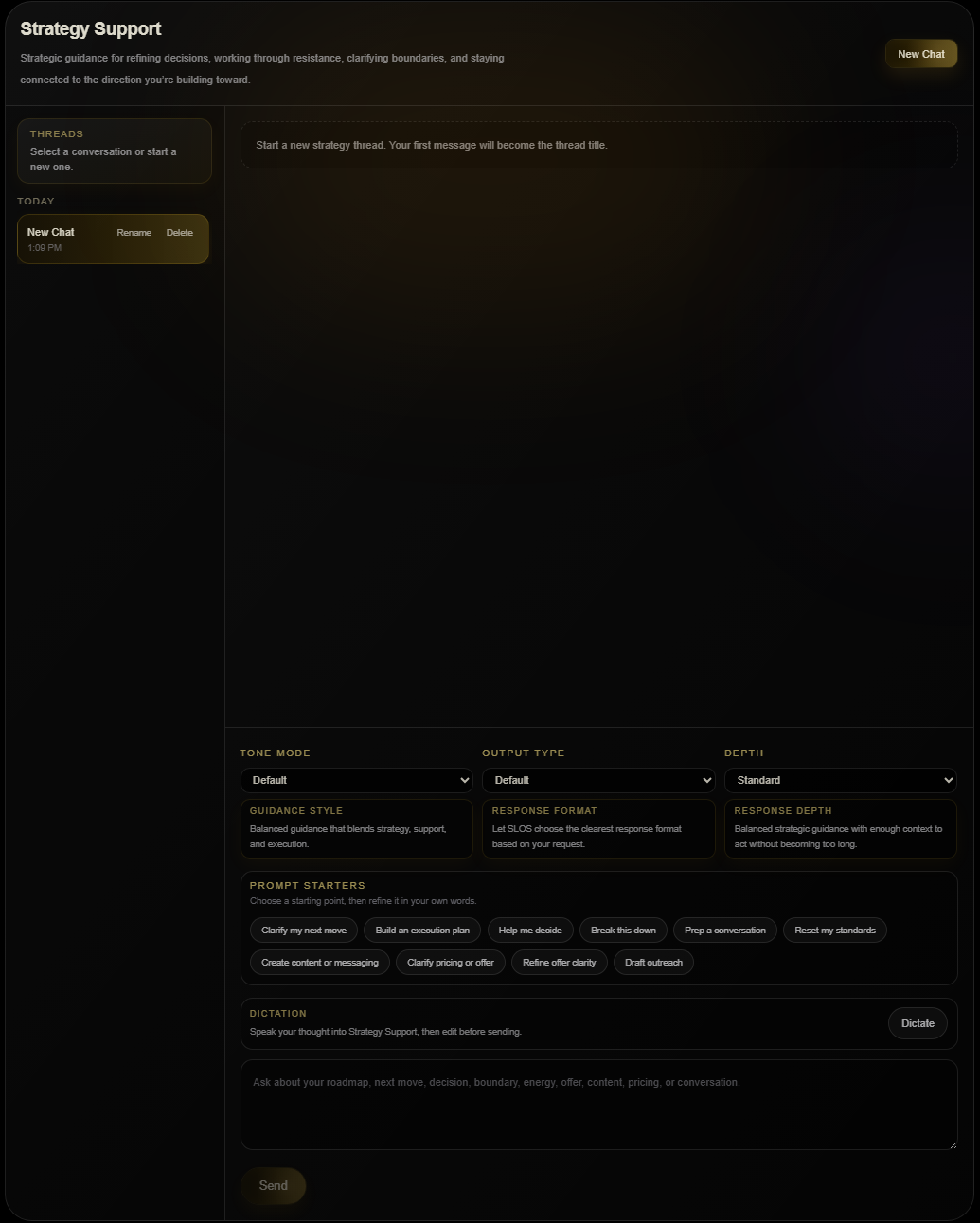
The Strategy Support workspace is where you enter your question, situation, or request.

You can begin with a full explanation or a simple sentence. Serene can help you organize the rest.

Examples could include:

  • Help me decide what to focus on this week.
  • Create an action plan from this idea.
  • Help me prepare for an important conversation.
  • Review this offer and show me what needs clarification.
  • Help me work through this Execution Watchpoint™.

What to do next:
Enter what you need help with, then review the response settings before sending.

Strategy Support Empty Workspace

Choose the Blueprint connected to this request

Selecting a Blueprint gives Serene the direction, goals, priorities, and roadmap connected to that area of your life or business.

Choose the Blueprint that best matches the question you are asking.

If your request is not connected to a Blueprint, you can still use Strategy Support without one.

Strategy Support Blueprint Context
Generated or sanitized sample shown for demonstration. No personal Blueprint or account information is displayed.

Add the information Serene should use

Strategy Context lets you select saved files or information so Serene can better understand your request.

For example, you might include a plan, offer document, meeting notes, spreadsheet, presentation, or other saved material.

Choose only the context that is useful for the current conversation. This keeps the response connected to the information that matters most.

Choose how the response should sound

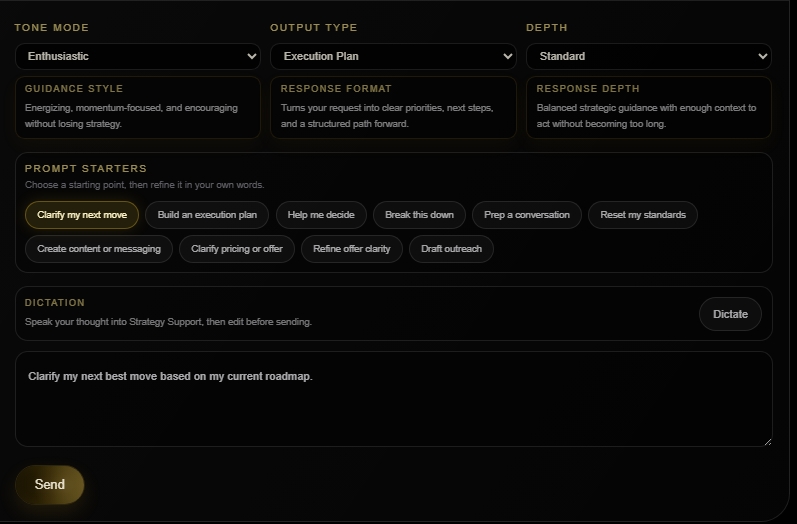
Tone changes how Serene delivers the guidance.

Available options include:

  • Default — clear and balanced
  • Strategic — structured and focused on direction
  • Direct — concise and straightforward
  • Luxury — polished, elevated, and refined
  • Supportive — calm, encouraging, and steady
  • Enthusiastic — energetic and motivating

Choose the tone that makes the response easiest for you to understand and use.

Strategy Support Controls

Choose what you want Serene to create

Output Type shapes the response around the kind of support you need.

Available options include:

  • Default — a balanced response based on your question and selected settings
  • Execution Plan — clear steps, priorities, and actions you can follow
  • Decision Support — help comparing options, tradeoffs, and possible outcomes
  • Strategy Breakdown — a larger idea or goal divided into clear parts
  • Conversation Prep — talking points, questions, and structure for an important discussion
  • Accountability Reset — help reviewing what stalled, what changed, and how to restart
  • Content / Communication — support creating or improving messages, content, or written communication
  • Pricing / Offer Strategy — guidance on pricing, packaging, positioning, and offer structure
  • Offer Clarity — help making an offer easier to understand, explain, and evaluate
  • Outreach / Partnership — support preparing outreach, partnership ideas, and collaboration messages

Choose the option that best matches the result you want. For example, select Execution Plan for clear steps or Decision Support when you’re comparing choices.

Choose how much detail you need

Depth controls how much explanation and detail Serene includes.

Available options include:

  • Focused — a shorter response centered on the main point
  • Standard — a balanced level of detail
  • Expanded — a more complete response with added explanation and structure

Use Focused for a quick answer, Standard for most requests, and Expanded when the situation needs more careful thinking.

Use a starting point when you are unsure what to ask

Prompt starters give you examples of requests you can use or adjust.

Choose one that is close to what you need, then add your own details.

You can also ignore the starters and write your request from scratch.

Speak or type your request

You may be able to type your message or use dictation to speak it.

Use whichever method feels easiest. A natural explanation is enough. You don’t need to format the request in a special way.

Review your message before sending, especially when it includes names, dates, numbers, or other details that need to be exact.

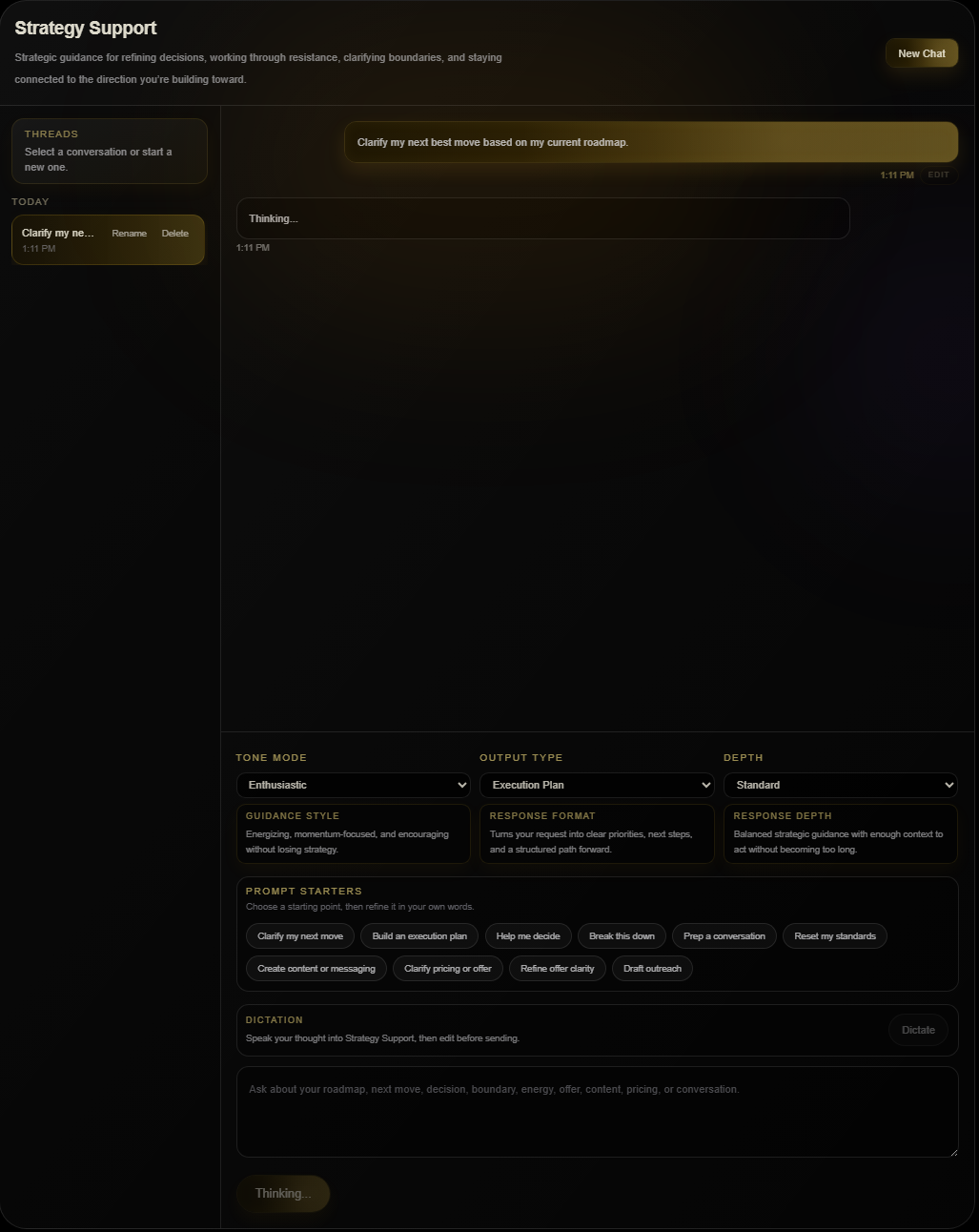
Give Serene a moment to work through the request

After you send your message, Serene reviews your question along with the Blueprint, settings, and selected context.

More detailed requests or larger context selections may take a little longer to process.

Keep the workspace open while the response is being prepared.

Strategy Support Thinking

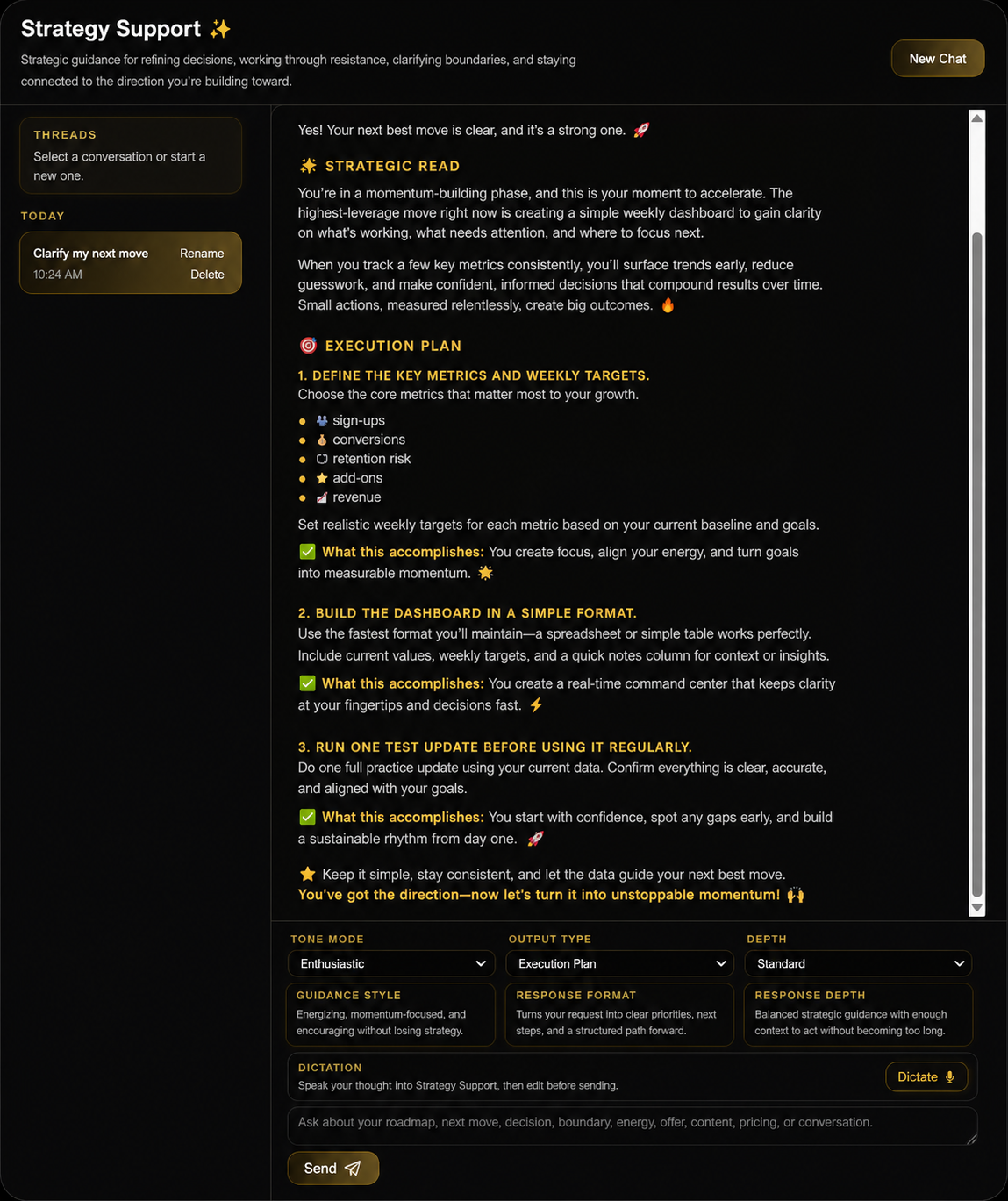
Review the guidance and continue the conversation

Serene’s response is based on your request and the settings you selected.

Read through the guidance, notice what feels most useful, and ask a follow-up question when you need clarification, another option, or a more specific next step.

You can continue in the same conversation so Serene can build on what has already been discussed.

Strategy Support Enthusiastic Response
Generated or sanitized sample shown for demonstration. No personal Blueprint or account information is displayed.

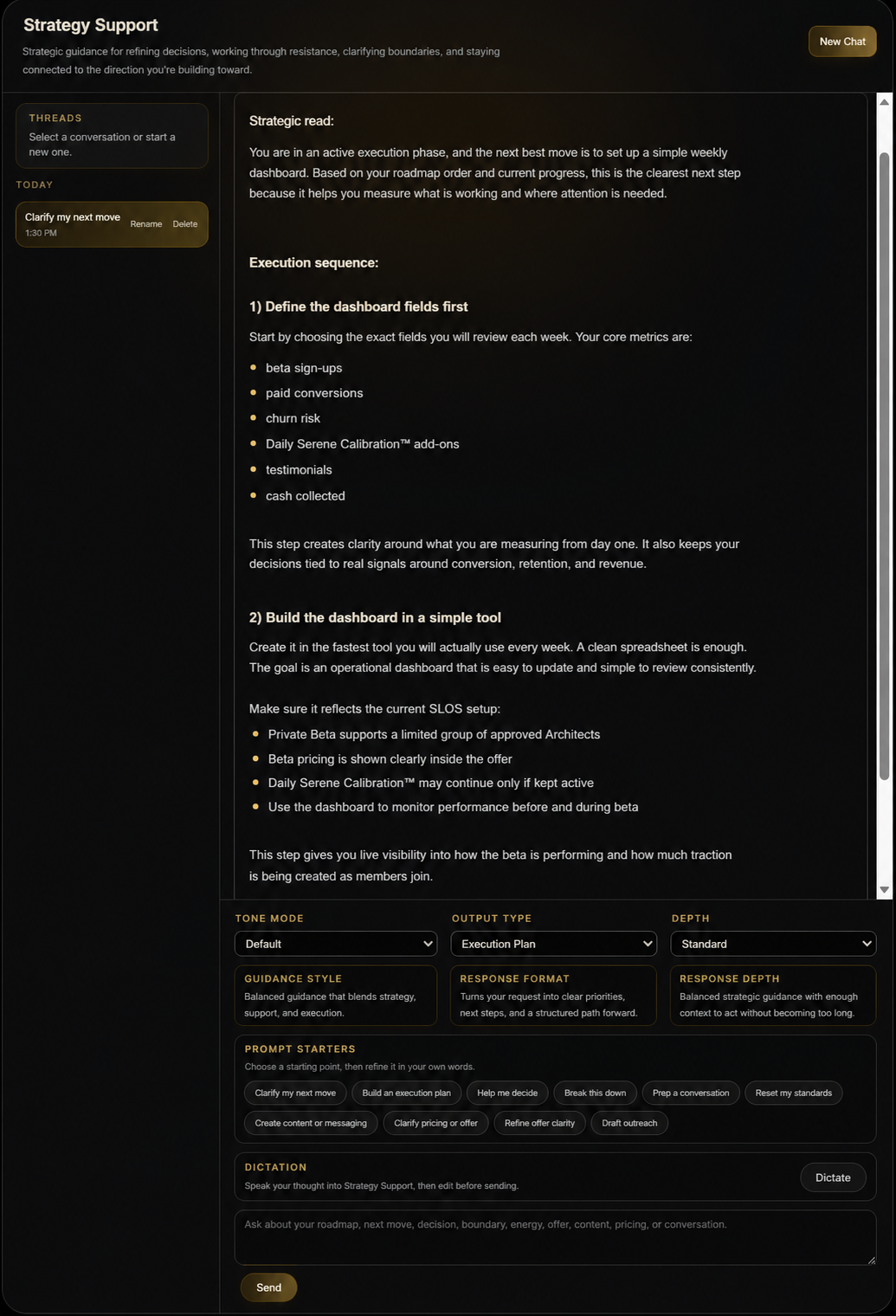
Choose the response style that helps you act

The same question may feel different depending on the Tone, Output Type, and Depth you choose.

A Default response may be calm and balanced. An Enthusiastic response may bring more energy and encouragement. A Direct response may move more quickly to the main point.

Adjust the controls when the information is useful but the delivery does not fit what you need.

Strategy Support Default Response
Generated or sanitized sample shown for demonstration. No personal Blueprint or account information is displayed.

Pick up where you left off

You may enter Strategy Support directly from a Blueprint insight, Execution signal, Weekly Executive Summary™, or Daily Serene Calibration™.

When you continue from another part of SLOS, the related information travels with you, so you don’t have to explain everything again.

Add any details that have changed, then tell Serene what you want to work through next.

Strategy Support with Serene

Use this space to work through the question, decision, or idea in front of you. Come here when you need clearer direction, a useful plan, or support deciding what to do.


Section 09

Strategy Context

What is Strategy Context?

A place to save files and information that Serene can use during Strategy Support.

Why does it matter?

It helps Serene understand the details behind your question, so the guidance can reflect the work, plans, and information you already have.

What should I do here?

Add useful files, keep your library organized, and choose the context that fits each Strategy Support conversation.

Section introduction

Strategy Context gives Serene more information to work with.

You can add documents, spreadsheets, presentations, images, audio, video, and structured data connected to your life, business, goals, or current work.

After a file is added, you can save it in your Library and choose when Serene should use it. You don’t need to select everything for every conversation. Choose only what helps explain the request you are working through.

The amount of storage and the number of items you can select may depend on your membership tier.

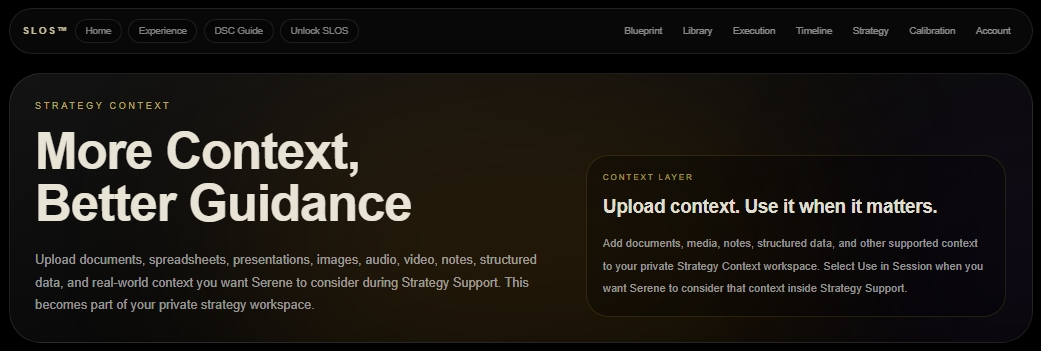
Give Serene more useful information

The Strategy Context page is where you add and manage information that may help Serene support you.

This can include plans, notes, research, offers, reports, presentations, recordings, or other materials connected to your work.

Use this page when your question depends on details that are not already included in your Blueprint.

What to do next:
Add a file or open your Library to review what is already saved.

Strategy Context Hero

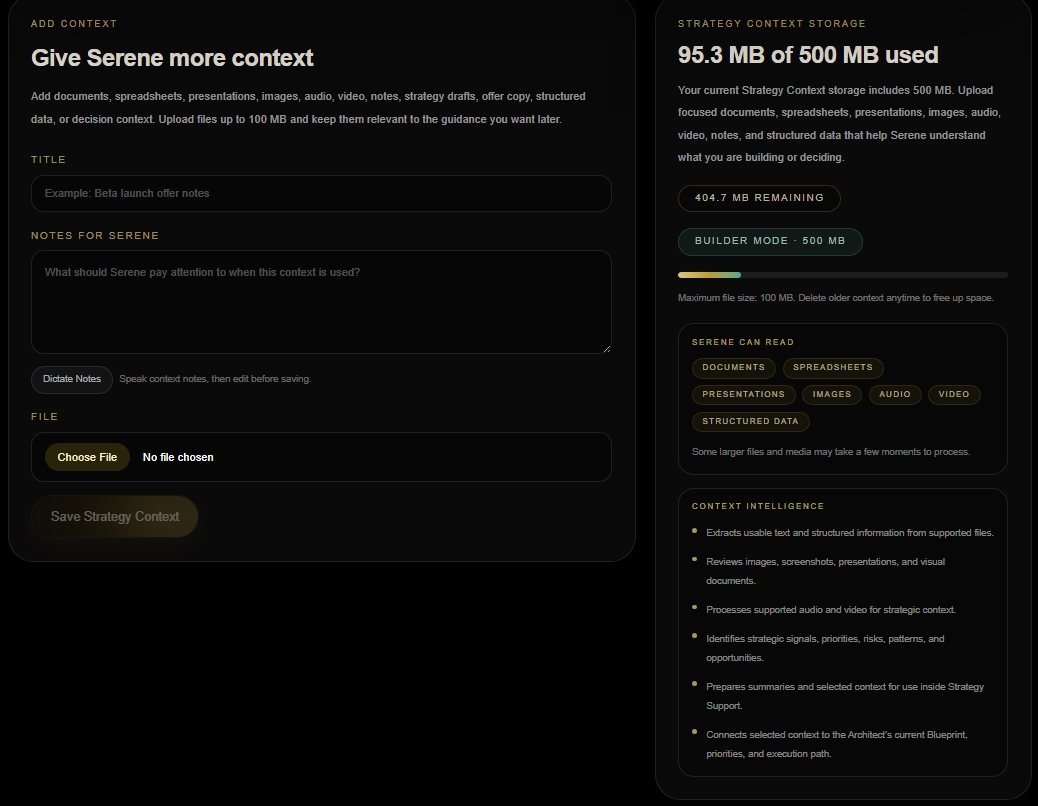
Add the files that matter

Select Add Context when you want to upload new information.

Supported categories include:

  • Documents
  • Spreadsheets
  • Presentations
  • Images
  • Audio
  • Video
  • Structured Data

Choose files that will help Serene understand your goals, decisions, plans, or current situation.

You don’t need to upload every file you have. Start with the information that is most useful now.

Strategy Context Upload Storage
Mixed-tier demonstration shown. Strategy Context capacity, synthesis level, and output capabilities vary by membership tier. Generated and sanitized sample content is used to protect Architect privacy.

Understand your available space

Your Strategy Context page shows how much storage you have used and how much remains.

File size, storage space, saved-item limits, and the number of items you can select for one Strategy Support session may vary by membership tier.

Core

  • 250 MB of Strategy Context storage
  • Files up to 25 MB each
  • Up to 50 saved items
  • Up to 5 selected items per Strategy Support session

Elevated

  • 500 MB of Strategy Context storage
  • Files up to 50 MB each
  • Up to 75 saved items
  • Up to 10 selected items per Strategy Support session

Sovereign

  • 1 GB of Strategy Context storage
  • Files up to 100 MB each
  • Up to 150 saved items
  • Up to 20 selected items per Strategy Support session

All tiers can use the same supported file categories. Storage, selected context, synthesis level, and output capabilities may vary by membership tier.

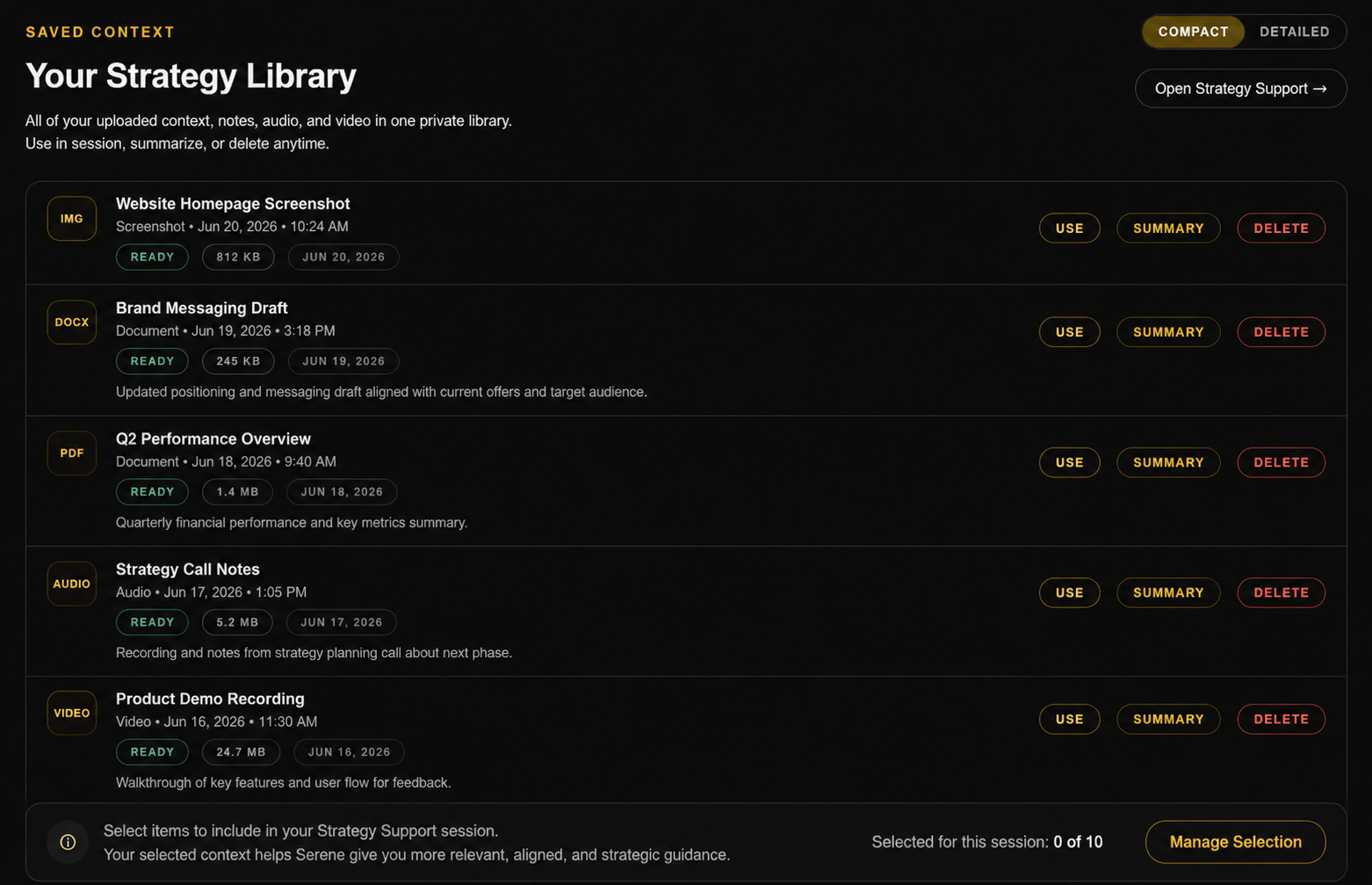
Keep your saved context organized

Your Library shows the files and information saved to your account.

You may see the item name, category, file type, size, date added, or other details that help you recognize it.

Use clear names so you can find the right context later.

What to do next:
Review your saved items and remove anything you no longer need.

Strategy Context Library
Mixed-tier demonstration shown. Strategy Context capacity, synthesis level, and output capabilities vary by membership tier. Generated and sanitized sample content is used to protect Architect privacy.

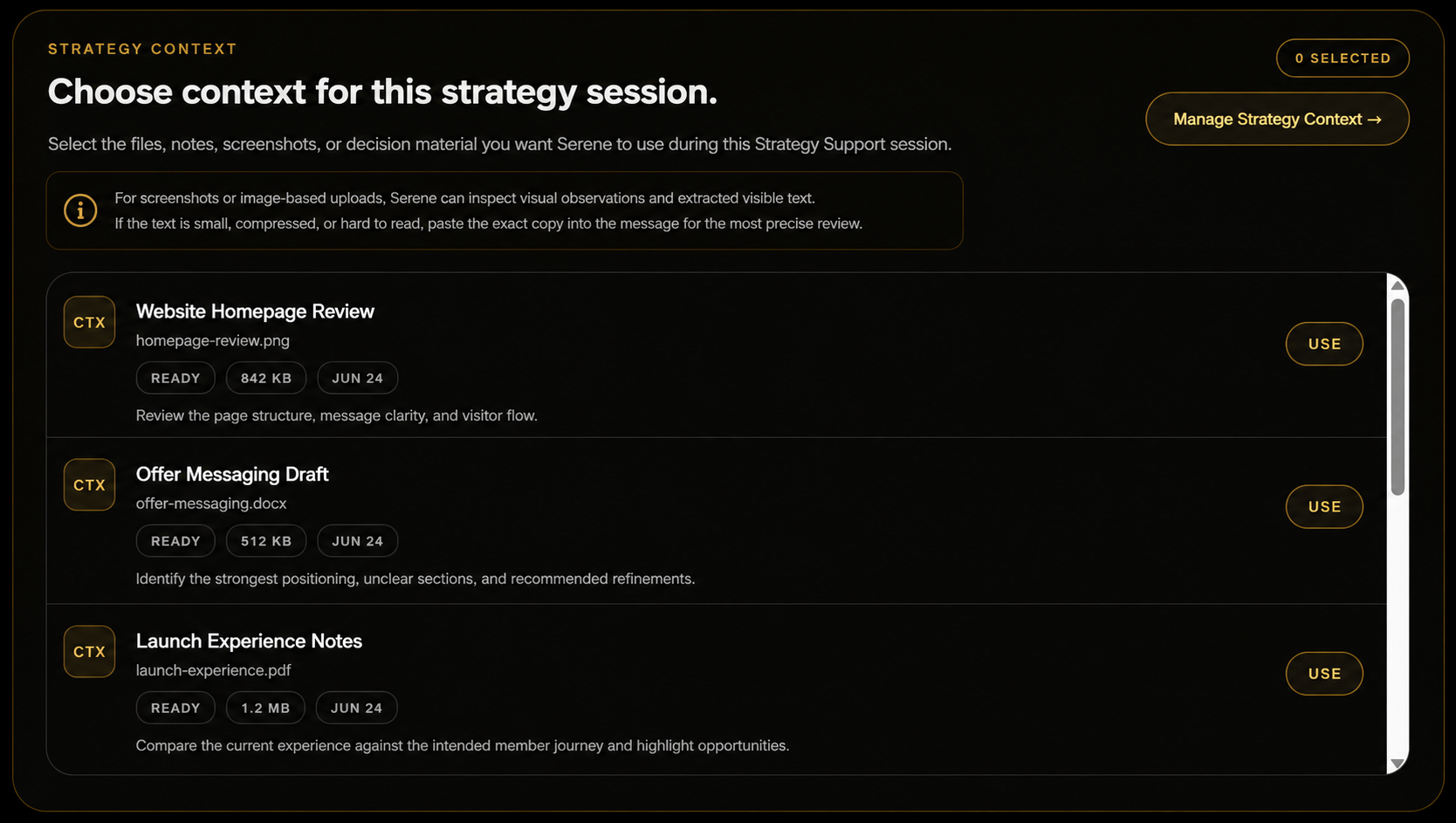
Select what Serene should use

Before or during a Strategy Support conversation, you can choose which saved items Serene should use.

Select the files that are directly connected to the question you are asking.

For example, if you are reviewing an offer, you might select the offer document, pricing notes, and related research. You don’t need to select unrelated files from another project.

Choosing the right context helps keep the response clear and connected to the work in front of you.

Strategy Support Selected Context
Mixed-tier demonstration shown. Strategy Context capacity, synthesis level, and output capabilities vary by membership tier. Generated and sanitized sample content is used to protect Architect privacy.

Let Serene connect the useful details

Context Intelligence helps Serene work with the information you select.

Depending on your membership tier and the files included, Serene may identify themes, compare details, connect information across files, or use the context to shape a more useful response.

You can improve the result by choosing focused, relevant files and explaining what you want Serene to help you understand or create.

Bring your information into the conversation

Once your files are saved, you can use them in Strategy Support.

Choose your Blueprint, select the relevant Strategy Context, and tell Serene what you want to work through.

Serene can then use your request, Blueprint, workspace settings, and selected context together.

What to do next:
Confirm the selected files before sending your message.

Membership and demonstration note

Some Strategy Context screenshots in this guide may show storage or selection limits from a different membership tier.

Mixed-tier demonstration shown. Strategy Context capacity, synthesis level, and output capabilities vary by membership tier. Generated and sanitized sample content is used to protect Architect privacy.

Founding Architects receive Sovereign-level intelligence and capabilities during the first launch month, September 9 through October 9, 2026.

Support the conversation with context

Strategy Context helps Serene work with the information behind your question. Add what is useful, choose what fits the current conversation, and return to your library as your work grows.


Section 10

Daily Serene Calibration™ &The Serene Suite™

What is Daily Serene Calibration™?

A guided check-in that helps you understand your current energy, choose what matters most today, and receive daily guidance from Serene.

Why does it matter?

It helps you pause, notice what is affecting you, and connect your day to the Blueprint or area that needs support.

What should I do here?

Check in honestly, choose your main area, review your calibration, and use the guidance to decide what comes next.

Section introduction

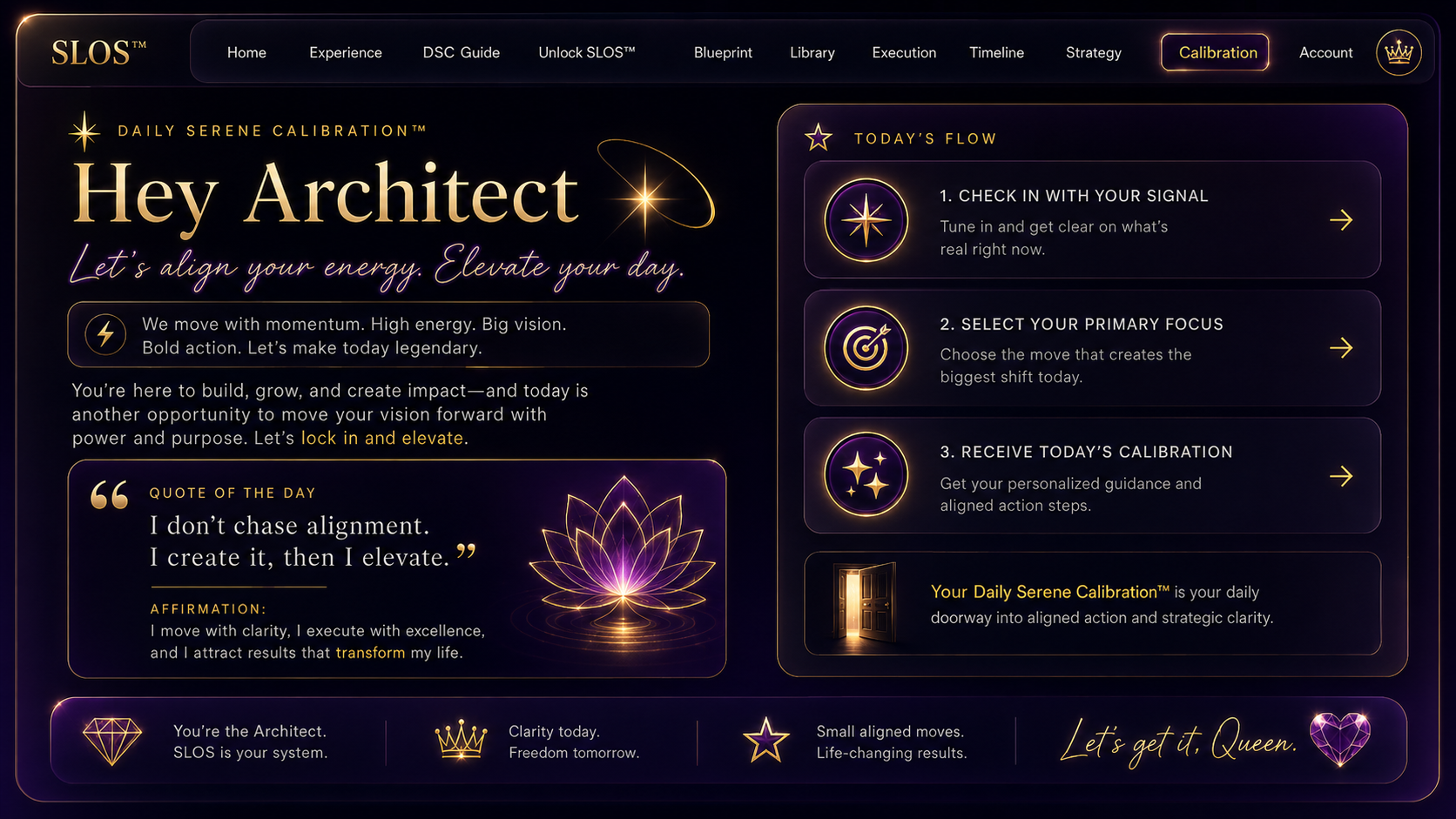
Daily Serene Calibration™ gives you a simple way to begin or reset your day.

You start by sharing how you feel and what signals are present. Then you choose the area that needs your attention, such as Wealth Architecture™ or Vitality Architecture™.

Serene uses that information to create a daily calibration with Today’s Read, a Strategic Move, an Execution Watchpoint™, and an Opportunity Signal™.

You can return later to review saved calibrations, continue one in Strategy Support, or adjust your reminder settings.

Enter the space for your daily check-in

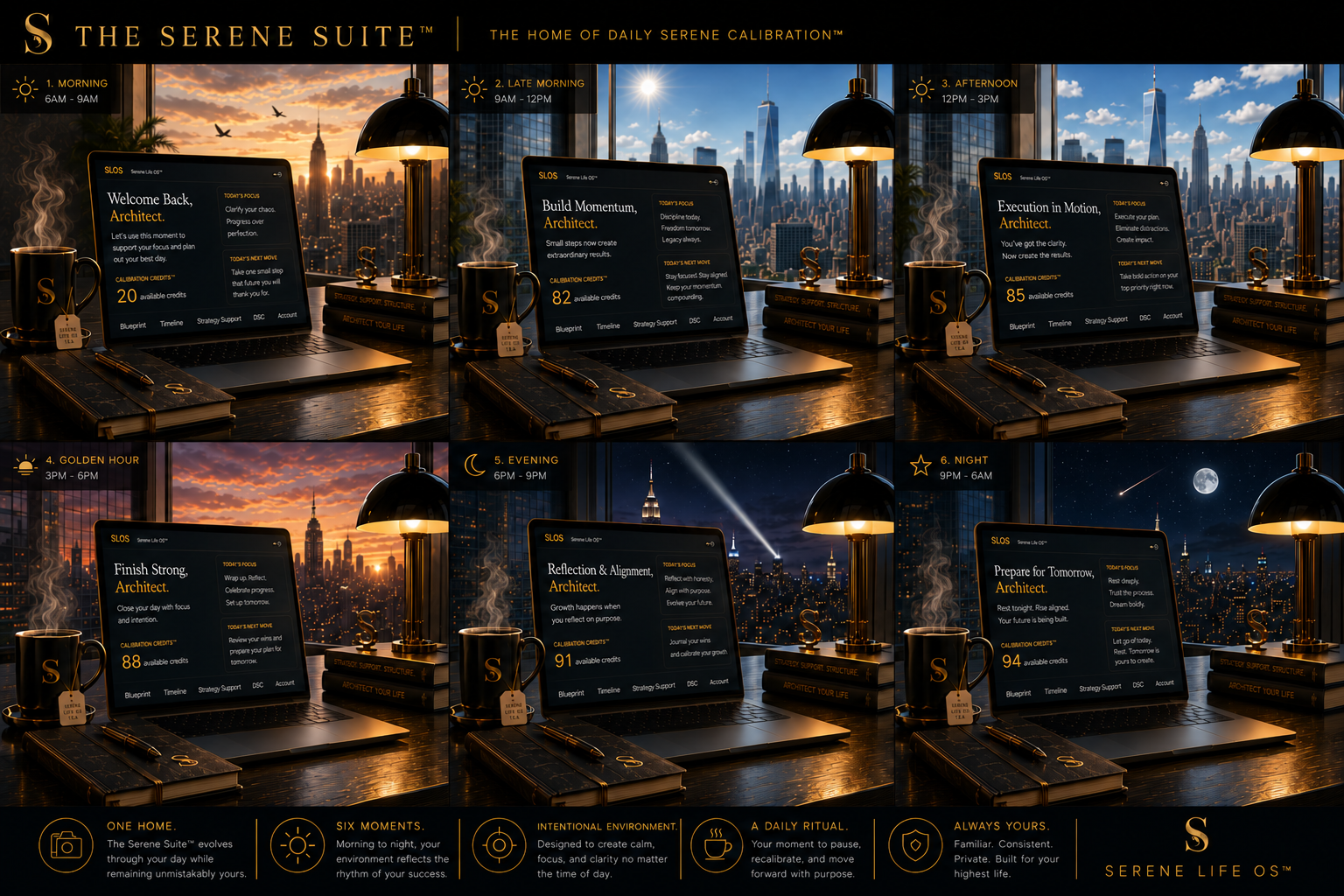
The Serene Suite™ is the visual home of Daily Serene Calibration™.

Its purpose is to make your check-in feel intentional and connected to your day. The environment changes, but the ritual stays yours.

The guide image shown here is a collage of six time-based environments. Your DSC email will display the environment connected to the notification time you select, so the atmosphere reflects when you plan to check in.

The Serene Suite™ changes as the day progresses:

  • Morning — 6:00 AM to 9:00 AM
  • Late Morning — 9:00 AM to 12:00 PM
  • Afternoon — 12:00 PM to 3:00 PM
  • Golden Hour — 3:00 PM to 6:00 PM
  • Evening — 6:00 PM to 9:00 PM
  • Night — 9:00 PM to 6:00 AM

Each setting creates a familiar space to pause, reflect, and prepare for your Daily Serene Calibration™.

Conceptual product visual shown for demonstration. Final responsive presentation may vary by device and time of day.

DSC Serene Suite
Conceptual product visual shown for demonstration. Final responsive presentation may vary by device and time of day.

Return to Center

The welcome screen gives you a calm place to begin.

You’ll see a short message, affirmation, or reflection before starting the check-in.

Use this moment to slow down and notice what is present before choosing your answers.

What to do next:
Select the option to begin your calibration.

DSC Hero
Generated or sanitized sample shown for demonstration. No personal Blueprint or account information is displayed.

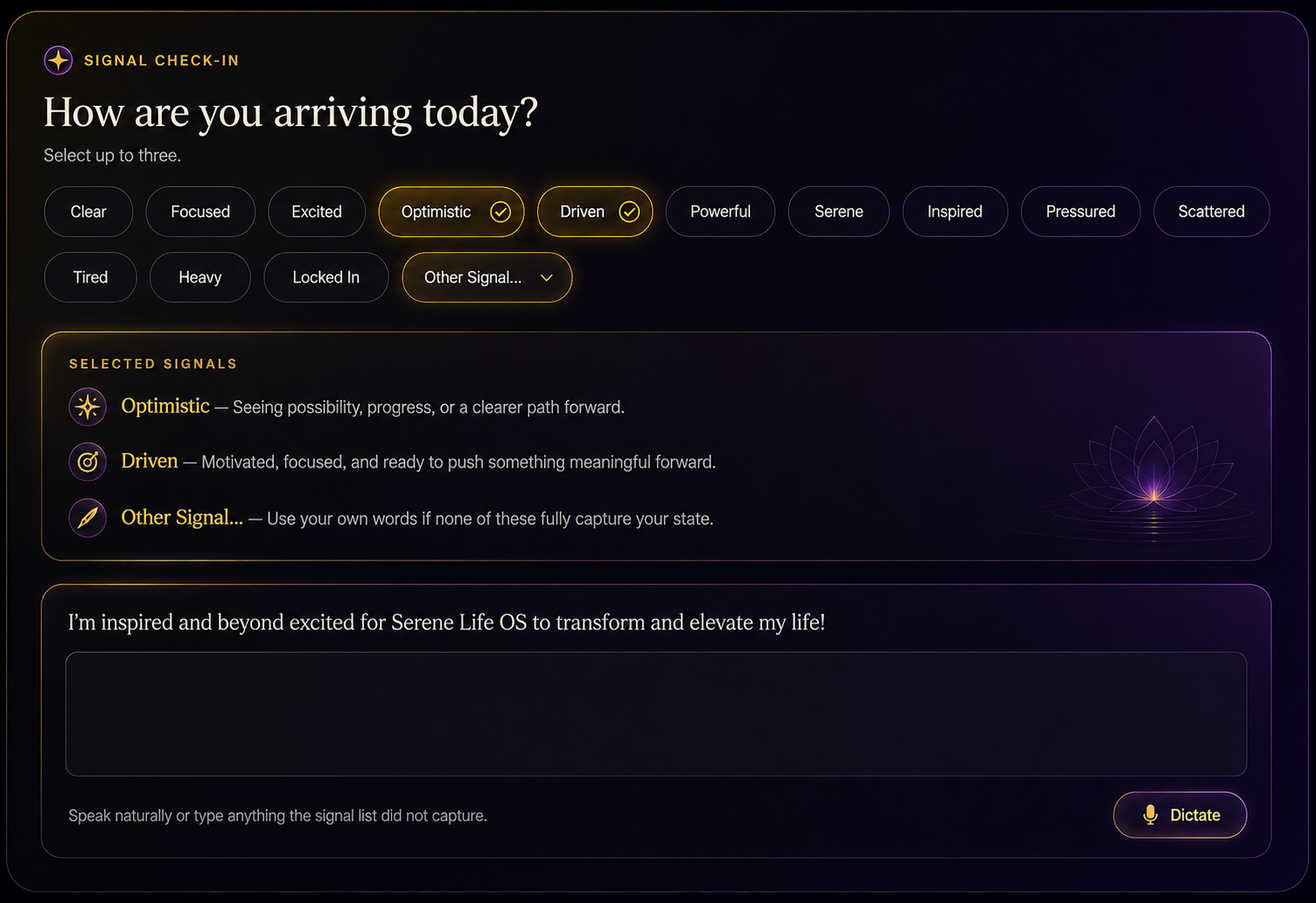
Name what you are feeling

The Signal Check-In helps Serene understand your current emotional, mental, or energetic state.

You may choose more than one signal, such as:

  • Optimistic
  • Driven
  • Other Signal

Use Other Signal when the available choices do not fully describe what you are experiencing.

There is no right answer. Choose what feels true now.

DSC Signal Checkin
Generated or sanitized sample shown for demonstration. No personal Blueprint or account information is displayed.

Add what the choices do not capture

When you select Other Signal, you can describe what else is present.

This could be a feeling, concern, change, pressure, or thought that may affect your day.

A short sentence is enough. Share only what feels useful for the calibration.

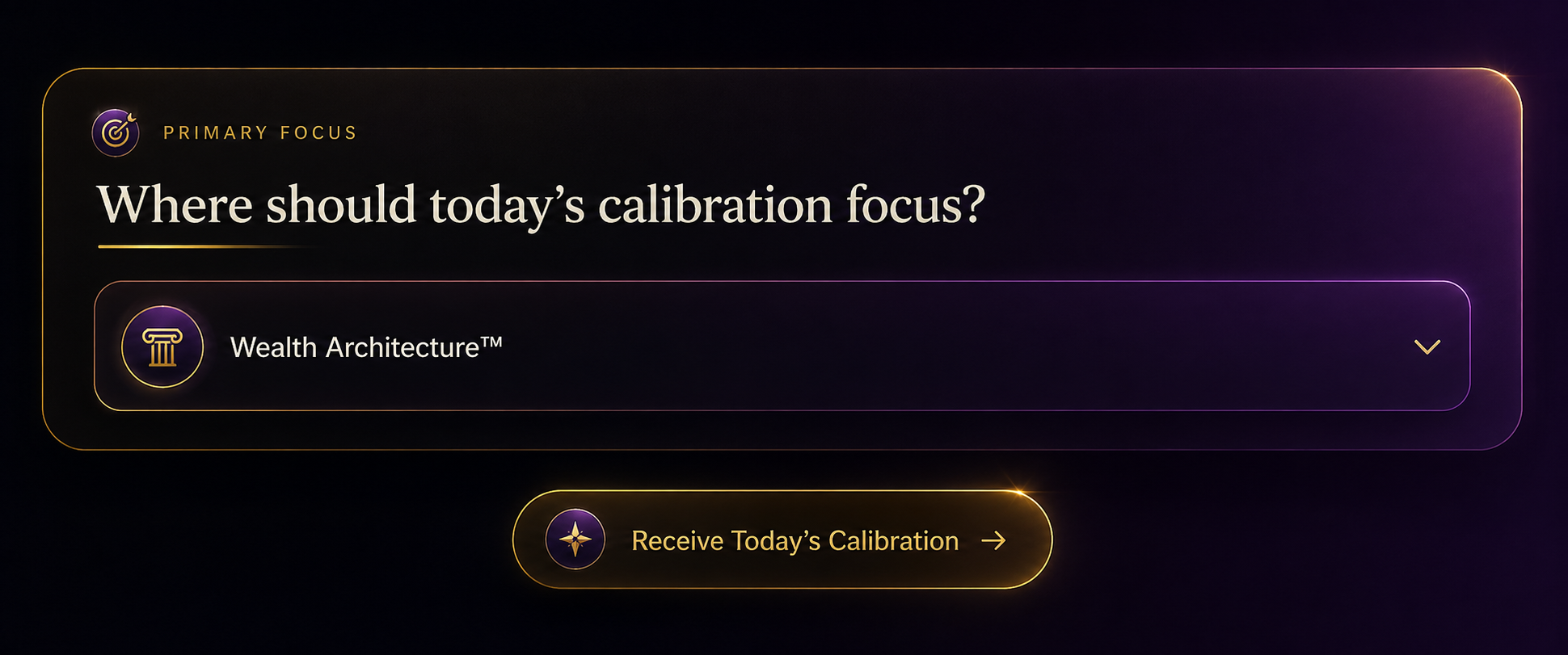
Choose the area that needs support today

Primary Focus tells Serene which part of your life or business should guide the calibration.

For example, you may choose:

  • Wealth Architecture™
  • Vitality Architecture™

Choose the area most connected to what you need today. It does not have to match every priority in your life.

What to do next:
Select your Primary Focus and continue.

DSC Primary Focus
Generated or sanitized sample shown for demonstration. No personal Blueprint or account information is displayed.

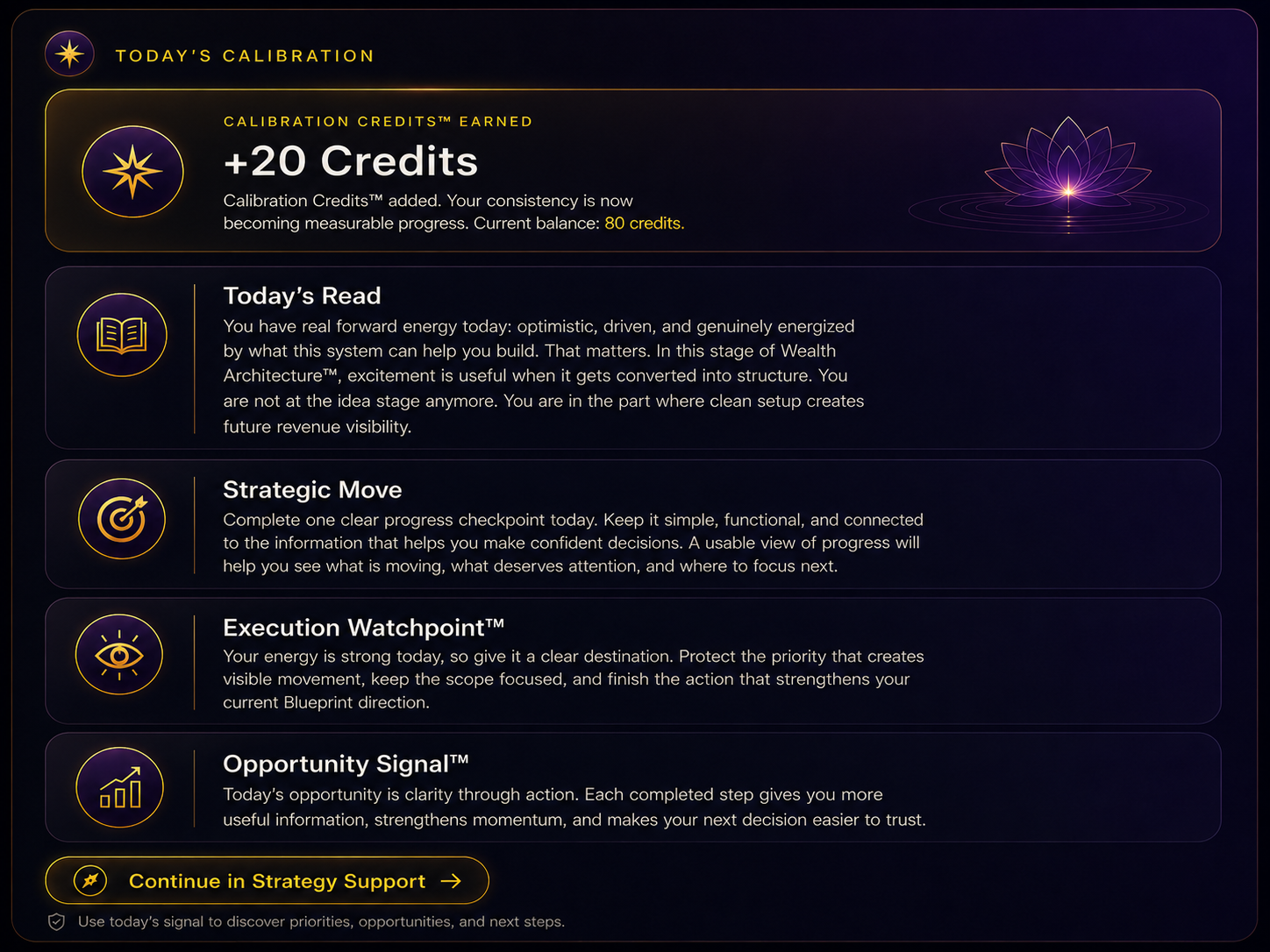
Review what Serene sees for today

Your calibration brings your signals and Primary Focus together into a clear daily read.

It includes:

  • Today’s Read — a simple reflection of what may be shaping your day
  • Strategic Move — the action or decision that may help most
  • Execution Watchpoint™ — something that could affect progress or need support
  • Opportunity Signal™ — an opening or useful possibility to notice

Read the full calibration before choosing what to act on.

DSC Today’s Calibration
Generated or sanitized sample shown for demonstration. No personal Blueprint or account information is displayed.

Understand what may be influencing you

Today’s Read reflects the signals you shared and the area you selected.

It helps you name what may be happening beneath the surface so you can respond with more awareness.

Use it as a starting point for your day.

Choose one useful move

The Strategic Move gives you a focused action, adjustment, or decision for the day.

It is designed to help you work with your current state.

You don’t have to complete everything at once. Begin with the part that feels most useful and realistic.

Notice what may need care and what may help

The Execution Watchpoint™ highlights something that could affect your progress, attention, or follow-through.

The Opportunity Signal™ shows a useful opening, strength, or possibility that may support your next move.

Review them together. One helps you protect your progress, and the other helps you see where movement may be possible.

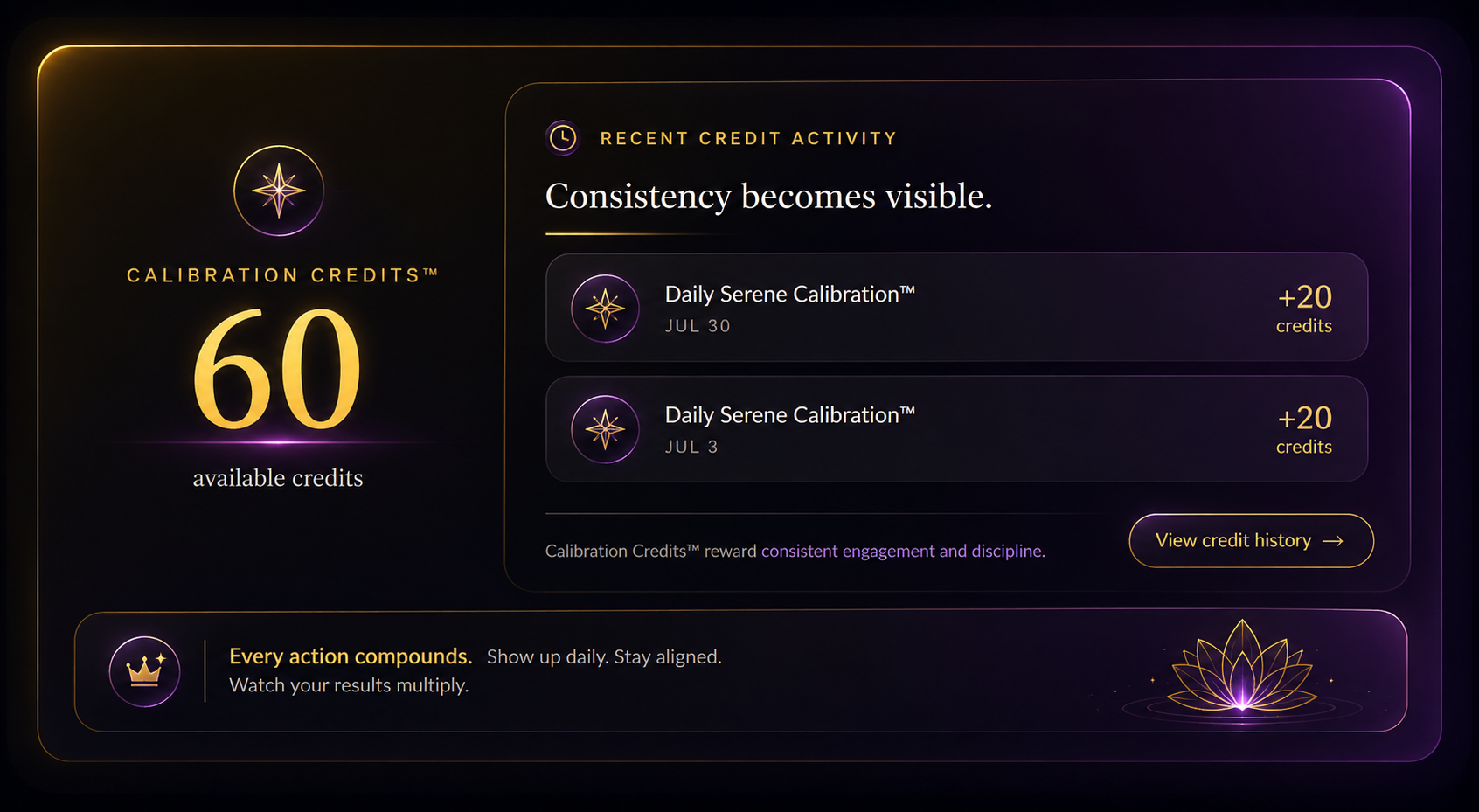
See how many calibrations are available

Calibration Credits™ reward consistency, follow-through, and meaningful progress inside SLOS.

100 Calibration Credits™ = $1, which means each credit has a value of $0.01.

You earn 20 Calibration Credits™ when you complete a Daily Serene Calibration™. Completion requires at least one signal, a generated Today’s Read, and the completed calibration state.

During Founding Access, you can also earn credits through approved optional feedback:

  • 333 credits — private written feedback
  • 555 credits — public written feedback
  • 777 credits — written feedback with your name and photo
  • 3,333 credits — short video feedback
  • 5,555 credits — polished video feedback

Your credits do not expire. They roll over, can be saved, and can be applied manually or automatically when eligible redemption options become available.

Redemption options may include access perks, billing credits, recognition rewards, à la carte purchases, Daily Serene Calibration™ access, controlled membership credits, and future SLOS features as the system evolves.

Monthly billing-credit limits are up to $5 for promotional users and up to $10 for standard users, equal to 500 and 1,000 credits.

After one year of consistent use and at least 20 logins per month, Architects can redeem credits for one or two months of membership, limited to twice per year.

  • $58.88 membership: 5,888 credits for one month or 11,776 credits for two months
  • $68.88 membership: 6,888 credits for one month or 13,776 credits for two months

Earned through consistency. Redeemed through progress.

During Founding Access, Calibration Credits™ track your consistency and approved optional feedback while additional redemption options are finalized.

DSC Calibration Credits
Generated or sanitized sample shown for demonstration. No personal Blueprint or account information is displayed.
Return to earlier check-ins

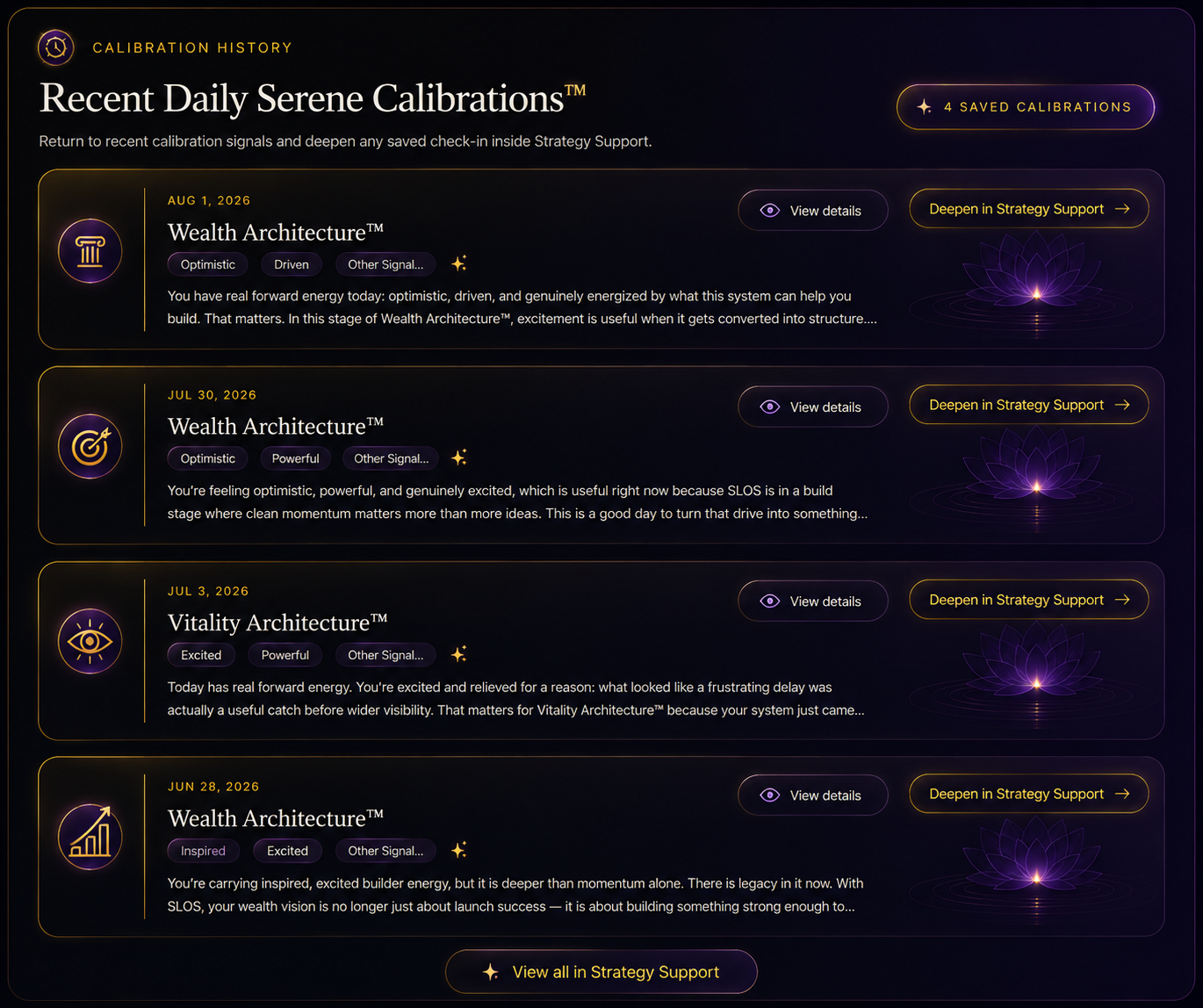
Calibration History keeps your saved calibrations in one place.

Each entry may show the date, selected area, signals, and a short preview of the guidance.

Use your history to notice patterns, revisit a useful calibration, or see how your attention has changed over time.

The examples shown may include Wealth Architecture™ and Vitality Architecture™.

DSC Calibration History
Generated or sanitized sample shown for demonstration. No personal Blueprint or account information is displayed.
Keep working with a saved calibration

You can continue a saved calibration in Strategy Support when you need more help.
Use this option to:

  • work through the Strategic Move
  • create a clear plan
  • talk through an Execution Watchpoint™
  • explore an Opportunity Signal™
  • add new information that has come up since the check-in

The calibration travels with you, so Serene can continue from the guidance you already received.

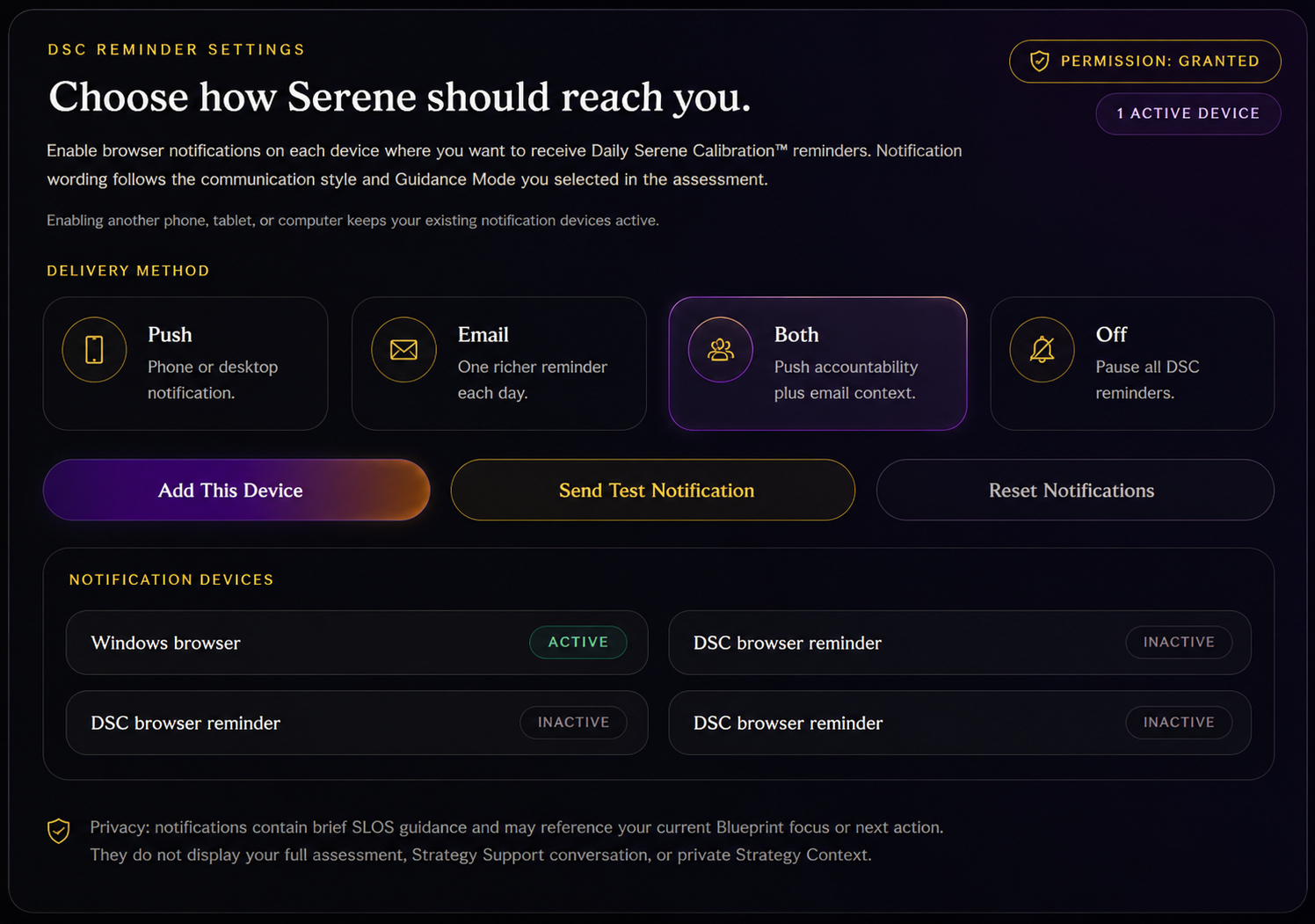
Choose when you want to check in

Reminder settings help you decide when SLOS should prompt you to complete a Daily Serene Calibration™.

Choose a time that fits your normal routine and gives you enough space to pause.

You can update or turn off reminders when your schedule changes.

DSC Reminder Settings
Generated or sanitized sample shown for demonstration. No personal Blueprint or account information is displayed.

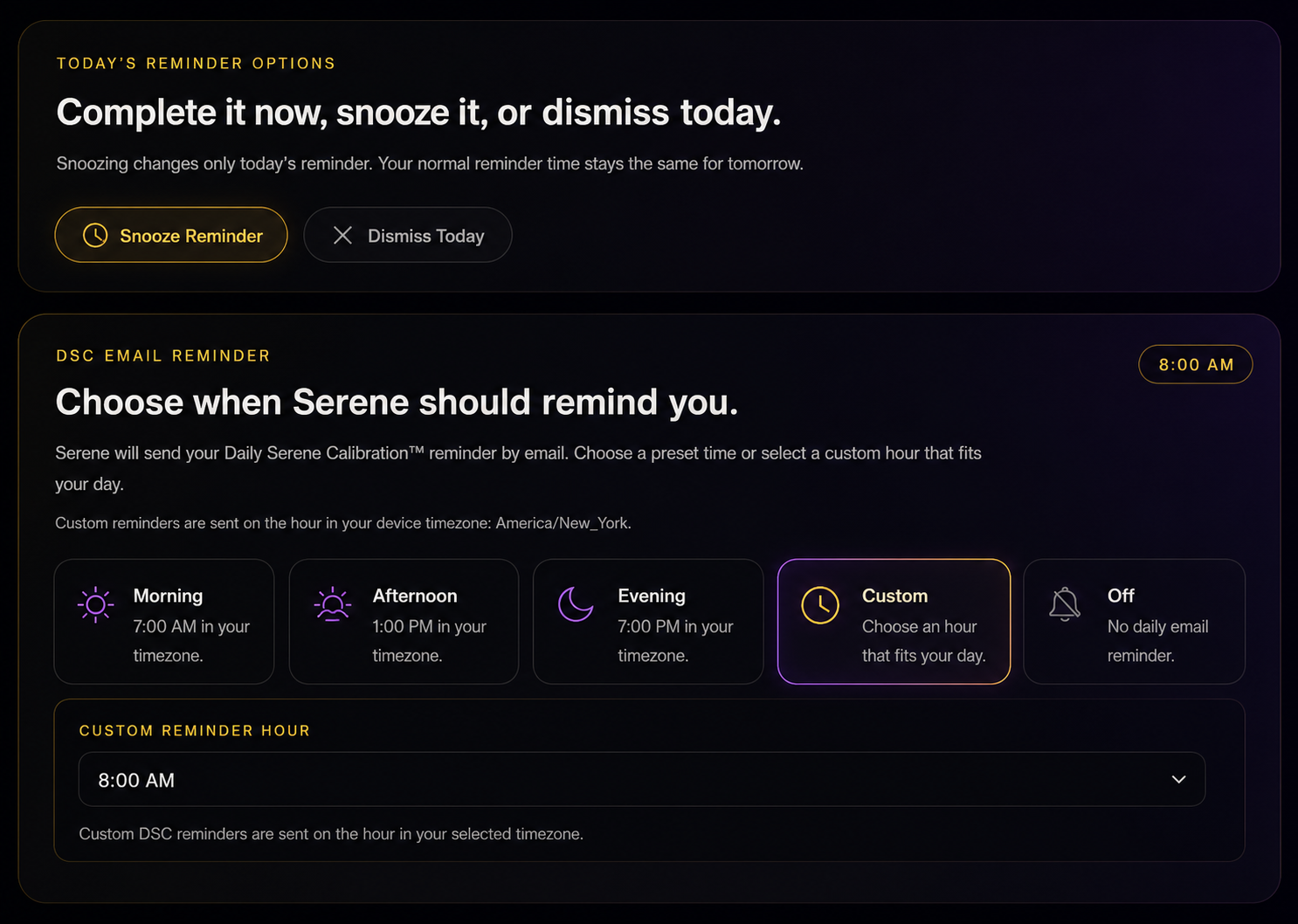
Adjust the reminder when the timing does not fit

When a reminder appears, you may be able to begin the calibration, snooze it, or choose another time.

Use snooze when you still want the reminder but need a little more time before checking in.

DSC Reminder Options
Generated or sanitized sample shown for demonstration. No personal Blueprint or account information is displayed.

Your Daily Check-In

Daily Serene Calibration™ helps you meet the day with more awareness and a clearer direction. Return whenever you need to check in, reset your focus, or reconnect with your priorities.


Section 11

Membership Tiers, Access Offers, and Launch Access Notes

What changes by membership tier?

Storage, selected context, synthesis level, output capabilities, and some advanced features.

What changes by access offer?

Your entry price, access period, Daily Serene Calibration™ complimentary period, and conversion timing.

What should I do here?

Review the tier details, understand the offer available to you, and choose the access path that fits how you plan to use SLOS.

Section introduction

SLOS includes membership tiers and access offers.

Membership tiers describe the level of capacity and support available inside SLOS. Access offers describe how you begin, what entry pricing applies, and when standard pricing begins.

All active memberships include the core SLOS journey: LAA™, Strategic Blueprint™, Blueprint Library, Execution, Timeline, Strategy Support, Strategy Context, and access to Serene.

During Founding Access, Founding Architects receive Sovereign-level capabilities so they can experience the full system at the earliest public access price.

Choose the level that fits how you work

The membership overview helps you compare Core, Elevated, and Sovereign.

Each tier is designed for a different level of use and intelligence.

Core provides focused contextual guidance for clear decisions and next steps.

Elevated adds advanced intelligence, stronger context connections, more nuanced analysis, tradeoff awareness, and more developed recommendations.

Sovereign includes the highest available intelligence in SLOS, with broad synthesis, pattern recognition, scenario planning, and advanced strategic outputs.

Start with focused support

Core includes the main SLOS experience and a focused amount of Strategy Context.

Core Strategy Context includes:

  • 250 MB of storage
  • files up to 25 MB each
  • up to 50 saved items
  • up to 5 selected items per Strategy Support session

Core is designed for Architects who want focused contextual guidance, clear recommendations, and practical next steps while working with a smaller set of files and active priorities.

Work with more active context

Elevated gives you more room for saved information and larger Strategy Support sessions.

Elevated Strategy Context includes:

  • 500 MB of storage
  • files up to 50 MB each
  • up to 75 saved items
  • up to 10 selected items per Strategy Support session

Elevated may be useful when your work includes several projects, offers, plans, or areas of focus that need to stay connected.

Its intelligence layer adds more nuanced analysis, stronger context connections, clearer tradeoffs, and more developed recommendations.

Use the highest available capacity

Sovereign includes the largest Strategy Context allowance and the highest available synthesis and output capabilities.

Sovereign Strategy Context includes:

  • 3 GB of storage
  • files up to 500 MB each
  • up to 150 saved items
  • up to 20 selected items per Strategy Support session

Sovereign may fit Architects who want to work across larger bodies of information, more complex decisions, or multiple connected areas of life and business.

It includes the highest available intelligence in SLOS, with broad synthesis, advanced pattern recognition, scenario planning, and advanced strategic outputs.

Look beyond storage alone

All tiers support the same file categories:

  • Documents
  • Spreadsheets
  • Presentations
  • Images
  • Audio
  • Video
  • Structured Data

The differences go beyond file size and storage.

Serene’s intelligence also varies by membership tier. Core provides focused guidance, Elevated adds more advanced analysis and context connection, and Sovereign includes the highest available intelligence, synthesis, and output capabilities in SLOS.

Choose the tier that fits the amount and complexity of the work you want SLOS to support.

Capability comparison

See how Core, Elevated, and Sovereign expand.

Core provides focused guidance. Elevated adds advanced analysis and stronger connections across context. Sovereign includes the highest available intelligence, synthesis, and output capabilities in SLOS.

CapabilityCoreElevatedSovereign
Strategy Context storage250 MB500 MB1 GB
Maximum individual file25 MB50 MB100 MB
Saved Strategy Context items5075150
Context items selected per session51020
Supported upload categoriesDocuments, spreadsheets, presentations, images, audio, video, and structured dataSame supported categoriesSame supported categories
Strategy Support intelligenceFocused contextual guidanceAdvanced intelligence, nuanced analysis, stronger context connections, tradeoffs, and more developed recommendationsHighest available intelligence, broad synthesis, pattern recognition, scenario planning, and advanced strategic outputs
Multi-source synthesisFocused source useStronger cross-source connections and synthesisBroad cross-source and cross-system synthesis
Conversation continuityStandard continuityExpanded continuityLongest and richest continuity
Pattern recognitionCurrent signals and prioritiesEnhanced pattern, tradeoff, and context recognitionLongitudinal, cross-pillar, and scenario intelligence
Decision supportClear recommendations and next stepsAdvanced tradeoff analysis and developed recommendationsExecutive-level Decision Intelligence™ with scenario planning
Strategy Context outputsStandard summaries and insightsDetailed briefs, comparisons, and reviewsExecutive reports, operating plans, and advanced deliverables
Blueprint intelligencePersonalized Blueprint guidanceEnhanced cross-Blueprint awarenessBlueprint Orchestration™
Weekly Executive Summary™StandardExpandedHighest-detail
Advanced outputsAction plans and summariesStrategy briefs and decision memosBusiness plans, SOPs, launch plans, presentations, and strategic visuals

Understand how entry offers work

Access offers determine how you begin with SLOS.

Founding Access, Launch Promo, and Standard Membership are entry paths.

Each offer includes a different entry price, access period, Daily Serene Calibration™ complimentary period, and conversion timeline.

Your membership tier determines the level of capacity and capability inside SLOS. Your access offer determines how you enter and what pricing applies during the offer period.

Experience Sovereign-level capabilities during Founding Access

Founding Architects receive Sovereign-level intelligence and capabilities during their promotional month.

This includes the highest available reasoning and synthesis profile, broader pattern recognition, scenario planning, advanced strategic outputs, and the largest Strategy Context capacity available in SLOS.

Feedback is optional during Founding Access and may earn Calibration Credits™ when approved.

After the promotional month, the selected standard membership begins recurring billing.

Understand Founding Access

Founding Access is available now through October 9, 2026.

Founding Architects pay $28.88 for one promotional month of SLOS access with Sovereign capabilities.

Standard recurring billing begins one month after checkout based on the membership tier selected.

Daily Serene Calibration™ is complimentary during the promotional month. After that period, it continues for +$11.11 per month only if kept active.

Join while Founding Access is available

Founding Access is limited to the first 100 Founding Architects.

No application is required. Access is first come, first served while places remain available.

Join Founding Access

Founding Access is available to the first 100 Founding Architects through October 9, 2026.

Founding Architects pay $28.88 for one promotional month of SLOS access with Sovereign capabilities.

Standard recurring billing begins one month after checkout based on the membership tier selected.

Daily Serene Calibration™ is included during the promotional month, and Founding Architects receive permanent Founding recognition.

Choose Launch Promotion

Launch Promotion is available to join through October 9, 2026 and begins after successful checkout.

Your promotional first-month price is:

  • Core — $38.88
  • Elevated — $48.88
  • Sovereign — $68.88

Standard pricing begins one month after checkout.

Review standard pricing

Standard monthly pricing is:

  • Core — $58.88 per month
  • Elevated — $68.88 per month
  • Sovereign — $88.88 per month

Standard annual pricing is:

  • Core — $588 per year
  • Elevated — $688 per year
  • Sovereign — $888 per year

Choose the billing option and membership level that fit how you expect to use SLOS over time.

Begin with the parts already available

After successful checkout, your SLOS membership becomes active.

Use Account Home to access your Blueprint Library, Execution, Timeline, Strategy Support, and Daily Serene Calibration™.

Your selected membership tier determines capacity and support. Founding Architects receive Sovereign capabilities during their promotional month.

Review your options, choose with clarity

Membership tiers determine your capacity inside SLOS. Access offers determine how you begin. Review both so you can choose the path that fits how you want to use SLOS.


Section 12

Getting Started

What should I do after reading this guide?

Begin with the part of SLOS that matches your current needs.

Do I need to use every feature right away?

No. Start with the feature that supports your current need, then return to the others when they become useful.

Where should I begin?

If you are new to SLOS, start with LAA™. If you already have a Blueprint, return to the part of the experience that helps you act, review, or continue.

Section introduction

SLOS is designed to support you over time as you work toward achieving your goals.

You begin with an assessment, return to a Blueprint, review your Execution plan, check your Timeline, ask Serene for Strategy Support, add Strategy Context, or complete a Daily Serene Calibration™.

You don’t need to use every part at once. Use the feature that fits what you need now, then return as your goals, plans, or priorities change.

If you are new to SLOS

Begin with LAA™

Start with the Life Architecture Assessment™.

Your answers help SLOS understand your current reality, goals, priorities, communication preferences, and the area you want to work on first.

From there, SLOS creates your Strategic Blueprint™ and Execution Roadmap.

What to do next:
Open LAA™ and begin your first assessment.

If you already have a Blueprint

Return to the plan you want to use

Open your Blueprint Library and choose the Blueprint connected to what you are working on now.

Review the direction, insights, Strategic Breakdown, and Execution Roadmap before deciding what needs action.

What to do next:
Open the Blueprint and begin with its current phase.

If you need to know your move

Go to Execution

Execution helps you see the current phase, priorities, signals, progress, and weekly plan connected to your Blueprint.

Use it when you are ready to move from direction into action.

What to do next:
Review the Immediate Focus and the work connected to the current phase.

If you need to see the big picture

Open Timeline

Timeline helps you see how your plan is moving across phases and time.

Use it to understand where you are, what has already moved forward, and what is ahead.

If you need help thinking something through

Use Strategy Support

Bring Serene the question, decision, idea, or situation in front of you.

Choose a Blueprint, add useful Strategy Context, select the response settings that fit, and ask in plain language.

You can also continue into Strategy Support from another part of SLOS.

If Serene needs more information

Add Strategy Context

Upload the files or information that help explain your request.

Choose only what is useful for the current Strategy Support conversation.

Clear, relevant context helps Serene give guidance that better reflects the work you are already doing.

If you need to check in with yourself

Complete a Daily Serene Calibration™

Use the Daily Serene Calibration™ to notice your current signals, choose the area that needs support, and receive guidance for the day.

You can return to saved calibrations or continue one in Strategy Support when you want more help.

A simple way to return to SLOS

When you are unsure where to begin, ask yourself:

Do I need direction?
Open your Blueprint.

Do I need action?
Go to Execution.

Do I need the bigger picture?
Open Timeline.

Do I need help thinking?
Use Strategy Support.

Does Serene need more information?
Add Strategy Context.

Do I need to check in with myself?
Complete a Daily Serene Calibration™.

Final note

SLOS is here to help you understand where you are, work with what needs your attention, and continue toward the life, business, and future you desire.

Return whenever you need clarity, support, a plan, or an aligned move.

Choose your path forward

Use the part of SLOS that supports what you need now, then let SLOS and Serene guide you toward real, lasting results.