Quick Start sections

SLOS QUICK START GUIDE

Welcome to SLOS

The essential path through Serene Life OS™—complete your Life Architecture Assessment™, open your Strategic Blueprint™, begin Execution, and use Serene to stay clear and keep moving.

Step 01

How to Use This Guide

Intro

Serene Life OS™ helps you understand where you are, what needs your attention, and what to do next as you work toward the life, business, and future you want.

This guide explains the main parts of SLOS, including your assessment, Strategic Blueprint™, Execution Roadmap, Strategy Support, Strategy Context, and Daily Serene Calibration™. You’ll learn what each part does, when to use it, and how it helps you move closer to your goals.

You don’t need to understand everything before you begin. Start with the section that matches where you are, then come back whenever you need help, clarity, or a quick refresher.

How to use this guide

You can read the guide from beginning to end or jump directly to the feature you are using now.

Each section helps you understand:

01

What you are seeing

A simple explanation of the screen, feature, or experience.

02

Why it matters

How this part of SLOS helps you make decisions, stay clear, or keep moving.

03

What to do next

The next step you can take when you are ready.

Step 02

Life Architecture Assessment™ (LAA™)

Start with your current reality

The opening screen introduces the assessment and explains what will happen next.

You’ll move through a series of questions designed to help SLOS understand what you are working toward and what needs attention first.

What to do next:
Select the button to begin.

LAA™ Entry Current Reality

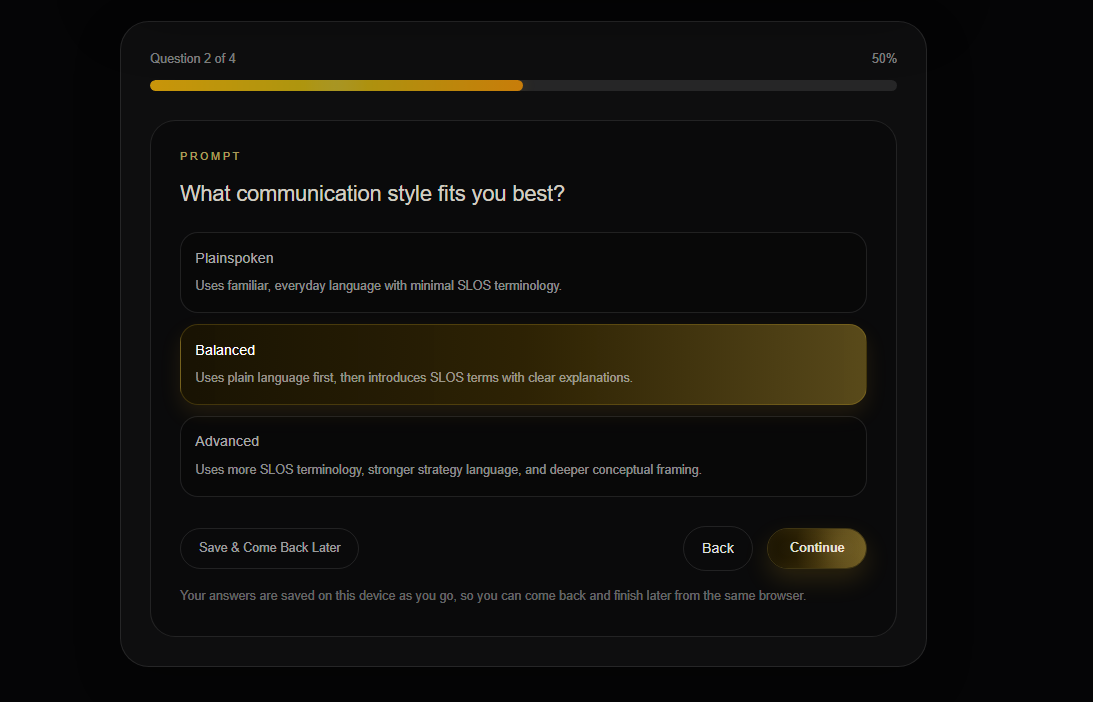
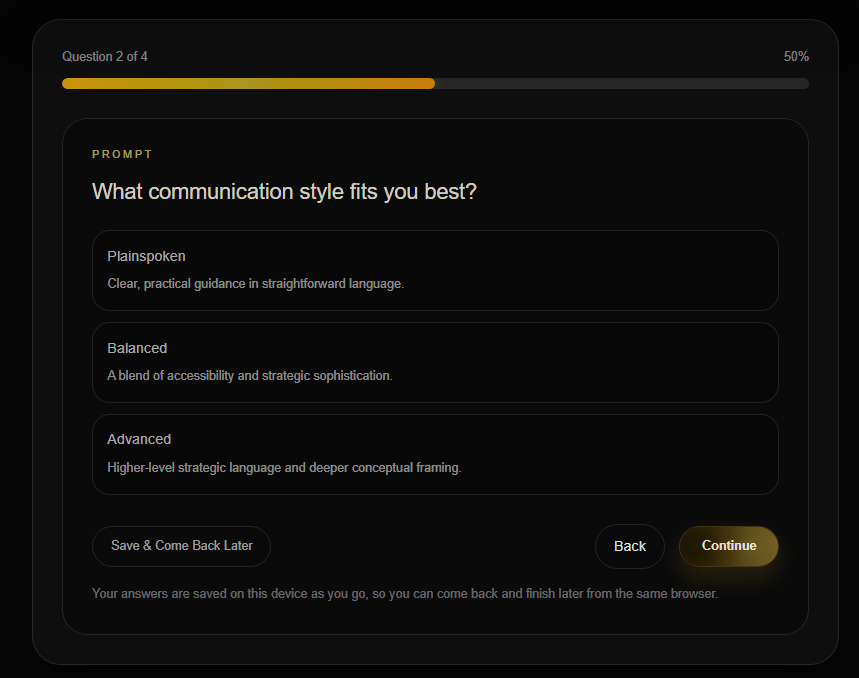
Choose how you want Serene to communicate

Communication Style controls how Serene explains ideas and presents guidance.

For example, Balanced keeps the response clear, supportive, and direct without leaning too far in one direction.

Choose the style that will make the guidance easiest for you to understand and use.

LAA™ Communication Style Options
LAA™ Communication Style Balanced
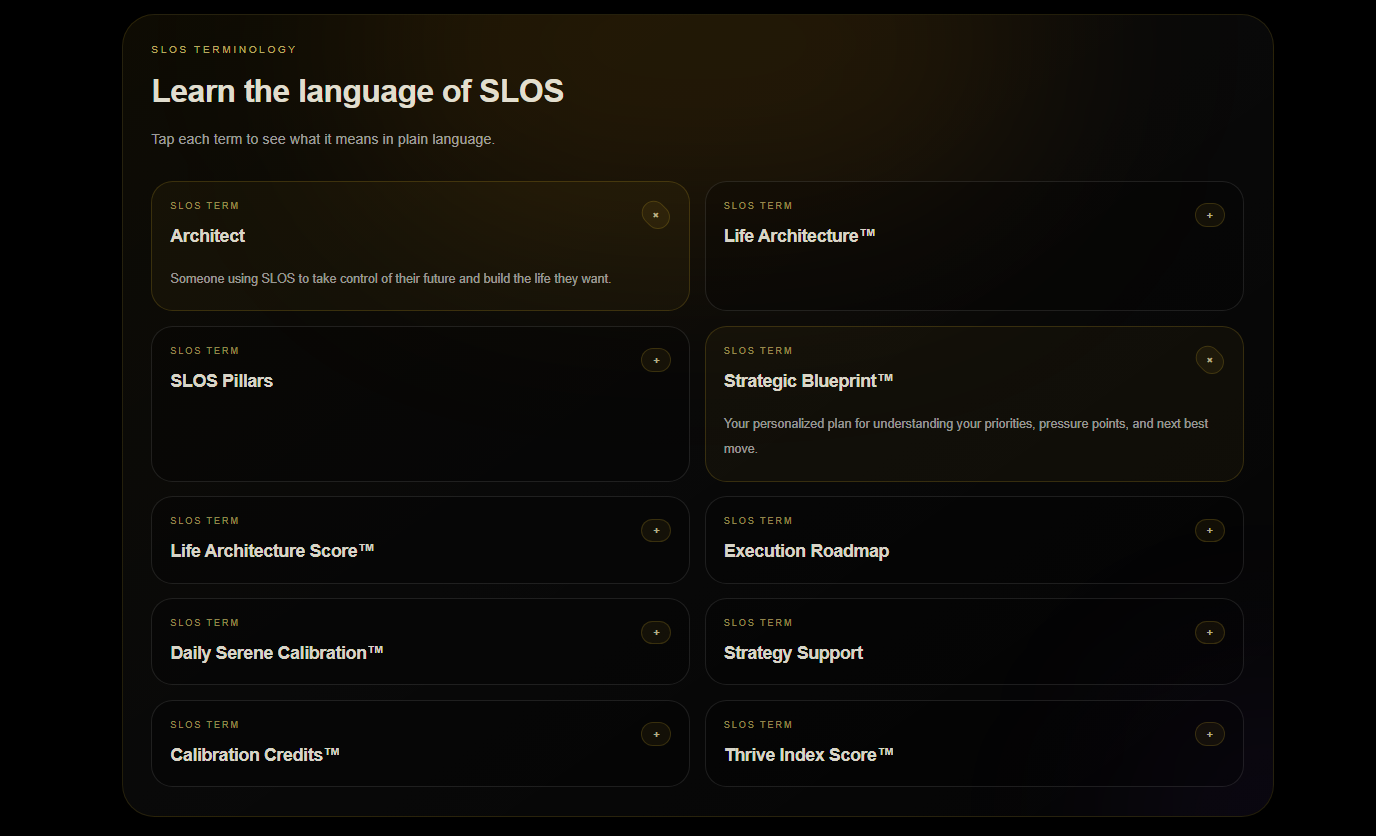
LAA™ SLOS Language Reference

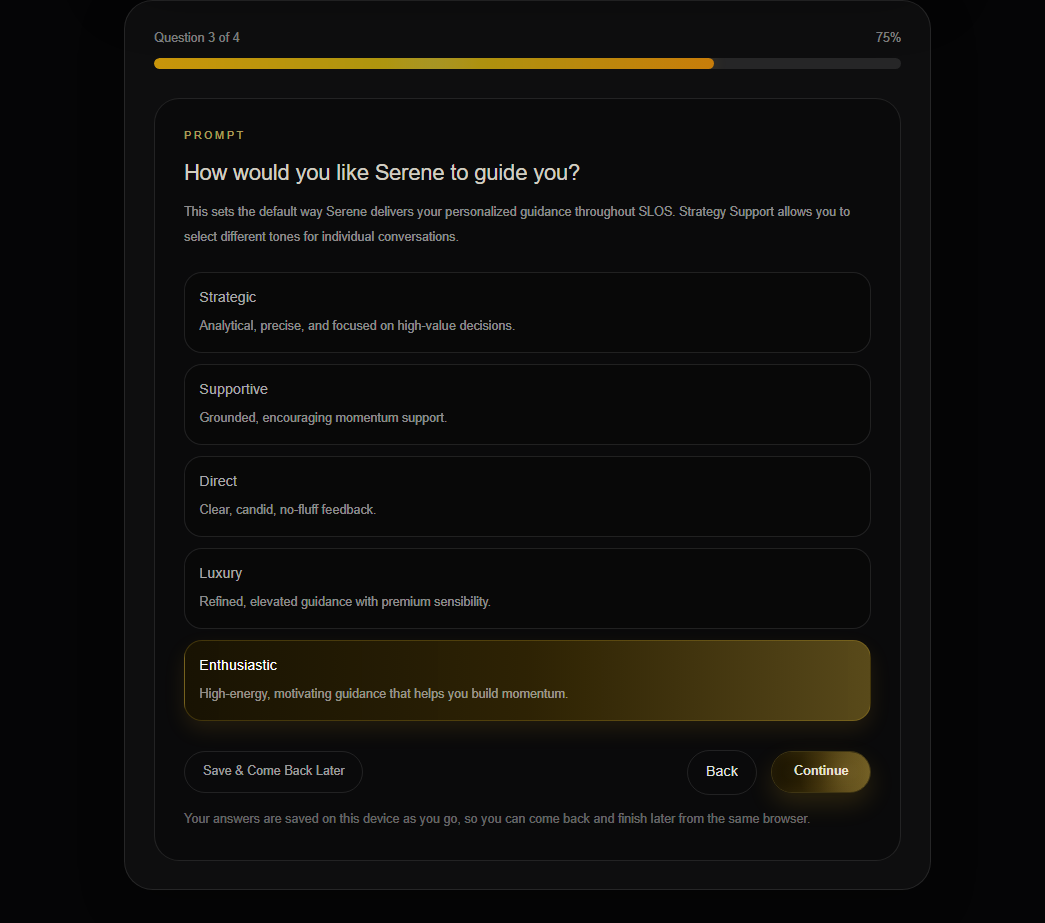
Choose the tone that fits you

Guidance Mode helps Serene understand how you want the response to feel.

For example, Enthusiastic adds more encouragement and energy while keeping the guidance clear and useful.

Choose the mode that feels most helpful to you right now.

LAA™ Guidance Mode Enthusiastic

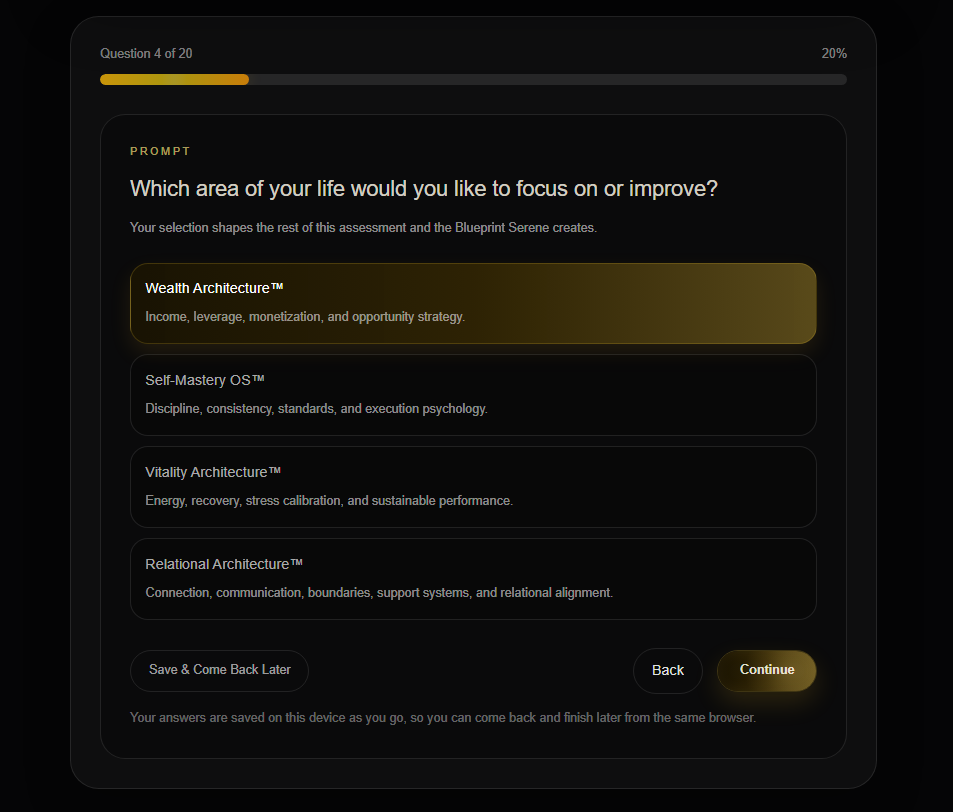
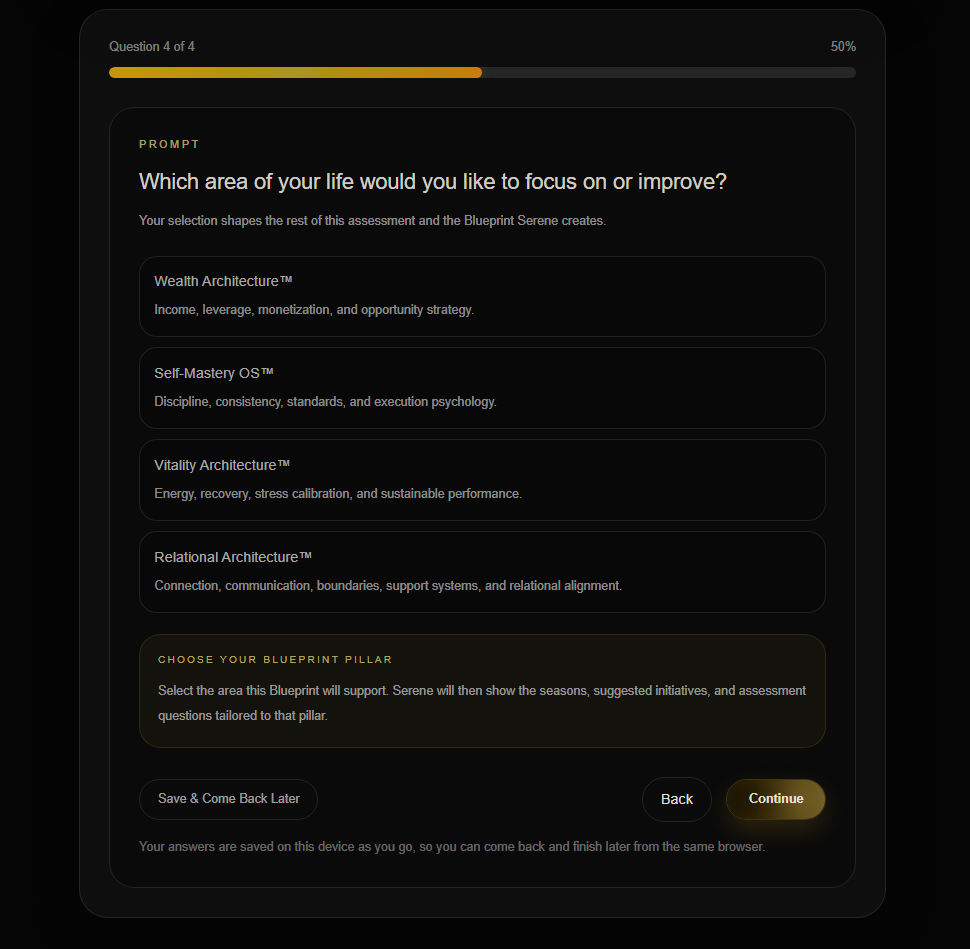
Choose your main focus area

Your Blueprint Pillar is the part of your life or business you want SLOS to support first.

The assessment begins with the SLOS pillars, then expands to show more specific choices. This helps you choose the area that best suits your needs and desires.

For example, Wealth Architecture™ includes goals related to income, business growth, financial stability, offers, and long-term wealth.

What to do next:
Choose the pillar that feels the most aligned with this Blueprint.

LAA™ Blueprint Pillar Options
LAA™ Wealth Pillar Selected Expanded

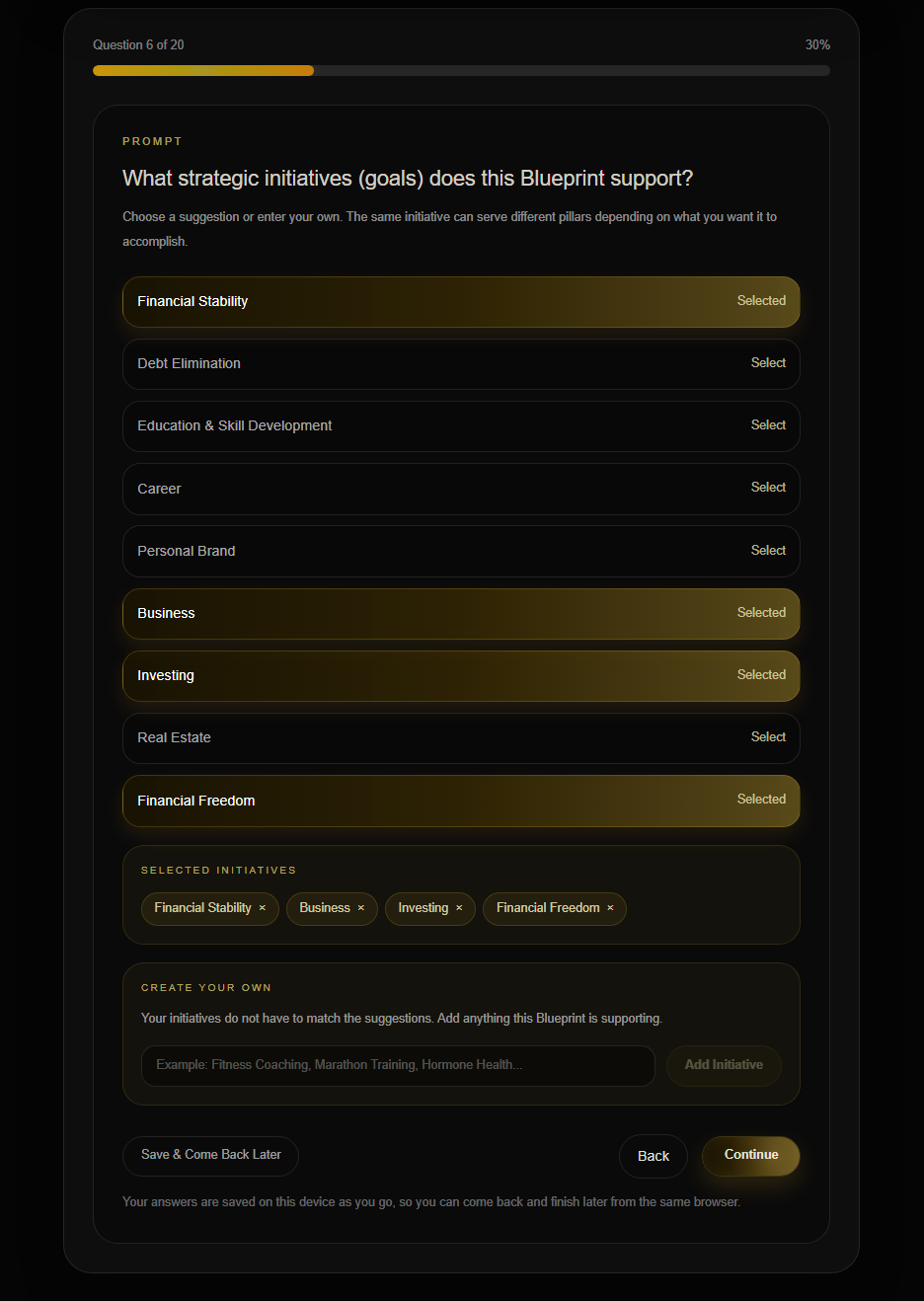
Select what you are actively working on

This step helps SLOS understand the projects, goals, or changes already competing for your time and attention.

You may be able to select more than one.

Choose the items most connected to what matters right now. This helps SLOS give guidance that fits what is already in motion.

LAA™ Strategic Initiatives Selected

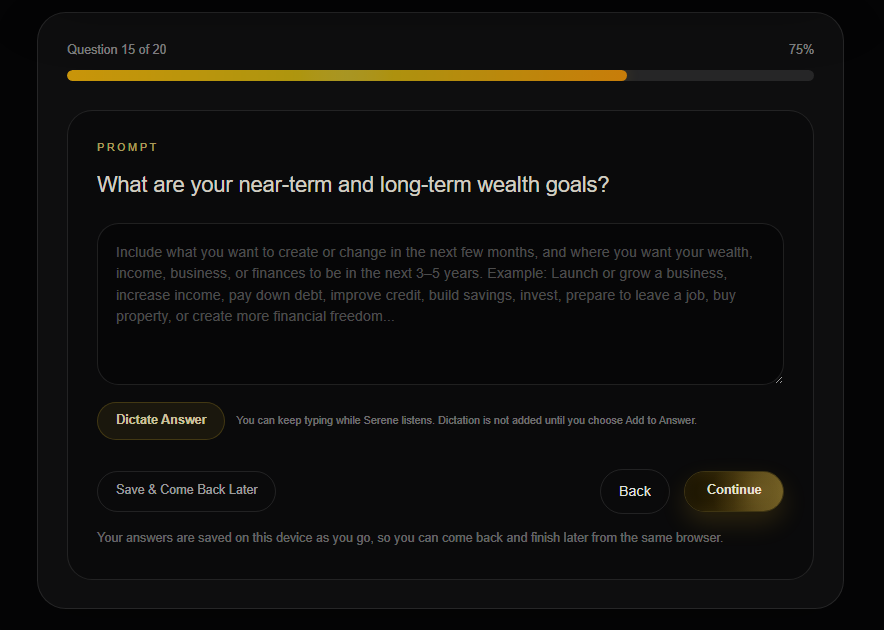
Share what you want to change now and the future you’re working toward

Your near-term goals help SLOS understand what you want to improve, complete, begin, or decide in the coming weeks or months.

Your long-term goals give SLOS a clear view of the life, business, financial position, well-being, or level of freedom you want to create over time.

Share both in one response so your immediate priorities stay connected to the bigger picture. The more specific you are, the more useful your Blueprint will be.

Life Architecture Assessment near-term and long-term wealth goals

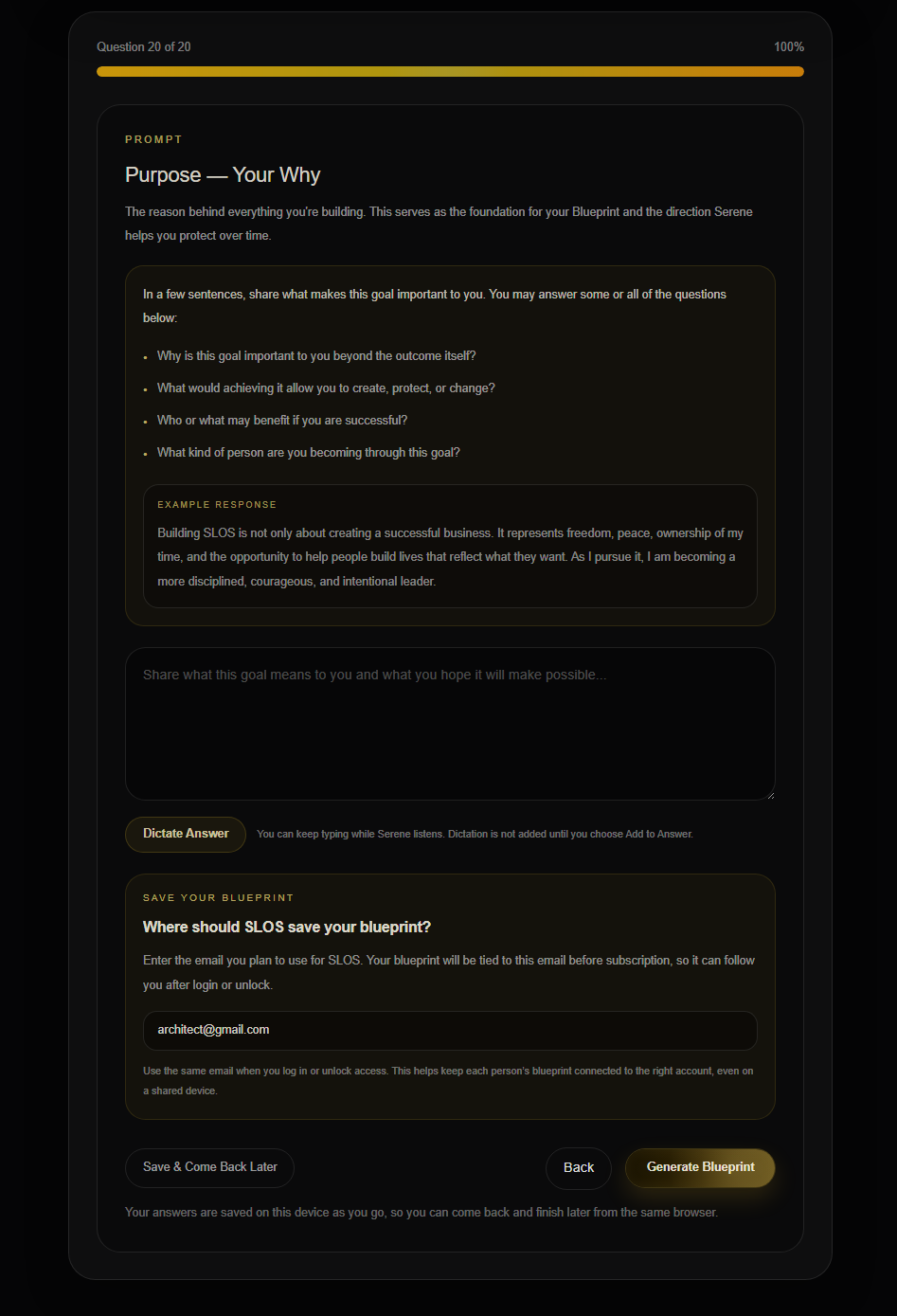
Explain why this matters to you

Your Why gives meaning to the goal.

Share what would change if you reached it, why the timing matters, or who and what the outcome would support.

This helps SLOS create guidance that reflects more than the task itself.

LAA™ Purpose Your Why Save Blueprint

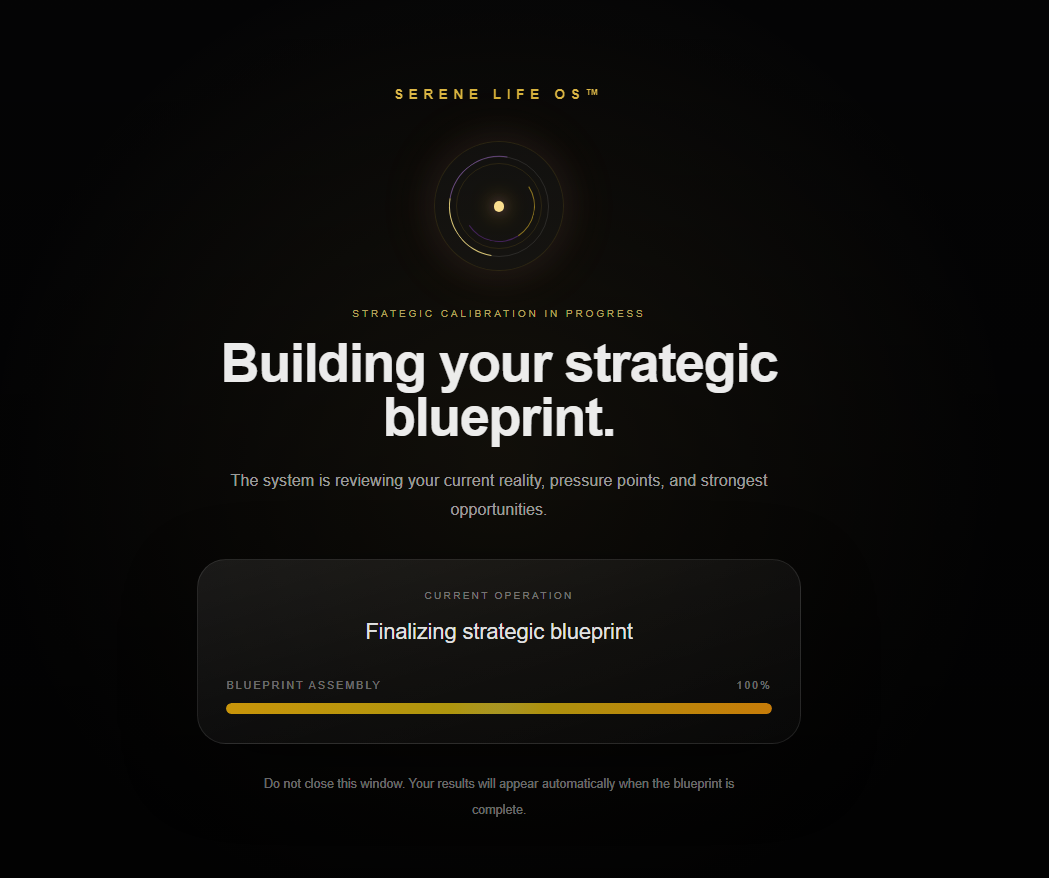
Give SLOS a moment to bring it together

After you complete the assessment, SLOS reviews your answers and begins creating your Strategic Blueprint™.

The generation screen shows progress while your goals, priorities, current reality, and selected pillar are brought together.

Once it is complete, you’ll be taken to your Blueprint results.

LAA™ Blueprint Generation Loading
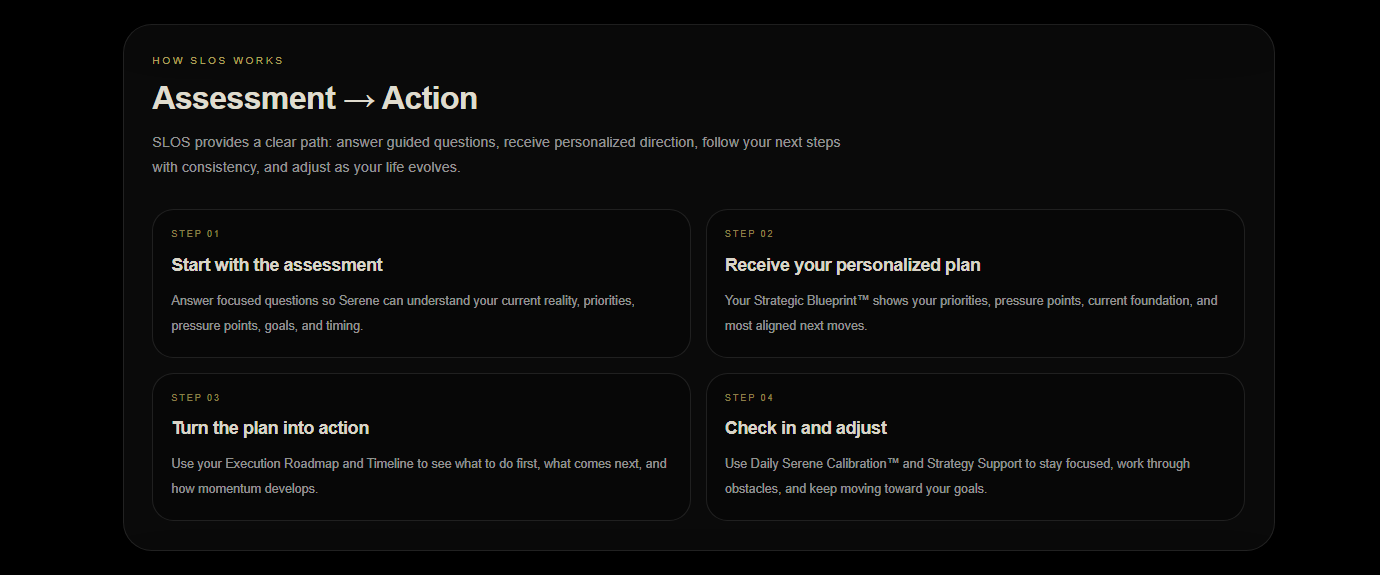
LAA™ Assessment to Action

Step 03

Strategic Blueprint™ / Results

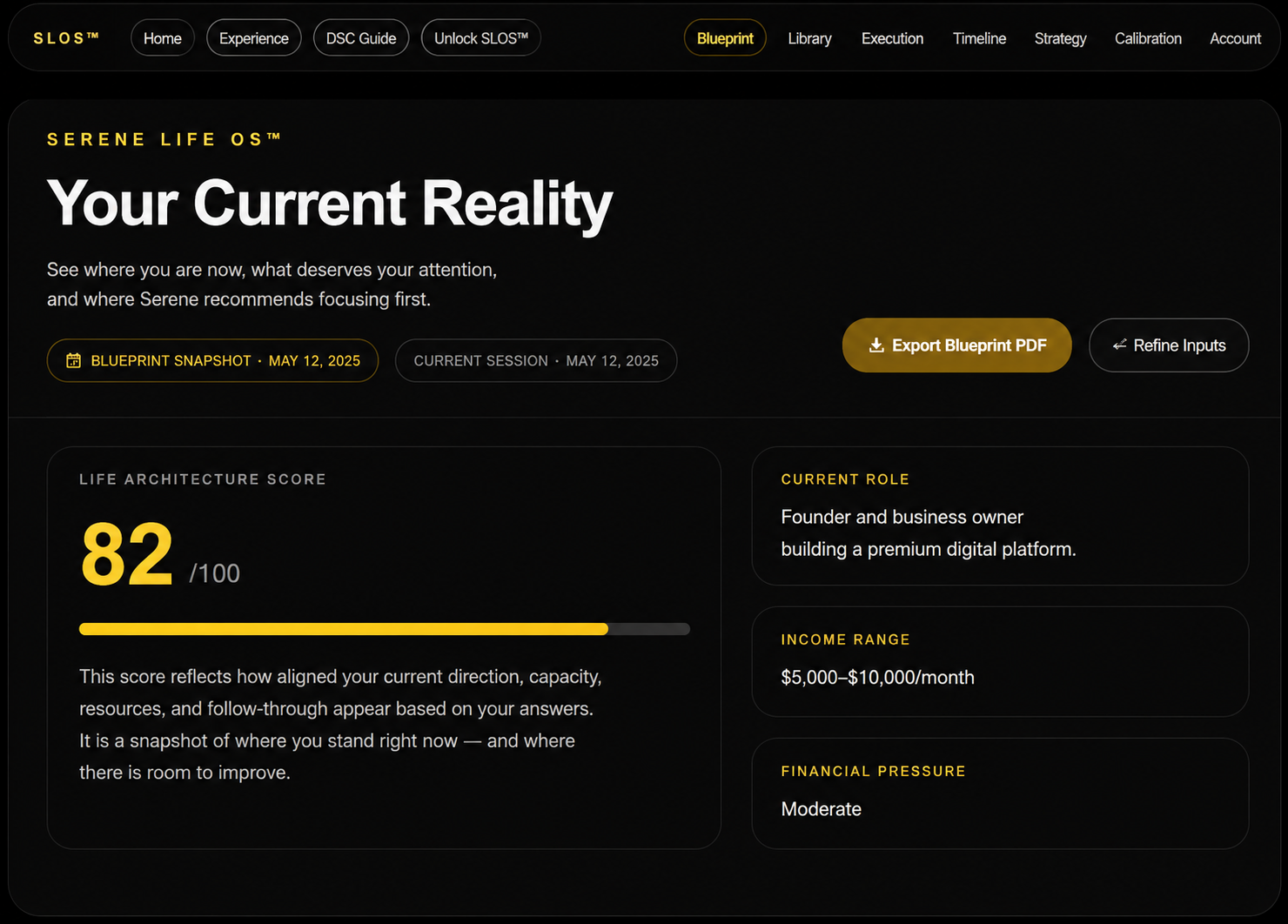
See where things stand now

This part of your Blueprint gives you a clear view of your current situation.

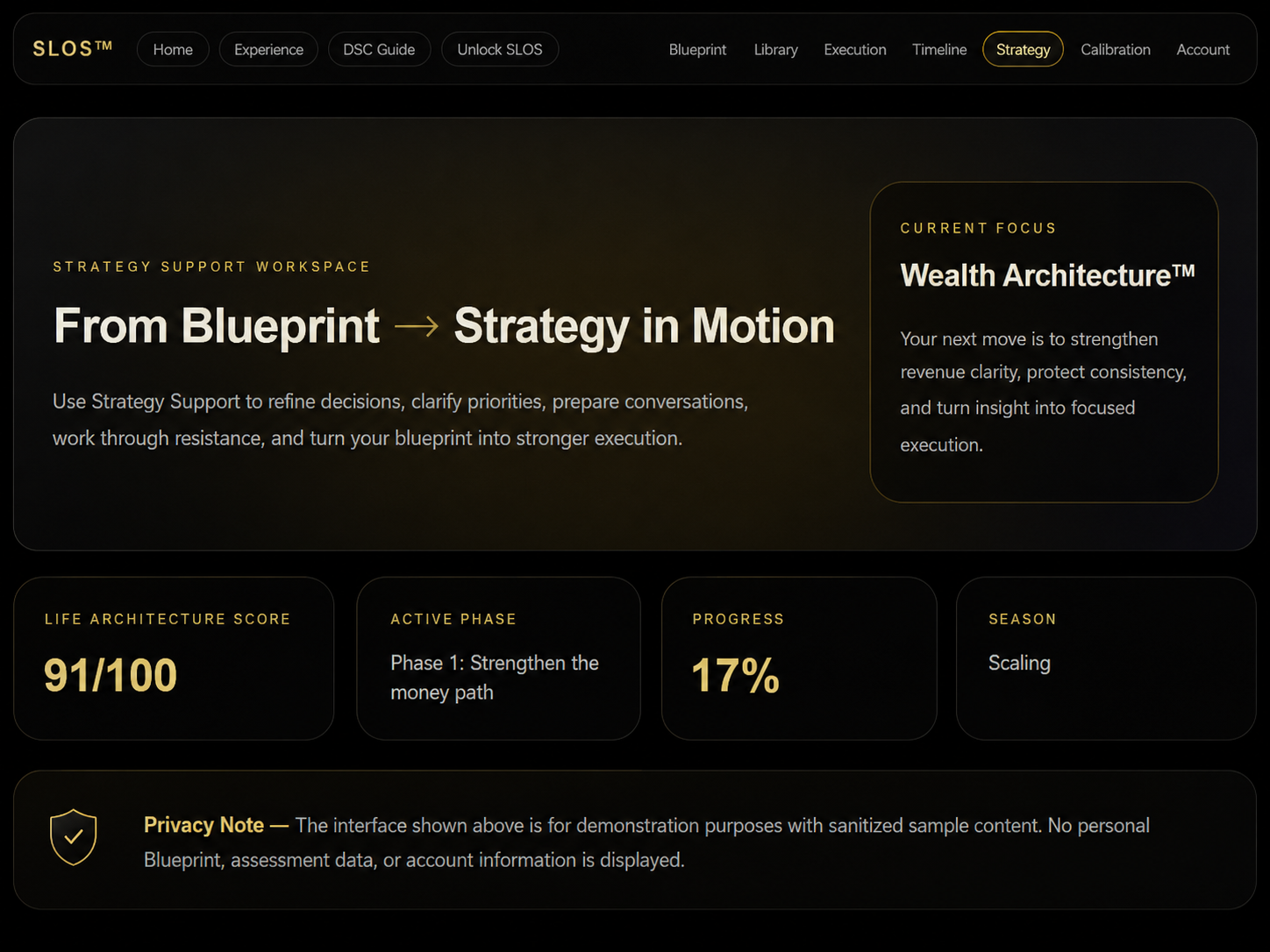
It includes your Life Architecture Score™, current season, main area, level of pressure, and other details connected to what you shared in the assessment.

The goal is to give you a useful starting point.

Blueprint Current Reality
Generated or sanitized sample shown for demonstration. No personal Blueprint or account information is displayed.

Understand what should happen first

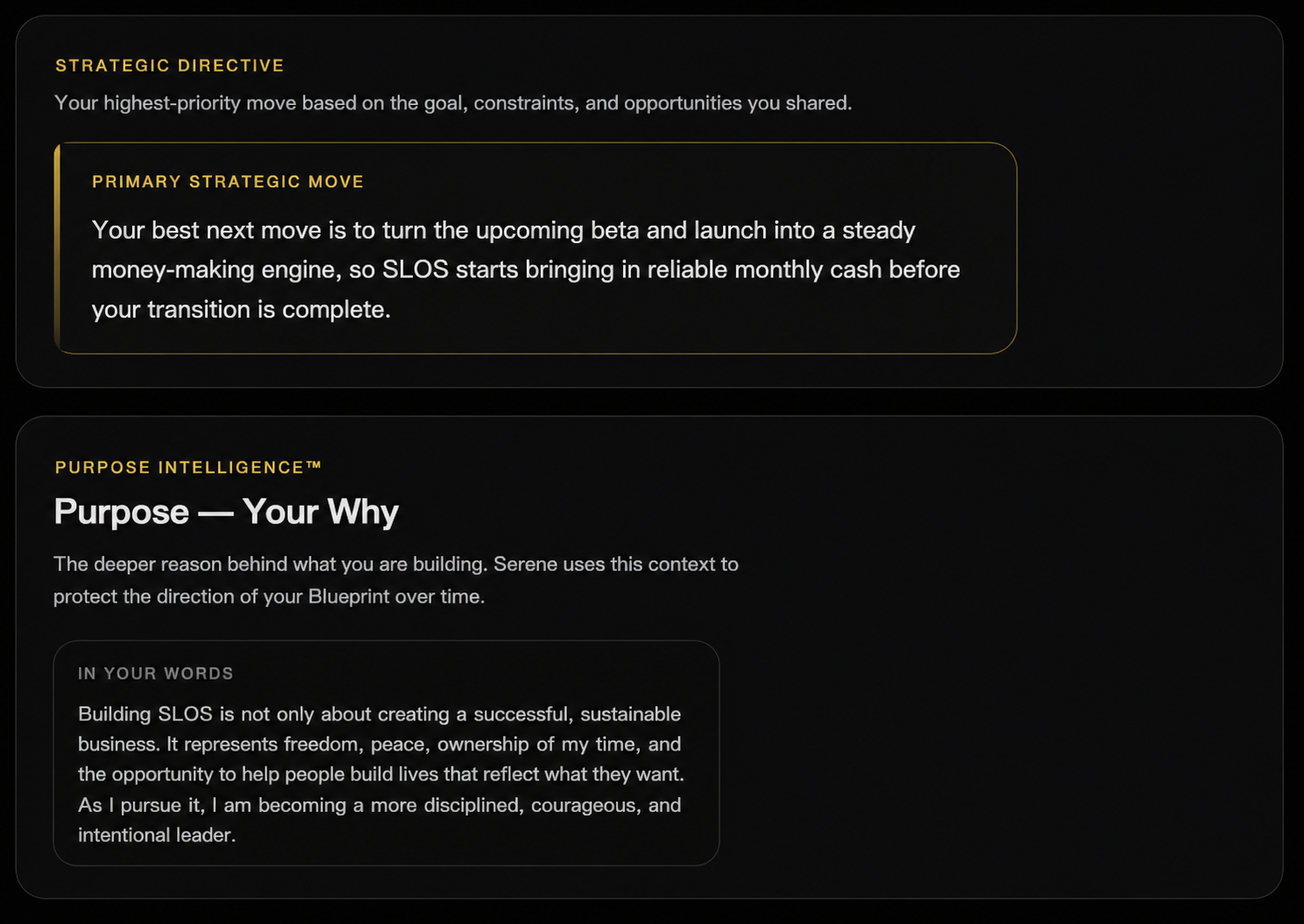
Your Strategic Direction highlights the move that needs the most attention right now.

It brings your goals, current reality, timing, and selected pillar together into one clear direction.

This helps you avoid trying to act on everything at once.

What to do next:
Read the direction carefully and ask yourself whether it matches what feels most important now.

Blueprint Strategic Directive Purpose
Generated or sanitized sample shown for demonstration. No personal Blueprint or account information is displayed.

Stay connected to why this matters

The Purpose section reflects the reason behind the goal or goals you are working toward.

This keeps the Blueprint connected to the life, business, freedom, stability, or future you want to create.

When the work feels demanding, this section reminds you of what the effort is supporting.

See how the plan unfolds

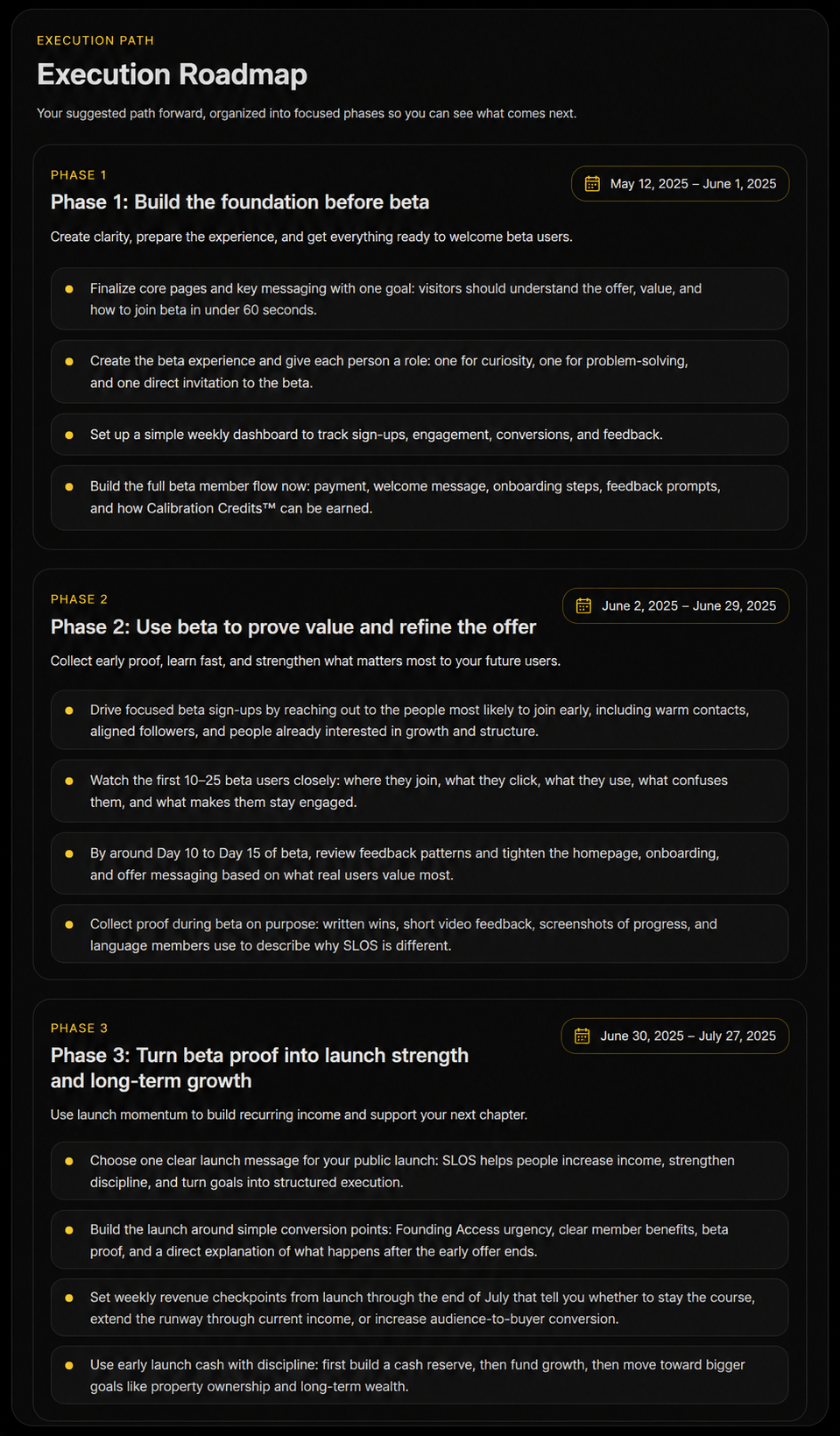
Your Execution Roadmap moves the Blueprint into a phased plan.

Each phase focuses on a different part of the plan, so you can build progress in the right order.

The roadmap includes phase goals, time windows, priorities, and key actions.

What to do next:
Begin with the current phase. Focus on the actions connected to that phase before moving ahead.

Blueprint Execution Roadmap
Generated or sanitized sample shown for demonstration. No personal Blueprint or account information is displayed.
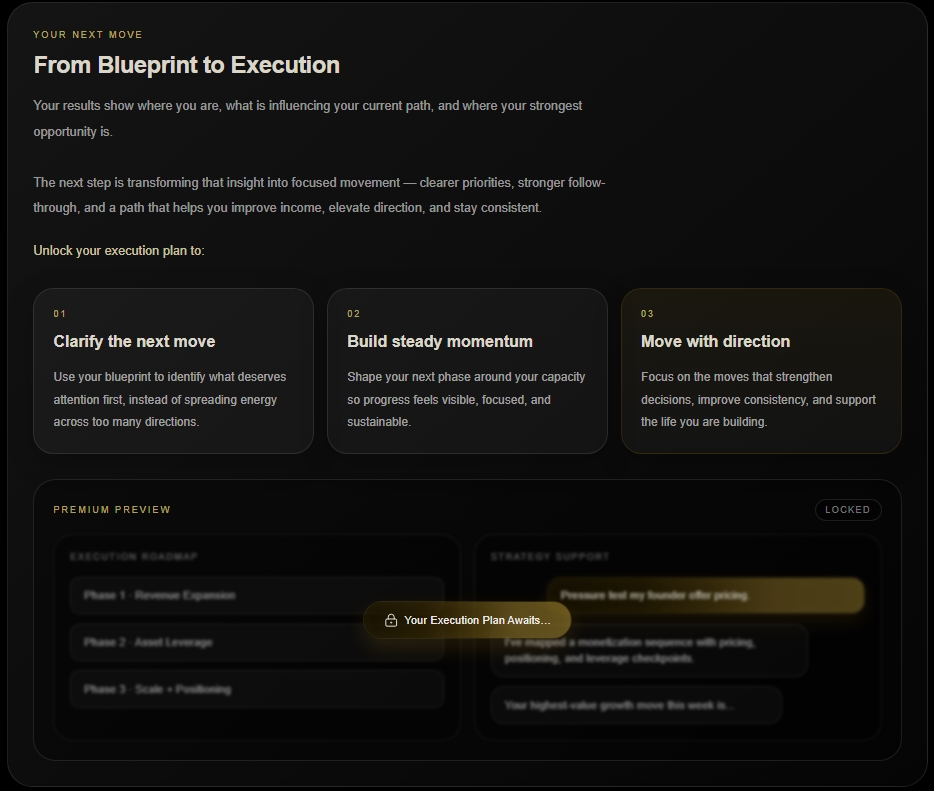
Blueprint to Execution Preview

Your Blueprint gives you the direction

The next sections of SLOS help you organize it, act on it, and keep working with it over time.


Step 04

Execution

See where your plan stands

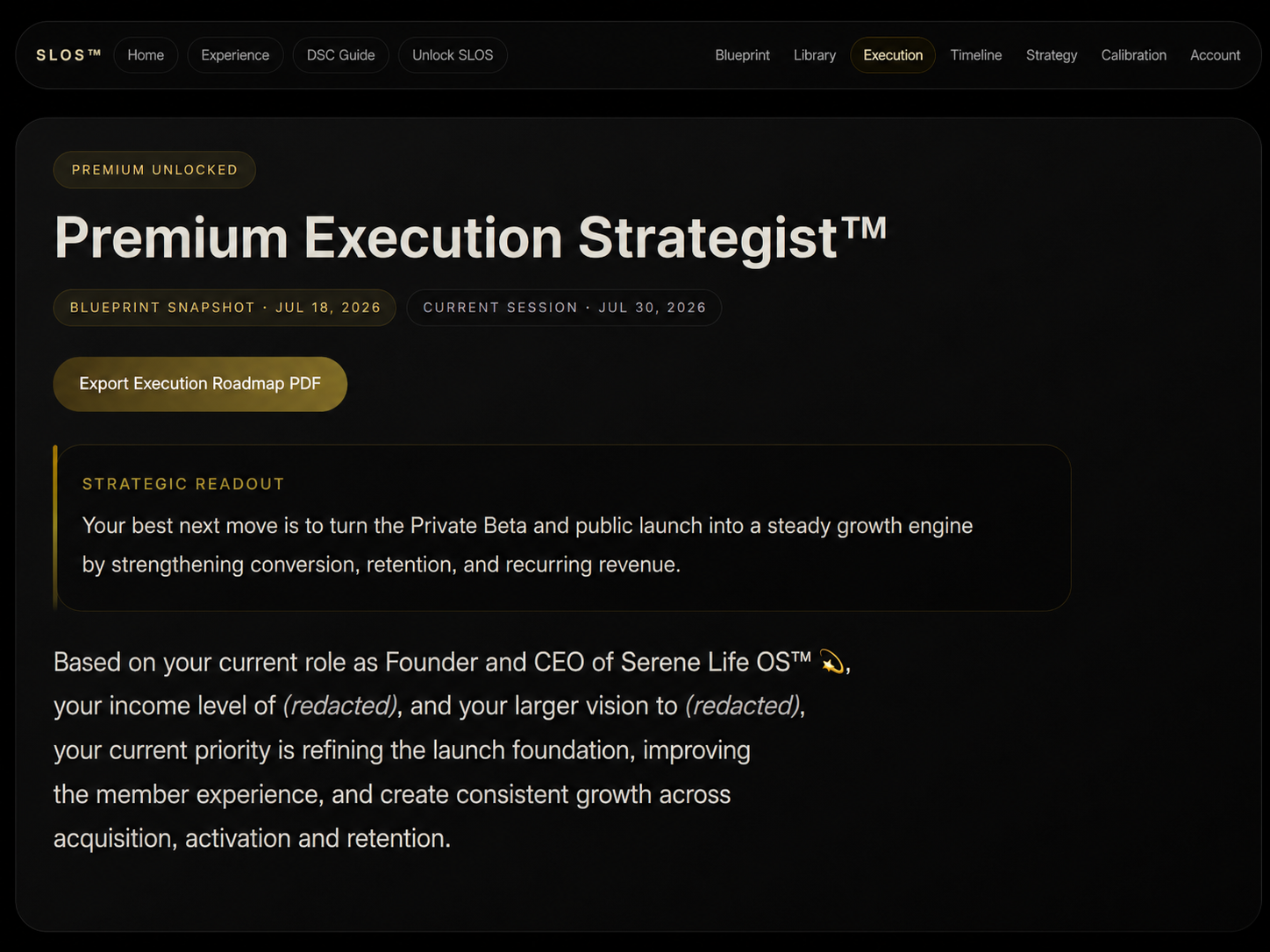
The Execution page gives you a quick view of your active Blueprint and current roadmap.

You may see your current phase, progress, important signals, and the work that needs action next.

Use this page as your main starting point when you are ready to act on your Blueprint.

What to do next:
Review the current phase first, then look at the priorities and signals connected to it.

Execution Hero
Generated or sanitized sample shown for demonstration. No personal Blueprint or account information is displayed.

Stay with the phase you are in now

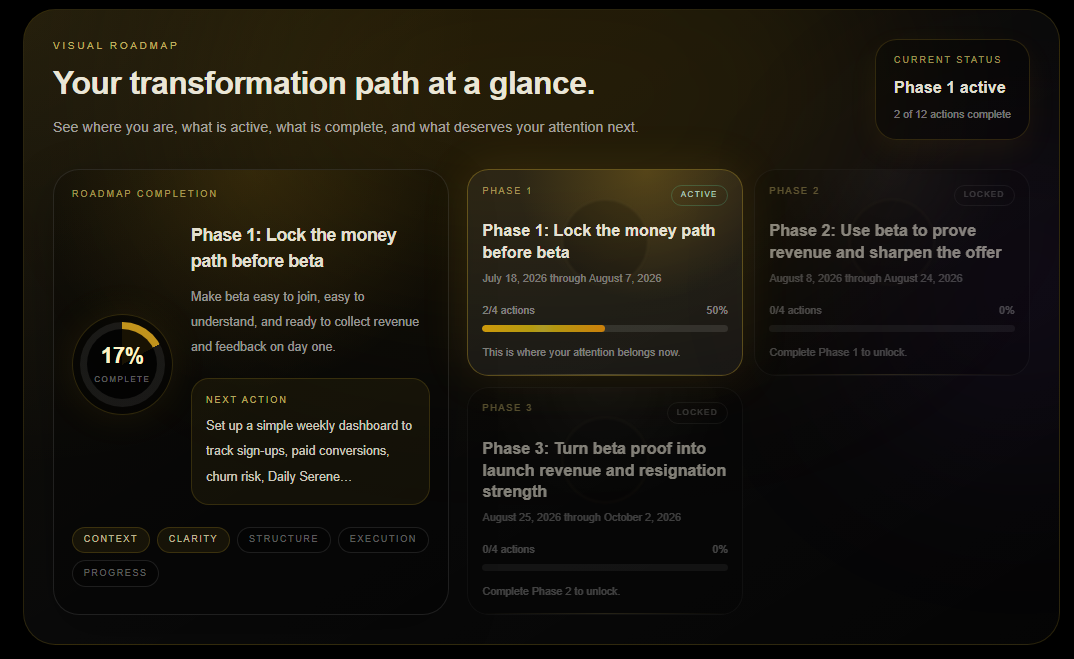
Your current phase shows the part of the roadmap you are actively working through.

Each phase has its own purpose and priorities. Staying with the current phase helps you build progress in the right order.

You don’t need to work on every phase at once.

Execution Visual Roadmap
Generated or sanitized sample shown for demonstration. No personal Blueprint or account information is displayed.

Know what needs action first

Immediate Focus highlights the task, decision, or move that should come first.

This is useful when several things feel important at the same time.

What to do next:
Complete or move forward on the Immediate Focus before adding more work.

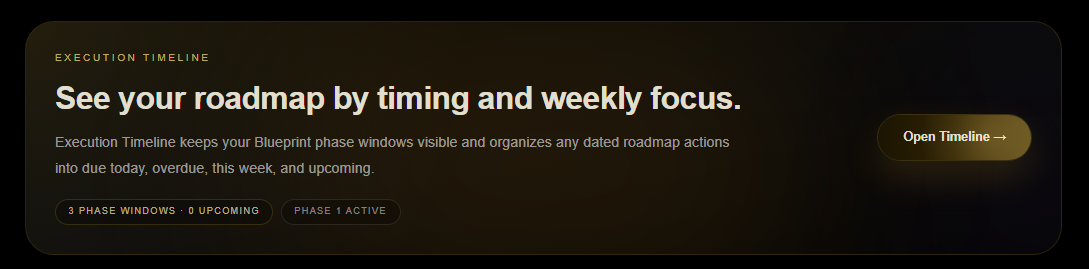
See your roadmap by timing and weekly focus

Timeline gives you the wider view of your Execution Roadmap.

Use it to see your phase windows, understand what is active now, and stay aware of what is coming next without losing focus on the current phase.

Execution helps you work with what needs action now. Timeline helps you see how that work fits into the larger plan across time.

What to do next:
Open Timeline when you want to review the sequence, timing, or weekly focus connected to your Blueprint.

Execution Timeline CTA

Work through a decision when you need more help

Some Execution items can be continued in Strategy Support.

Use this when you want to think through a signal, clarify a next step, create a more detailed plan, or get help with a decision.

Strategy Support can use your Blueprint and selected context to help you continue from where you are.

Execution Strategy Support CTA

Step 05

Timeline

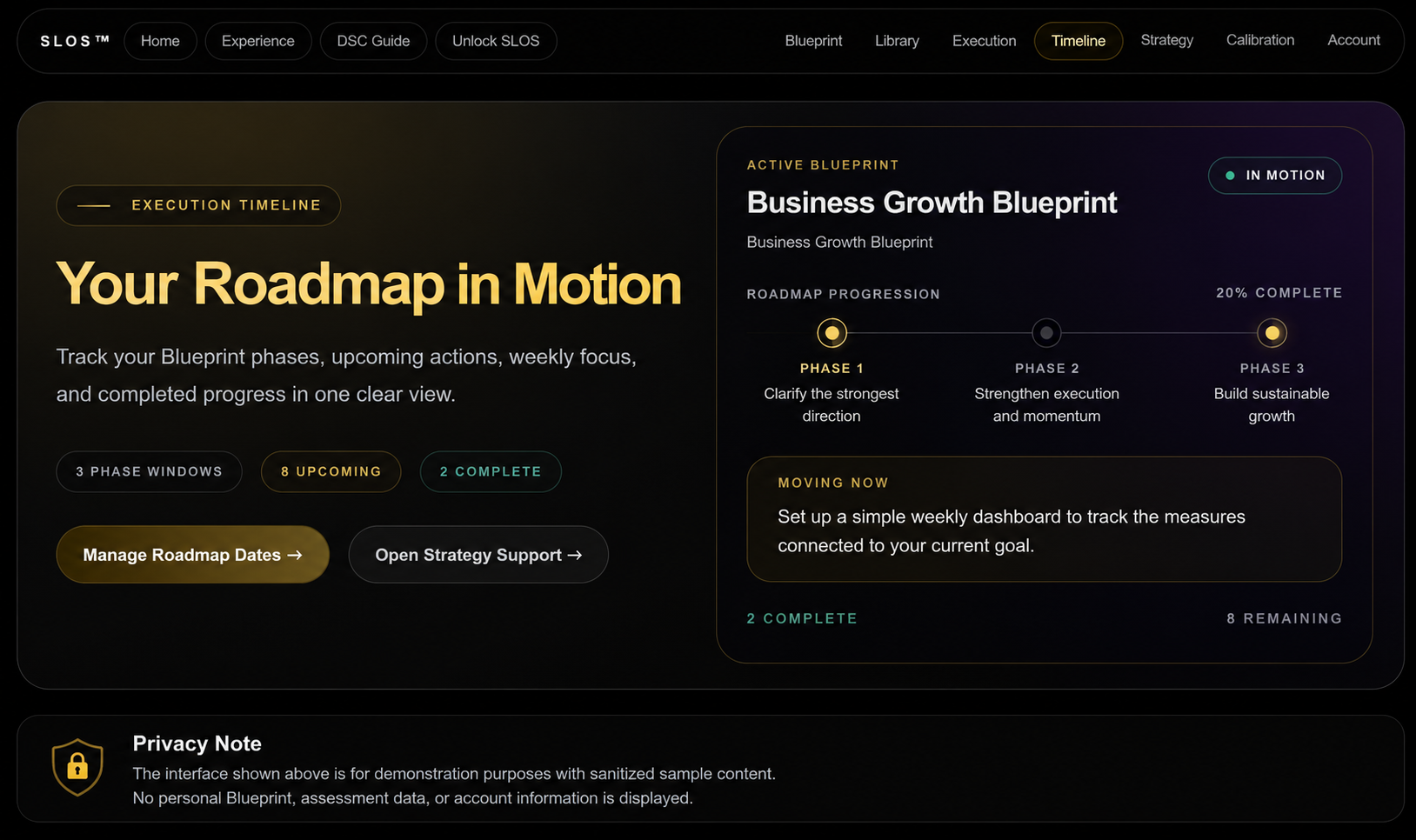
See your roadmap in motion

The Timeline page shows your roadmap in a time-based view.

You may see the current phase, future phases, important dates, and completed work in one place.

This makes it easier to understand how the plan is unfolding.

What to do next:
Start by finding the phase marked as current.

Timeline Hero
Generated or sanitized sample shown for demonstration. No personal Blueprint or account information is displayed.
Timeline Status Overview

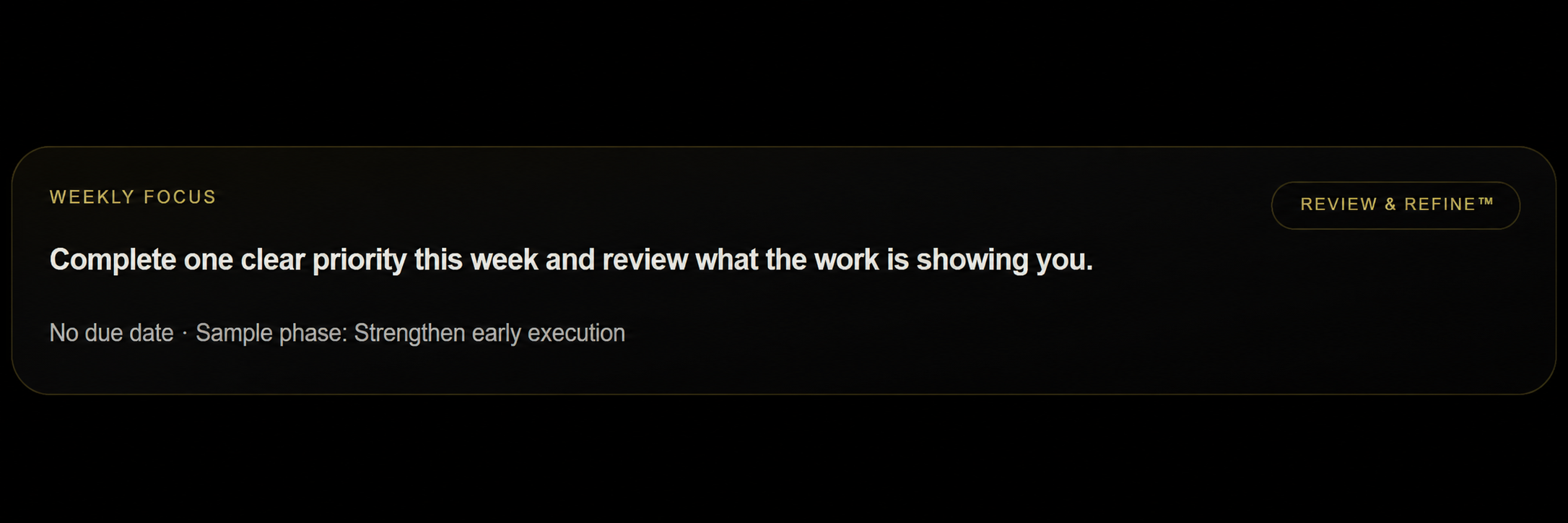
See what's active now

The current phase shows where you are in the roadmap.

This is the phase that should receive most of your attention.

Use Timeline to confirm where you are, then return to Execution for the priorities, signals, and actions connected to that phase.

Timeline Weekly Focus
Generated or sanitized sample shown for demonstration. No personal Blueprint or account information is displayed.

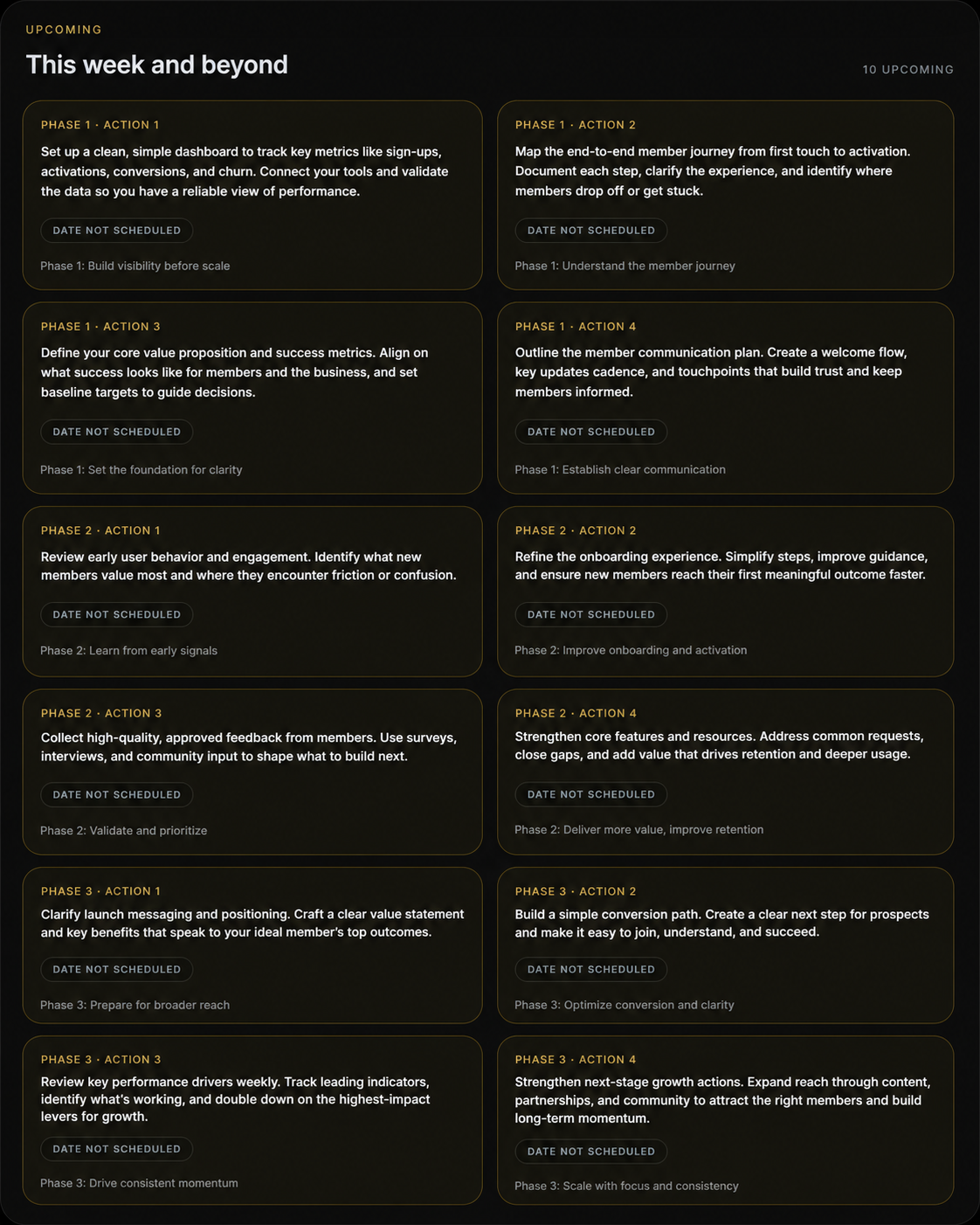
See what's ahead

The upcoming section shows the phases, priorities, or milestones that follow your current work.

This can help you prepare without pulling your attention too far ahead.

Use it to stay informed while continuing to work with the phase that is active now.

Timeline Upcoming Actions
Generated or sanitized sample shown for demonstration. No personal Blueprint or account information is displayed.

Step 06

Strategy Support

Start with the question in front of you

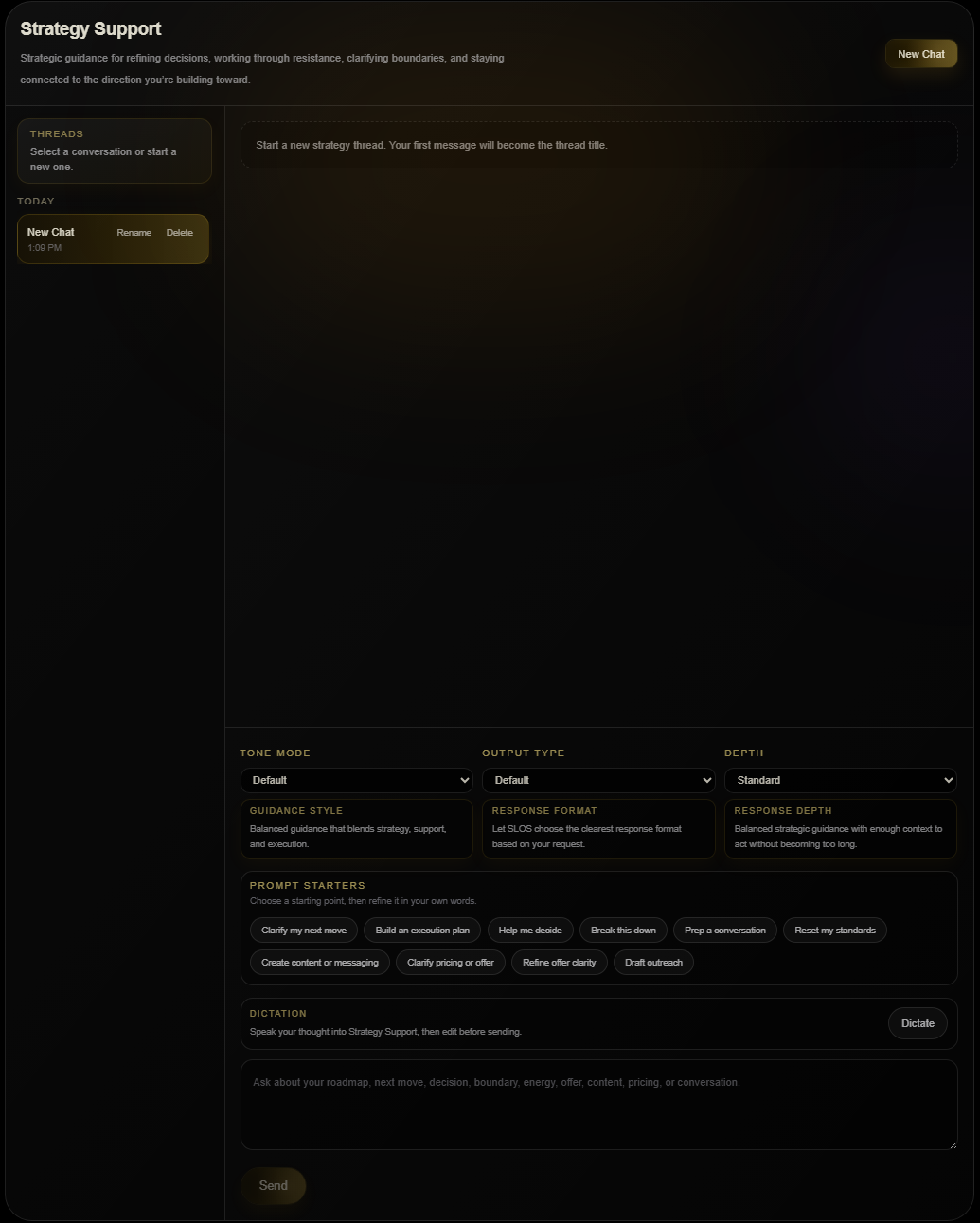
The Strategy Support workspace is where you enter your question, situation, or request.

You can begin with a full explanation or a simple sentence. Serene can help you organize the rest.

Examples could include:

  • Help me decide what to focus on this week.
  • Create an action plan from this idea.
  • Help me prepare for an important conversation.
  • Review this offer and show me what needs clarification.
  • Help me work through this Execution Watchpoint™.

What to do next:
Enter what you need help with, then review the response settings before sending.

Strategy Support Empty Workspace

Choose the Blueprint connected to this request

Selecting a Blueprint gives Serene the direction, goals, priorities, and roadmap connected to that area of your life or business.

Choose the Blueprint that best matches the question you are asking.

If your request is not connected to a Blueprint, you can still use Strategy Support without one.

Strategy Support Blueprint Context
Generated or sanitized sample shown for demonstration. No personal Blueprint or account information is displayed.

Add the information Serene should use

Strategy Context lets you select saved files or information so Serene can better understand your request.

For example, you might include a plan, offer document, meeting notes, spreadsheet, presentation, or other saved material.

Choose only the context that is useful for the current conversation. This keeps the response connected to the information that matters most.

Review the guidance and continue the conversation

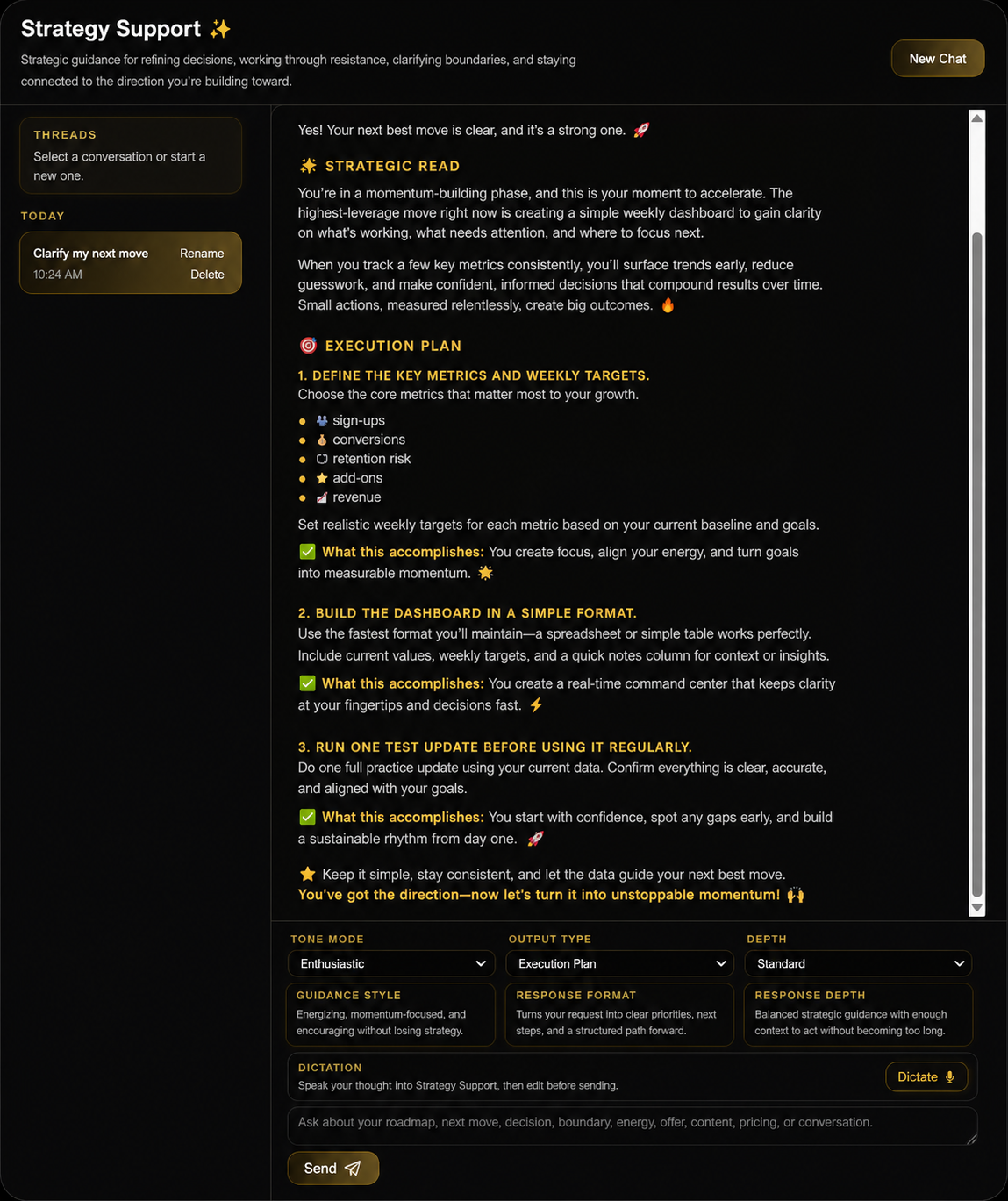
Serene’s response is based on your request and the settings you selected.

Read through the guidance, notice what feels most useful, and ask a follow-up question when you need clarification, another option, or a more specific next step.

You can continue in the same conversation so Serene can build on what has already been discussed.

Strategy Support Enthusiastic Response
Generated or sanitized sample shown for demonstration. No personal Blueprint or account information is displayed.

Step 07

Daily Serene Calibration™ & The Serene Suite™

Return to Center

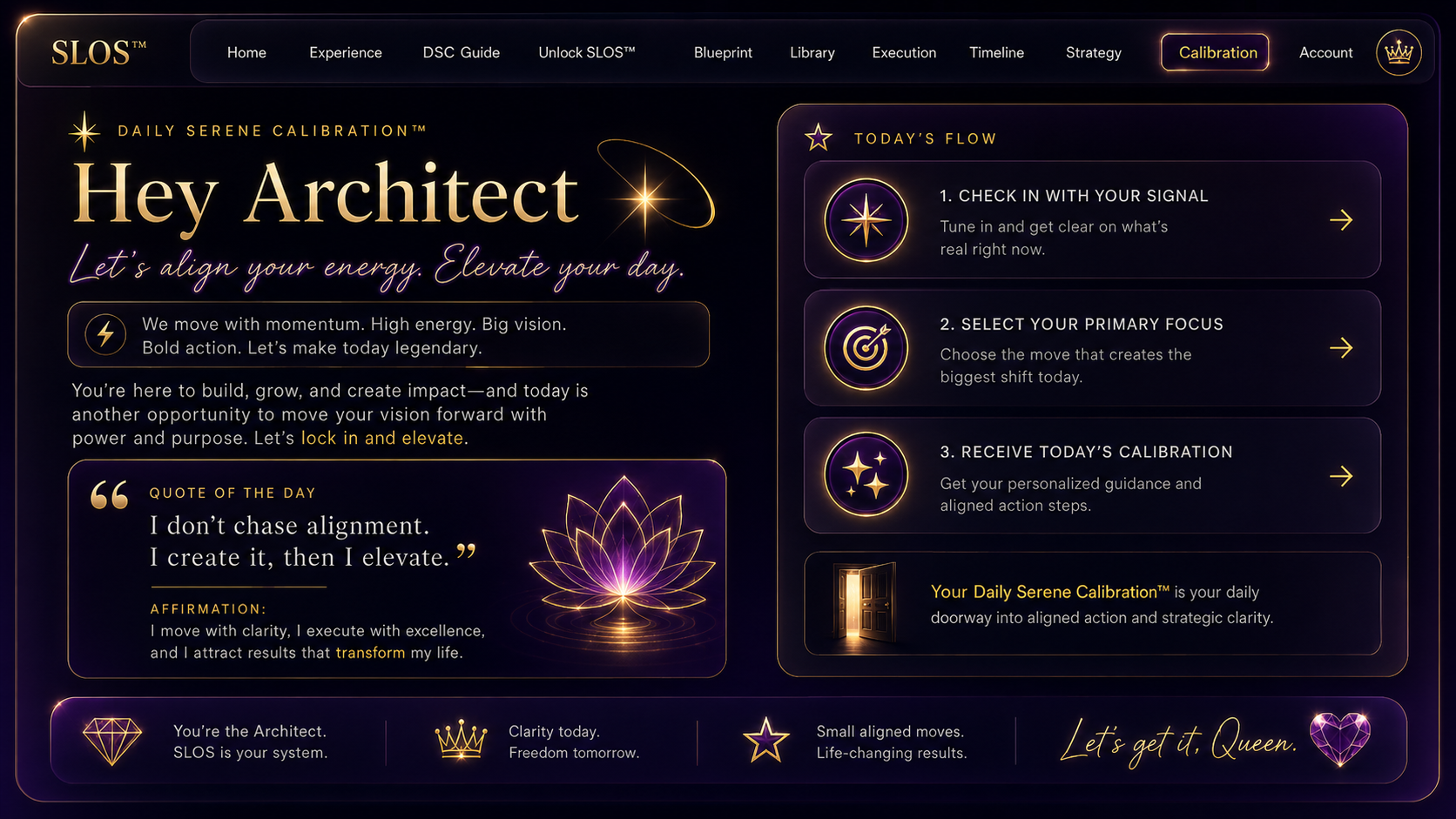
The welcome screen gives you a calm place to begin.

You’ll see a short message, affirmation, or reflection before starting the check-in.

Use this moment to slow down and notice what is present before choosing your answers.

What to do next:
Select the option to begin your calibration.

DSC Hero
Generated or sanitized sample shown for demonstration. No personal Blueprint or account information is displayed.

Name what you are feeling

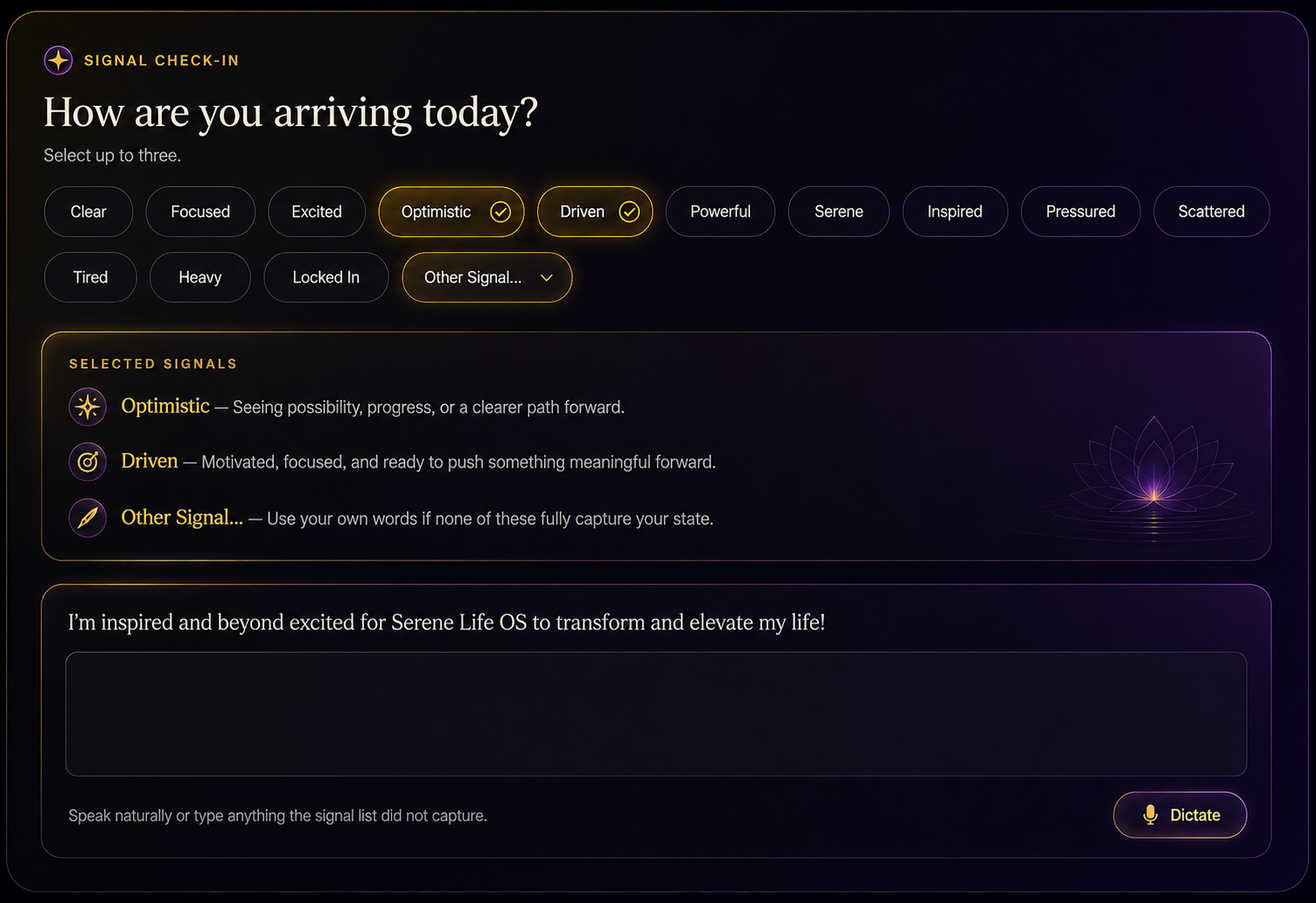
The Signal Check-In helps Serene understand your current emotional, mental, or energetic state.

You may choose more than one signal, such as:

  • Optimistic
  • Driven
  • Other Signal

Use Other Signal when the available choices do not fully describe what you are experiencing.

There is no right answer. Choose what feels true now.

DSC Signal Checkin
Generated or sanitized sample shown for demonstration. No personal Blueprint or account information is displayed.

Choose the area that needs support today

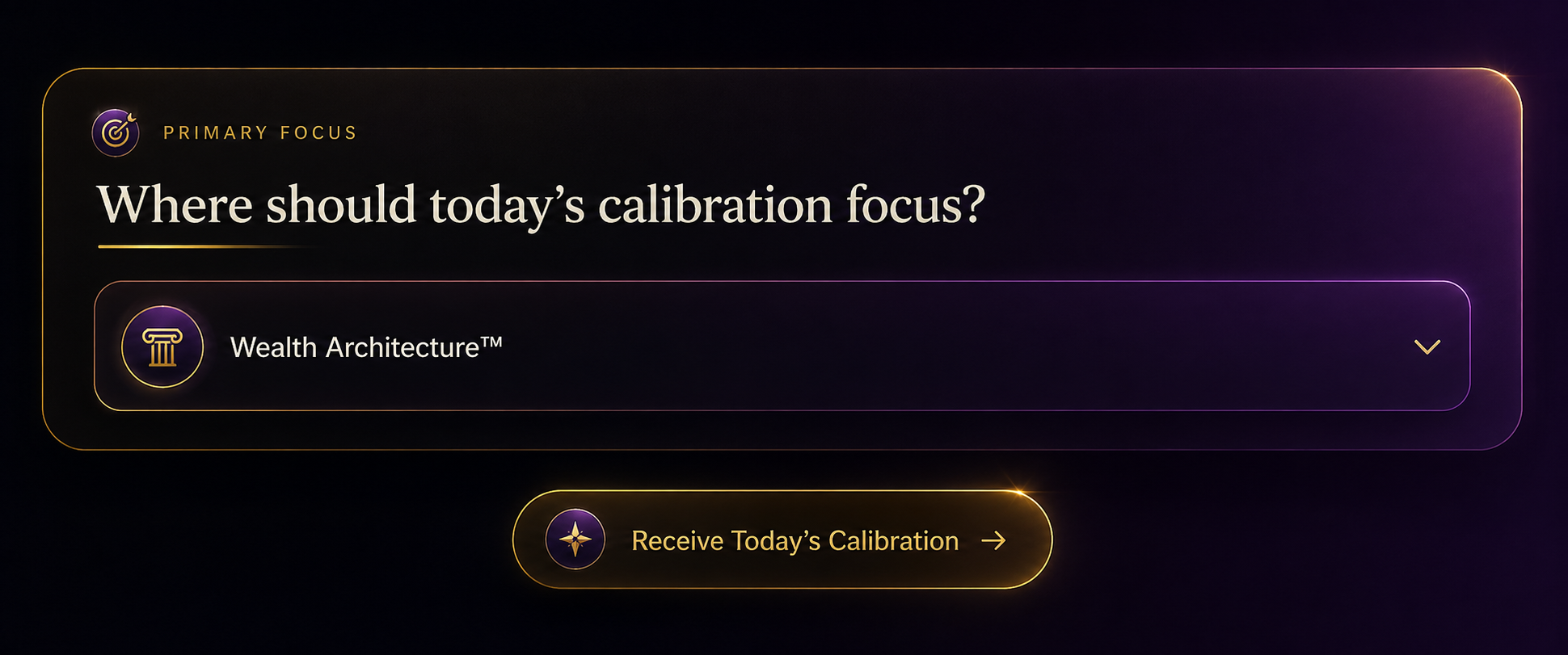
Primary Focus tells Serene which part of your life or business should guide the calibration.

For example, you may choose:

  • Wealth Architecture™
  • Vitality Architecture™

Choose the area most connected to what you need today. It does not have to match every priority in your life.

What to do next:
Select your Primary Focus and continue.

DSC Primary Focus
Generated or sanitized sample shown for demonstration. No personal Blueprint or account information is displayed.

Understand what may be influencing you

Today’s Read reflects the signals you shared and the area you selected.

It helps you name what may be happening beneath the surface so you can respond with more awareness.

Use it as a starting point for your day.

Choose one useful move

The Strategic Move gives you a focused action, adjustment, or decision for the day.

It is designed to help you work with your current state.

You don’t have to complete everything at once. Begin with the part that feels most useful and realistic.

See how many calibrations are available

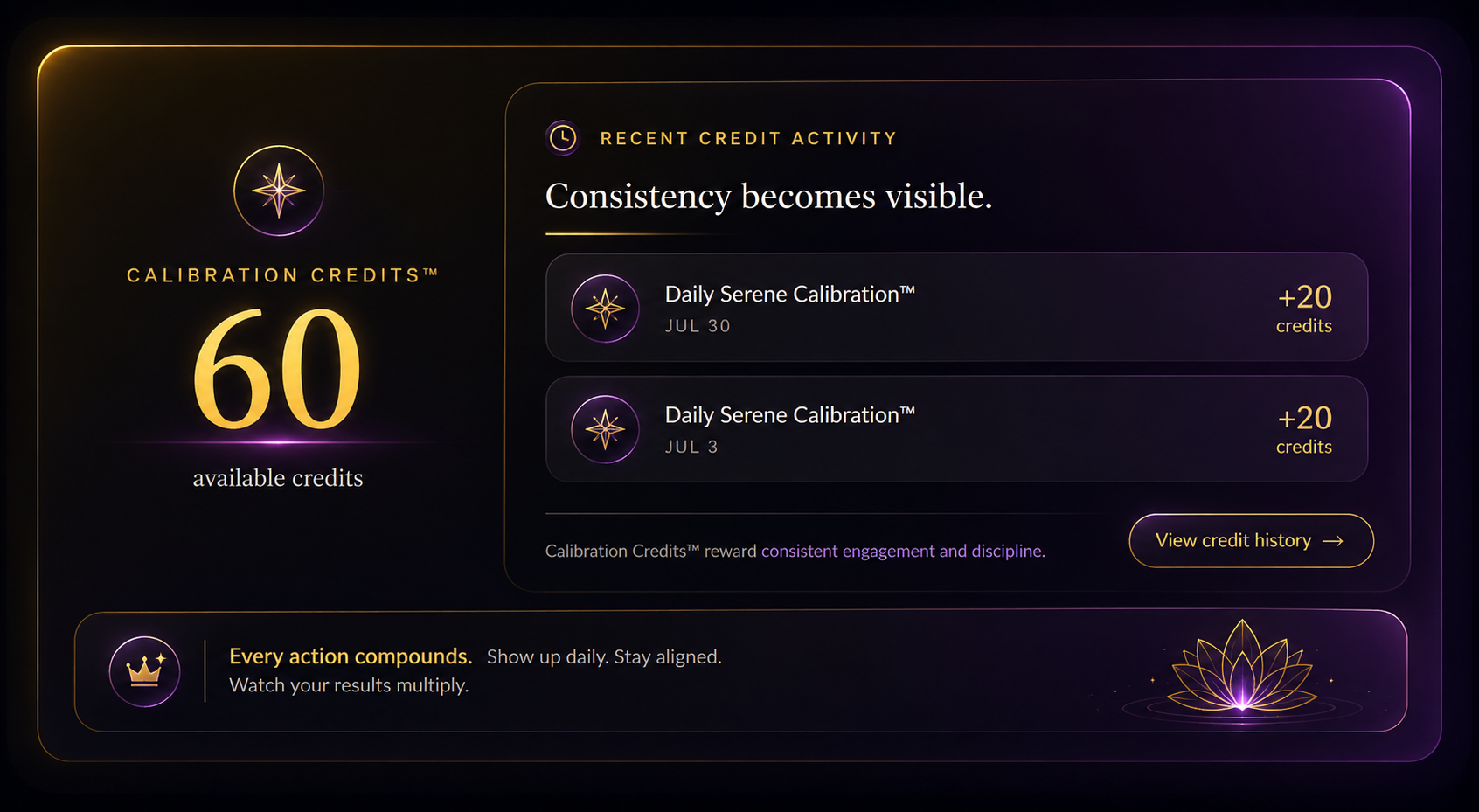
Calibration Credits™ reward consistency, follow-through, and meaningful progress inside SLOS.

100 Calibration Credits™ = $1, which means each credit has a value of $0.01.

You earn 20 Calibration Credits™ when you complete a Daily Serene Calibration™. Completion requires at least one signal, a generated Today’s Read, and the completed calibration state.

During Founding Access, you can also earn credits through approved optional feedback:

  • 333 credits — private written feedback
  • 555 credits — public written feedback
  • 777 credits — written feedback with your name and photo
  • 3,333 credits — short video feedback
  • 5,555 credits — polished video feedback

Your credits do not expire. They roll over, can be saved, and can be applied manually or automatically when eligible redemption options become available.

Redemption options may include access perks, billing credits, recognition rewards, à la carte purchases, Daily Serene Calibration™ access, controlled membership credits, and future SLOS features as the system evolves.

Monthly billing-credit limits are up to $5 for promotional users and up to $10 for standard users, equal to 500 and 1,000 credits.

After one year of consistent use and at least 20 logins per month, Architects can redeem credits for one or two months of membership, limited to twice per year.

  • $58.88 membership: 5,888 credits for one month or 11,776 credits for two months
  • $68.88 membership: 6,888 credits for one month or 13,776 credits for two months

Earned through consistency. Redeemed through progress.

During Founding Access, Calibration Credits™ track your consistency and approved optional feedback while additional redemption options are finalized.
DSC Calibration Credits
Generated or sanitized sample shown for demonstration. No personal Blueprint or account information is displayed.

Step 08

Getting Started

If you are new to SLOS

Begin with LAA™

Start with the Life Architecture Assessment™.

Your answers help SLOS understand your current reality, goals, priorities, communication preferences, and the area you want to work on first.

From there, SLOS creates your Strategic Blueprint™ and Execution Roadmap.

What to do next:
Open LAA™ and begin your first assessment.

If you already have a Blueprint

Return to the plan you want to use

Open your Blueprint Library and choose the Blueprint connected to what you are working on now.

Review the direction, insights, Strategic Breakdown, and Execution Roadmap before deciding what needs action.

What to do next:
Open the Blueprint and begin with its current phase.

A simple way to return to SLOS

When you are unsure where to begin, ask yourself:

Do I need direction?
Open your Blueprint.

Do I need action?
Go to Execution.

Do I need the bigger picture?
Open Timeline.

Do I need help thinking?
Use Strategy Support.

Does Serene need more information?
Add Strategy Context.

Do I need to check in with myself?
Complete a Daily Serene Calibration™.

Choose your path forward

Use the part of SLOS that supports what you need now, then let SLOS and Serene guide you toward real, lasting results.